Overview:
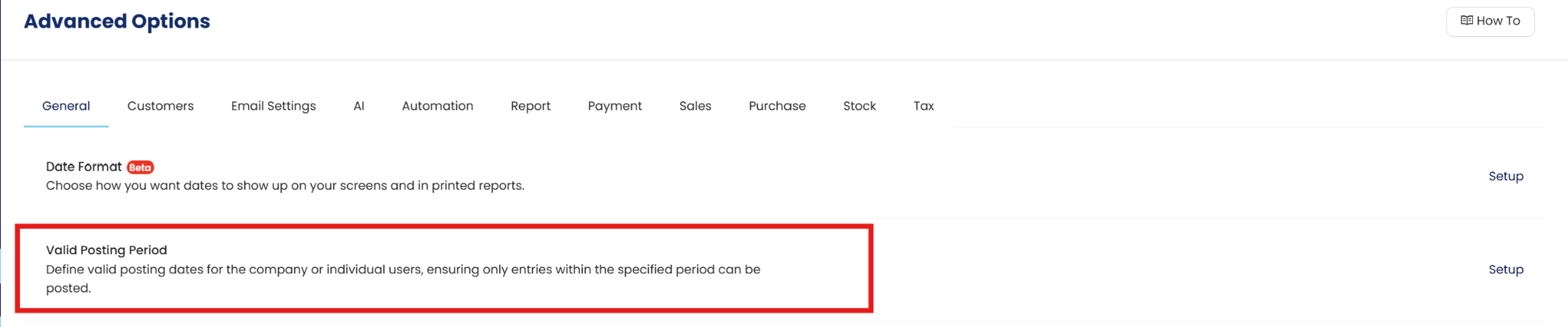
Valid Posting Period allows the user to control the posting of account entries based on the set valid dates in the system. By using the Valid Posting Period, it may limit the encoding of Backlog Transactions or Advance Postings. This function can be set up for all users or for a specific user only.
Procedure:
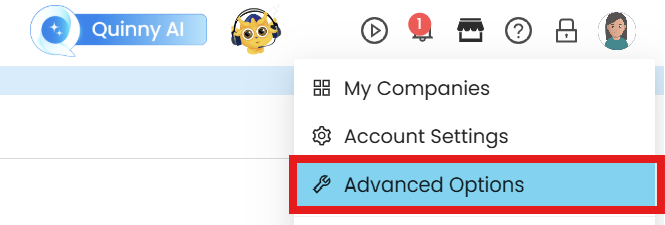
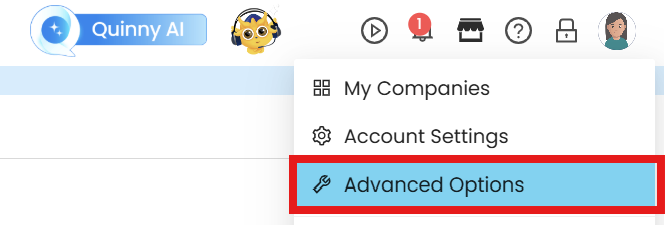
In the system's Header, click 'Account Option,' then choose ‘Advance Options.
How to set-up for all users
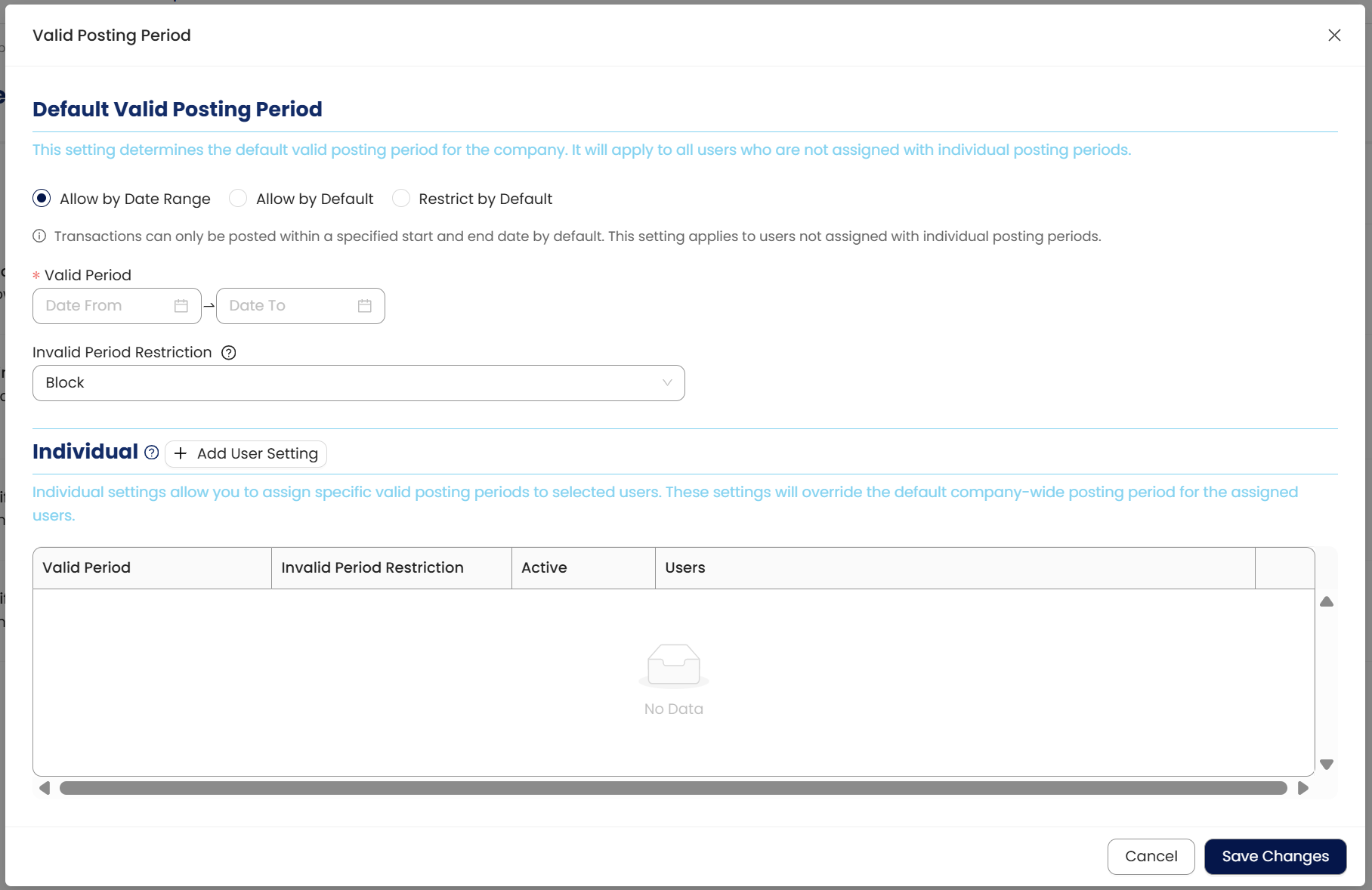
In the Valid Posting Period tab, select a Valid Date and Rule
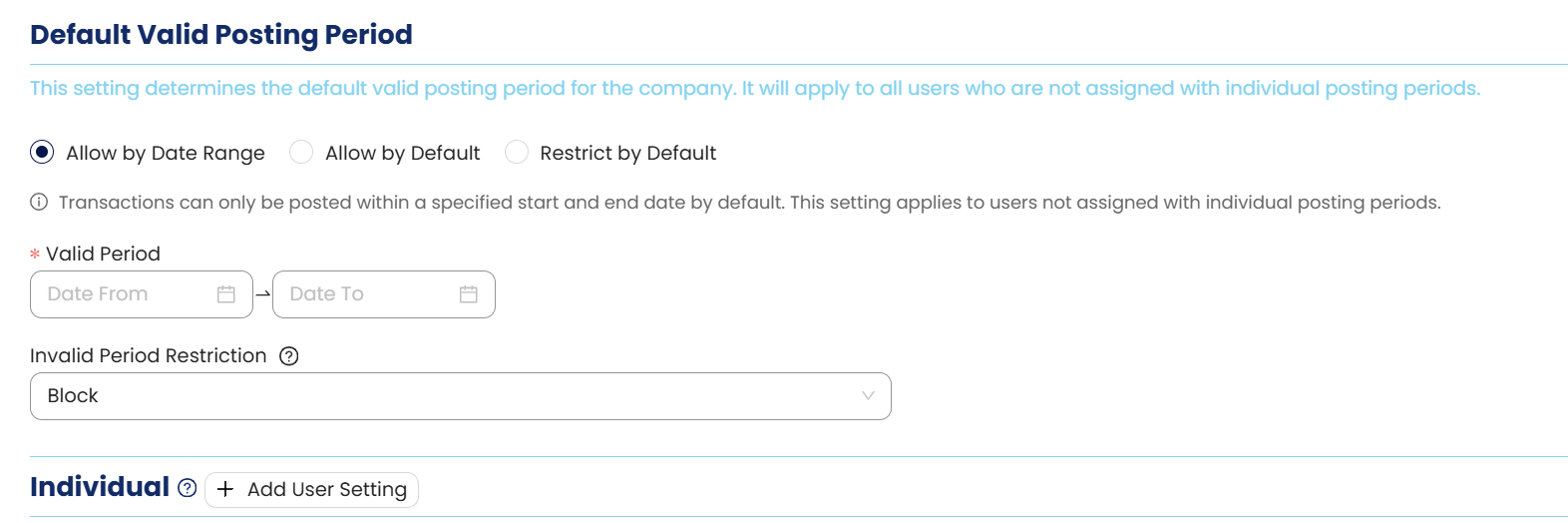
a. Valid Date – The date on which a user is allowed to post a transaction within a specified date range.
b. Invalid Period Restriction - Validation options: How the system handles the posting of transactions when they are not within the valid date. Below are the options.
Block – Unable to proceed with the saving of the transaction if it's outside the valid posting date.
Warning – A prompt message will inform the user that the date is not valid, but it still allows the user to proceed with the saving.
Need Password – Authorized credentials will be required if the date is not valid before the user can proceed with the saving of the transaction.
Once done, click Save Changes

How to set-up per User
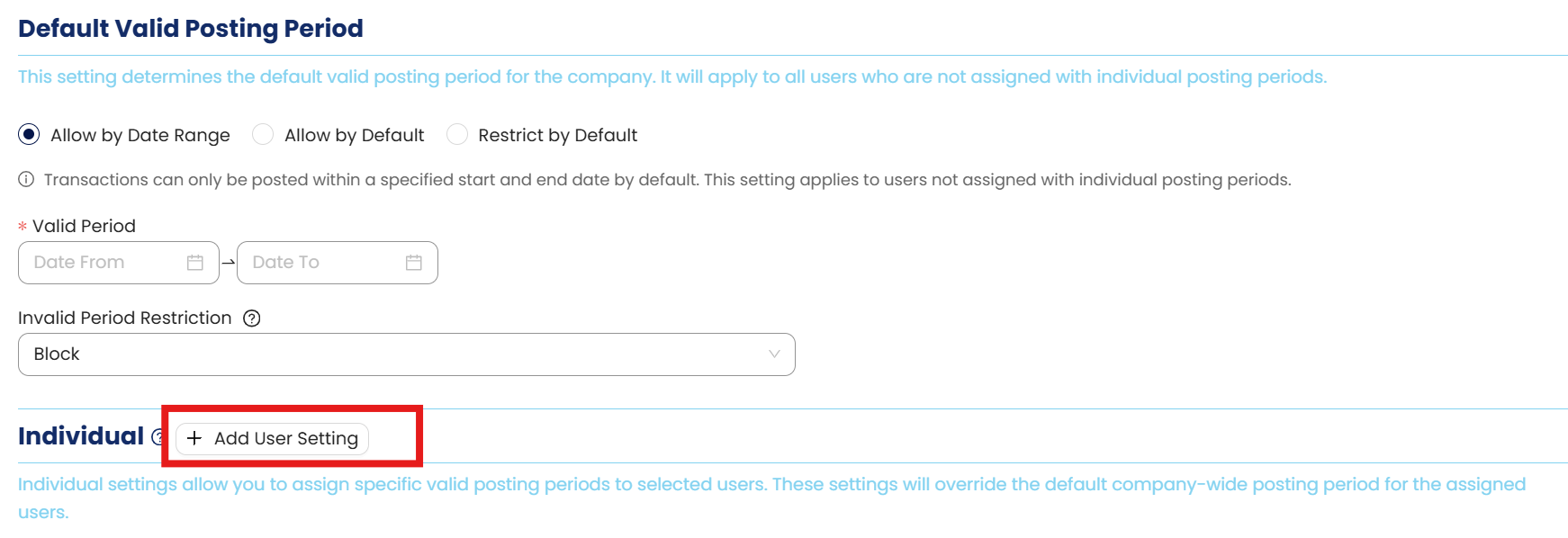
In the Valid Posting Period tab, click + Add User Settings
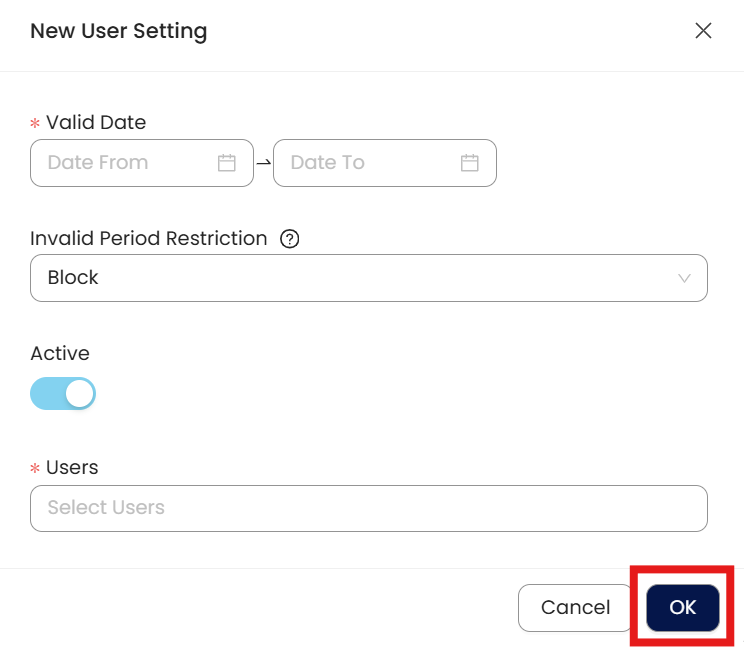
Supply all required fields:
Valid Date
Rule
Users - One or multiple users
Once done, click OK
Next, click Save Changes in Valid Posting Period Screen

Application:
The user is now unable to post a transaction if it’s not within the valid date.
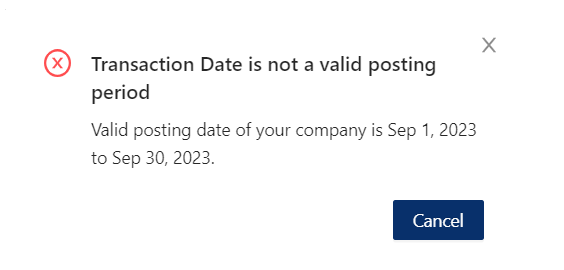
Procedure: Edit and Deletion
Editing Posting Period Rules
To modify existing rules, navigate back to Advance Options > Valid Posting Period.
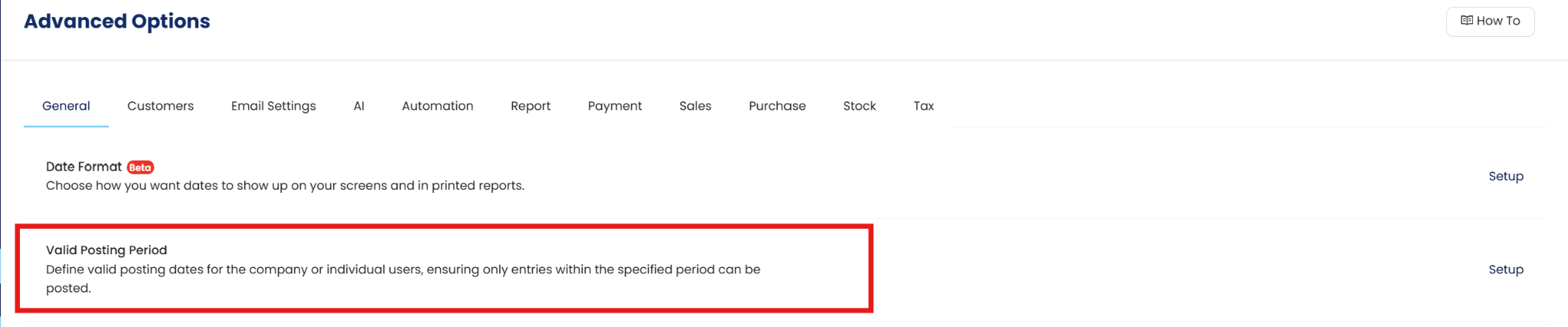
Adjust the Valid Date range or change the Rule (e.g., switching from "Warning" to "Block").
Click Save Changes to immediately apply the new restrictions.

Deleting User-Specific Settings
If a specific user no longer requires custom posting dates, locate their entry in the Valid Posting Period Setup Options.

Click the Delete icon (or "X") next to their name to remove the override.

Click Save Changes to finalize the removal.

Important Note:
Editing and Deleting Transactions: According to regulatory guidelines, modifications or deletions of recorded transactions in the system may be strictly prohibited once Computerized Accounting System (CAS) approved. It's vital to adhere to your company's internal policy regarding these functionalities. It is generally advisable to disable or limit the ability to edit/delete to maintain compliance with regulations.
System Scope: QNE AI Cloud Accounting / N3 AI Accounting
Was this article helpful?
That’s Great!
Thank you for your feedback
Sorry! We couldn't be helpful
Thank you for your feedback
Feedback sent
We appreciate your effort and will try to fix the article