Overview:
User Default Settings in N3 AI Accounting allow individual users to customize and streamline their daily workflows by pre-defining default values such as project, branch, document layout, and preferred bank or warehouse. This helps minimize repetitive data entry and ensures consistency across transactions.
Scenario:
Imagine a scenario where you have multiple users managing accounts, and each user requires personalized settings to streamline their workflow. By setting up User Default Settings, you can customize preferences to enhance focus, ensure consistency, and boost overall productivity.
Solution:
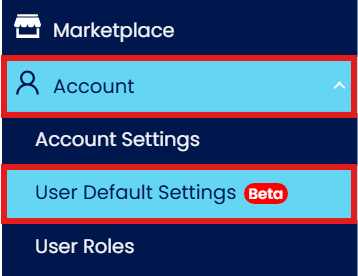
Navigate to Account > User Default Settings.
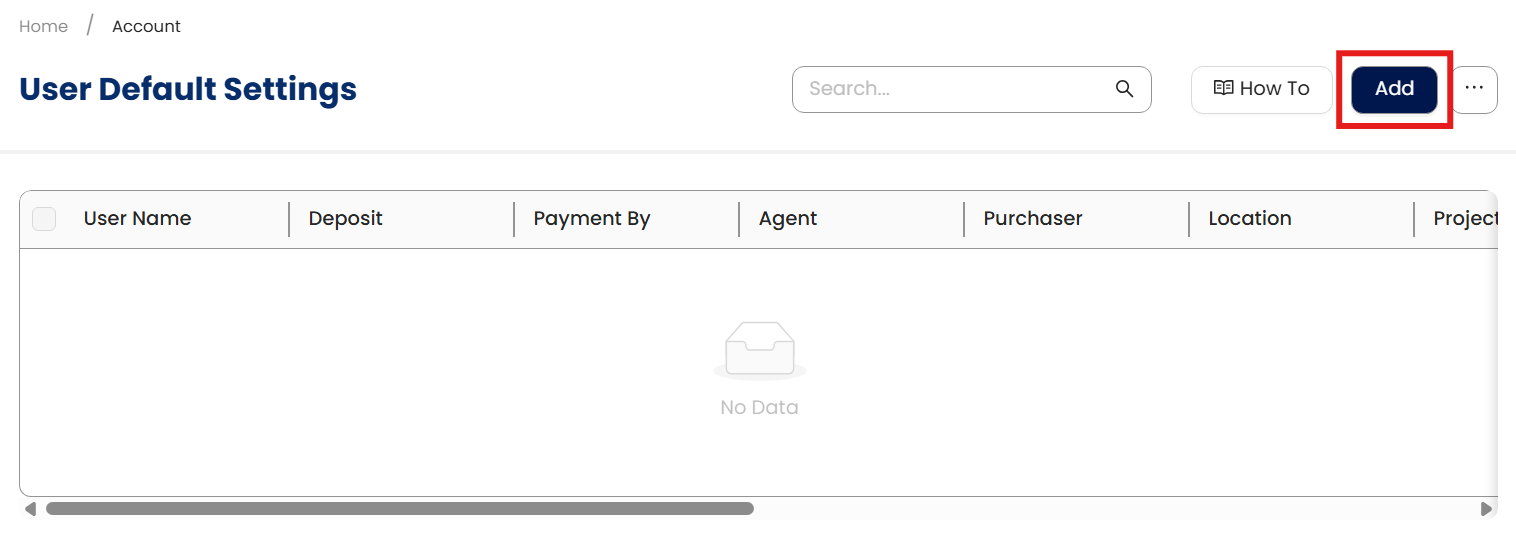
Create a New Setting for a User by clicking Add to create a User Default configuration.
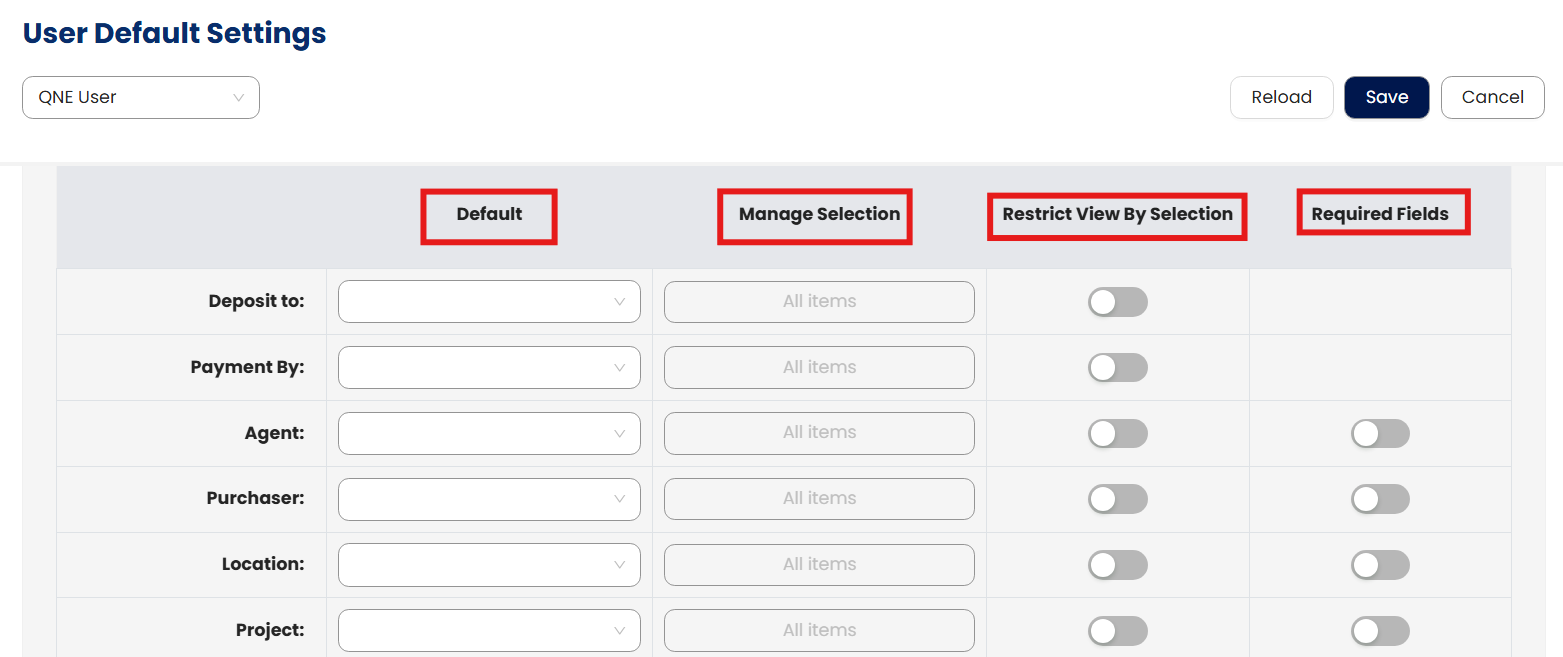
Select the User from the dropdown to apply settings to.

The configuration screen will show the following sections:
Default: This column allows you to assign the default value that the user will see when performing transactions. For example:
Deposit To: Sets the default receiving bank for receipts (e.g., MAYBANK).
Payment By: Sets the default paying bank for payments (e.g., PUBLIC BANK BERHAD).
Agent / Purchaser / Location / Project: Assign default selections for specific roles or attributes that the user frequently deals with.
Manage Selection: Define which selections the user is allowed to choose from during transactions. This narrows their dropdown to only the listed options, providing control while retaining flexibility.
Restrict View By Selection: When enabled, this toggle hides all unlisted values from the user's view. The user will only see and interact with the selections defined under Manage Selection. (Except for Deposit To and Payment By)
Required Fields: When enabled, the field becomes mandatory during transaction entry. Users cannot proceed without filling in this data.
After configuring the relevant fields for the user, click Save to apply the changes.
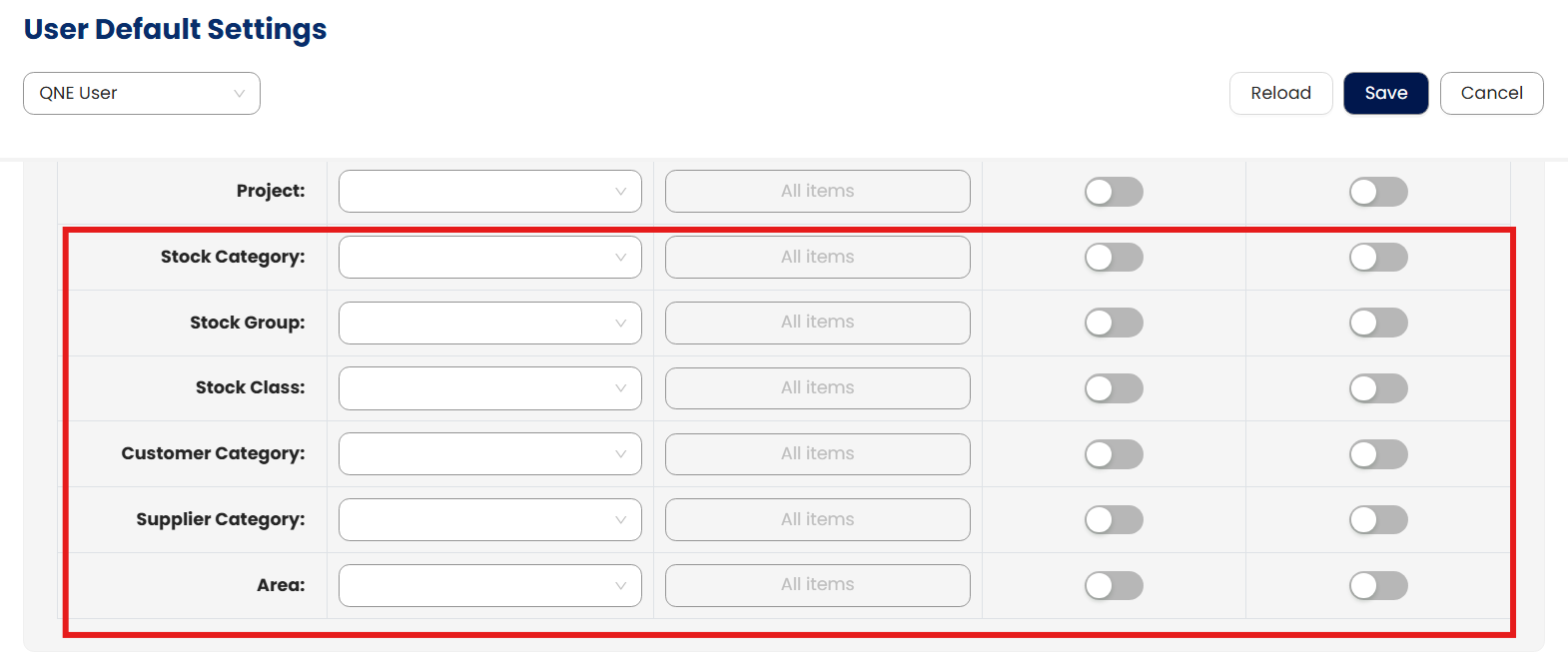
Additional Transaction and Report Filter Section: Below the default settings, there is an additional section that applies the same configuration controls to transaction classifications and report filtering. This ensures consistency between transaction entry and report visibility.
This section uses the same columns as described above:
Default: Allows you to assign a default value for each classification when users perform transactions. This helps streamline data entry for commonly used values.
Manage Selection: Defines which options the user can select from for each classification. This limits available choices and improves data accuracy.
Restrict View By Selection: When enabled, users will only see the selections defined under Manage Selection. Any unlisted values will be hidden from both transaction entry and report filters.
Required Fields: When enabled, users must fill in the field during transaction entry. This ensures that all necessary classification data is captured for accurate reporting.
These settings directly affect both transaction records and the data available in reports, ensuring users only access relevant and permitted information.
Filterable categories include:
Stock Category
Stock Group
Stock Class
Customer Category
Supplier Category
Area
This setup is especially beneficial for companies with segmented departments or regional operations, allowing reports to be tailored to each user’s specific scope of responsibility.
This extended control is useful in larger organizations where roles are segmented, ensuring that users access and transact only within their designated scope.
Note: These settings help prevent user errors and streamline frequent tasks by auto-filling expected values based on the user's role.
Application:
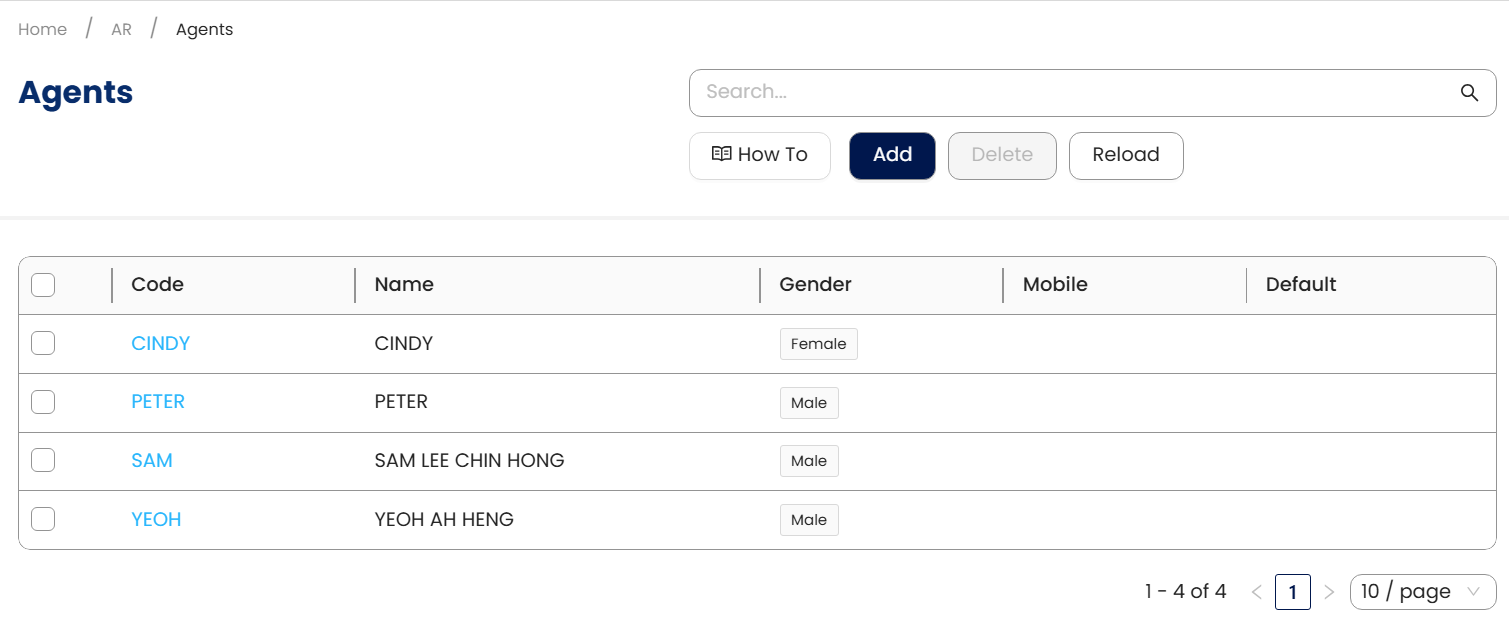
Setting Default Agent
For example, if a user is assigned to sales transactions and their default agent is set to Don, enabling the Restrict View By Selection toggle ensures that the user only sees and interacts with data related to Don. This setup not only prevents selection errors but also supports accurate reporting and control by filtering irrelevant entries.
Agent Maintenance
Transaction Restriction
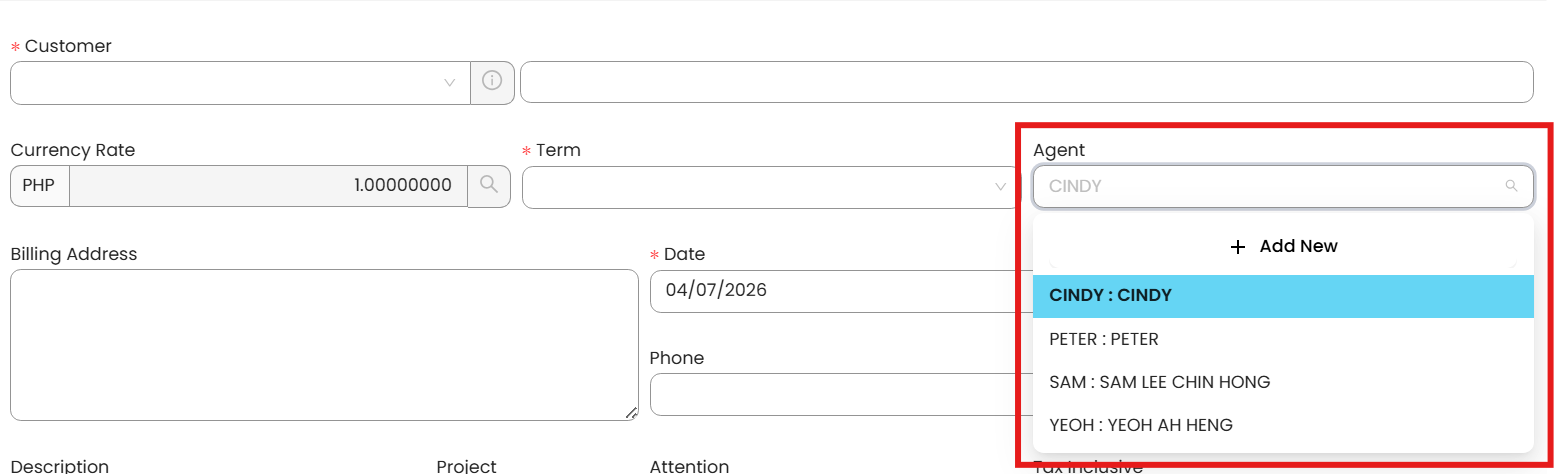
This feature promotes consistency across transactions, enhances workflow efficiency, and minimizes the risk of incorrect data entry.
System Scope: QNE AI Cloud Accounting / N3 AI Accounting
Was this article helpful?
That’s Great!
Thank you for your feedback
Sorry! We couldn't be helpful
Thank you for your feedback
Feedback sent
We appreciate your effort and will try to fix the article