Overview:
Service Items in QNE Optimum are maintained through the Stock Item Maintenance function and are used to represent non-inventory products and services.
This function is typically used by accounting personnel, sales administrators, service coordinators, and system administrators responsible for maintaining service item master data.
Maintaining accurate service item records helps standardize service descriptions, pricing information, accounting treatment, and transaction processing. Properly maintained service items can be selected consistently during sales and billing activities, reducing manual data entry and improving data accuracy.
Prerequisites:
The user has permission to maintain Stock Items.
Required Categories, Groups, and Classes have been created, if applicable.
Account Preset Codes for service items have been configured.
Units of Measure (UOM) have been configured, if applicable.
The organization has identified the service information and pricing to be maintained.
Scenario:
An organization offers technical support services to its customers and wants to use a standardized service item named Technical Services when creating their customer billing.
Before the service can be used in transactions, a service item record must be created and maintained with the appropriate details. This allows users to select the service consistently during transaction processing rather than entering service information manually each time.
Procedure 1: Creating a New Service Item
Open the new Stock Items form in the System
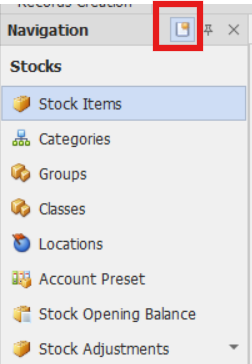
On the navigation pane Go to Stocks → Stock Items.
Note: If the Quick Create Icon (the one inside the redbox) is highlighted, clicking Stock Item will immediately redirect you to the New Stock Item form. If the Quick Create Icon is not highlighted, you will be directed to the Stock Item List instead.
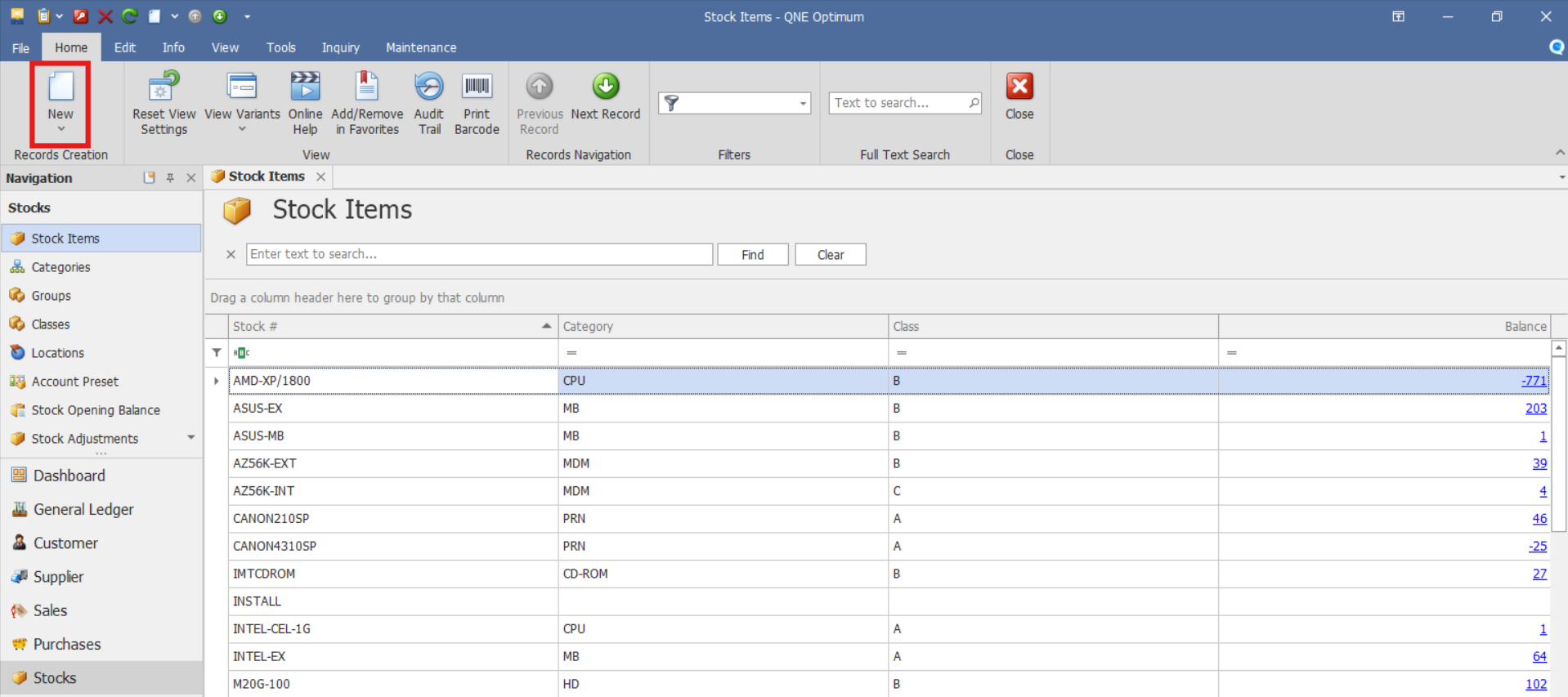
If you are on the Stock Item List, click New to create a new item.
Complete the Service Item Details
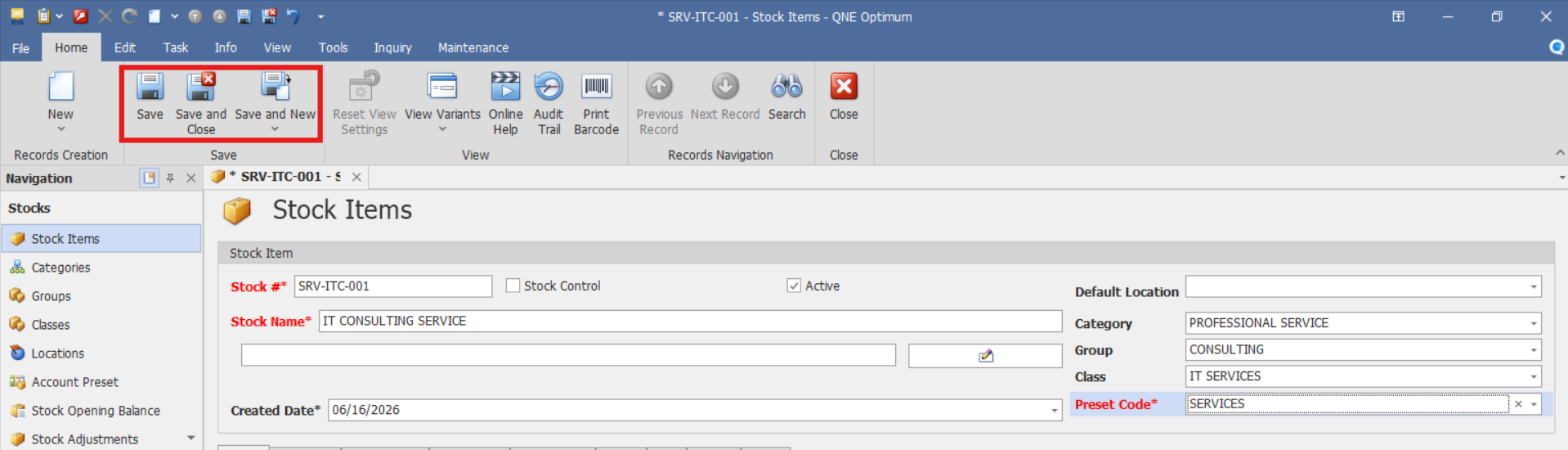
Fill out the Service Item setup information and input information as needed.
Important Fields
Stock #: Unique code or identifier for the service item
Stock Name: Name of the service being offered
Stock Control:
For service items, Stock Control is generally not selected because service items do not normally maintain inventory quantities.
Preset Code: Determines the stock item template Account Posting (Sales / Purchase) based on Service Items. Select the appropriate preset code configured by your organization.
UOM #: Unit of Measure used when selling the service. Example: HOUR, DAY, PROJECT, or UNIT(S).
Additional Fields:
Alternate Name (Field below Stock Name) - An optional field for entering another recognizable name or nickname for the item.
Further Description (Button) - Opens a section or pop-up to enter extended item details or specifications.
Created Date - Displays the item creation date.
Default Location - Select a default location if applicable.
Category - Used to classify the item under a predefined stock category (e.g., "Professional Services").
Group - A grouping field for further classification or reporting purposes.
Class - Another classification field often used for internal tracking or categorization.
Sales Price: Standard selling price of the service.
Sales Discount: Default discount percentage for the service.
Volume: Enter if required by your organization's process.
Floor Price: Minimum price before approval is required.
Min Price: Lowest allowable selling price.
Purchase Price: Enter if the service item requires default purchasing information.
Purchase Discount: Default discount percentage if the service is being bought from suppliers.
Weight: Enter if required by your organization's process.
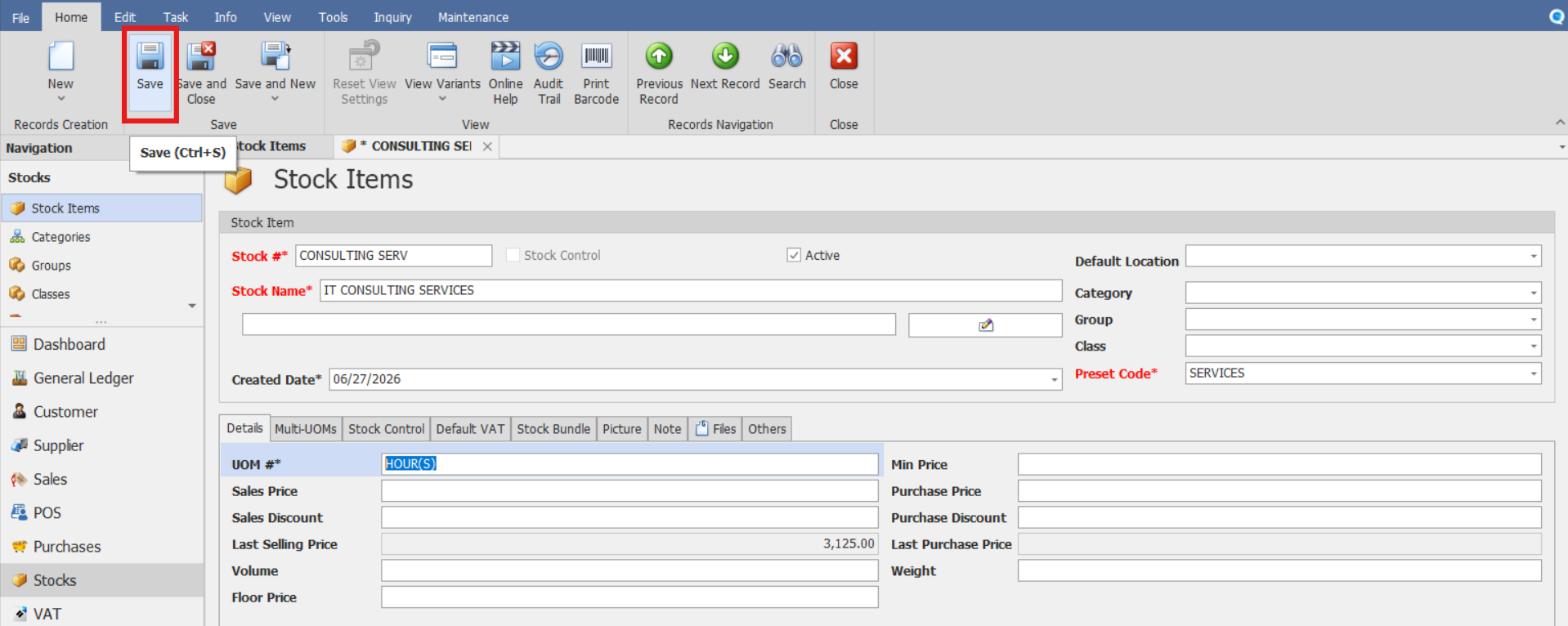
Save the Service Item Record
Once all fields are filled out and verified:
Click Save to complete the entry.
Or click Save & Close to save and close the window.
Or choose Save & New to save and create another service item.
Verify that the Service Item appears in the Stock Items List and that the item can be selected in the relevant sales or purchase transaction screens.
Procedure 2: Editing or Modifying a Service Item
Go to Stocks > Stock Items, then select the Service Item that you want to update.
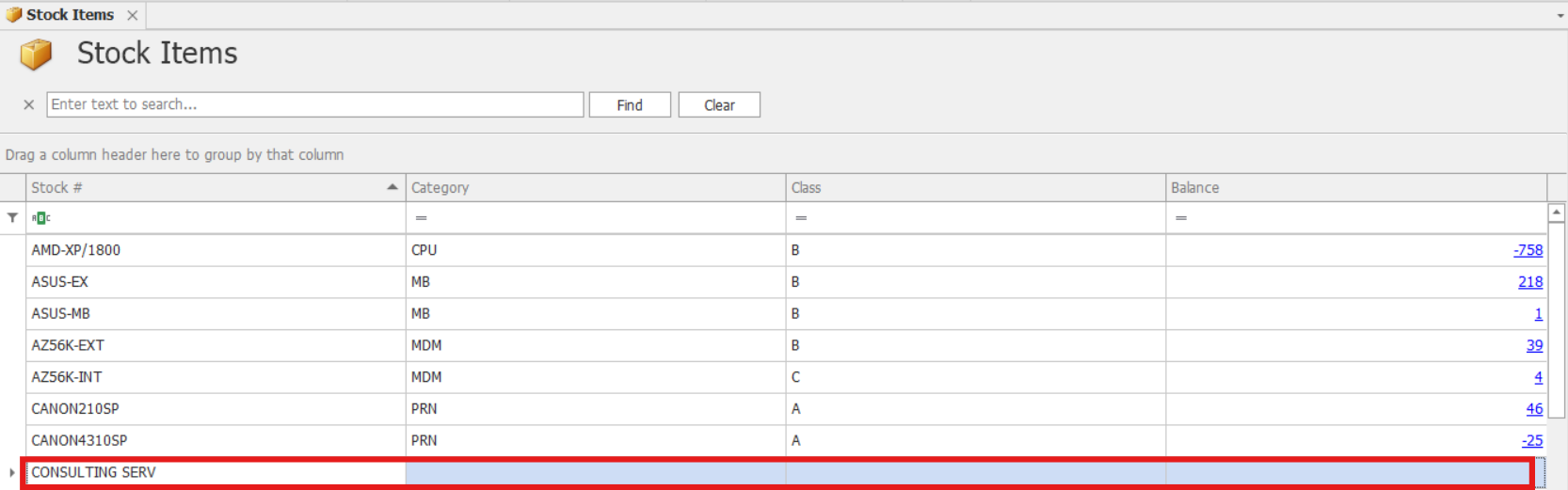
Once opened, make the required changes, then click Save.
Procedure 3: Deleting a Service Item
In the Stock Items List View, identify the document you wish to delete. Hover your cursor over the document and right-click on it. Then click Delete to remove the transaction.
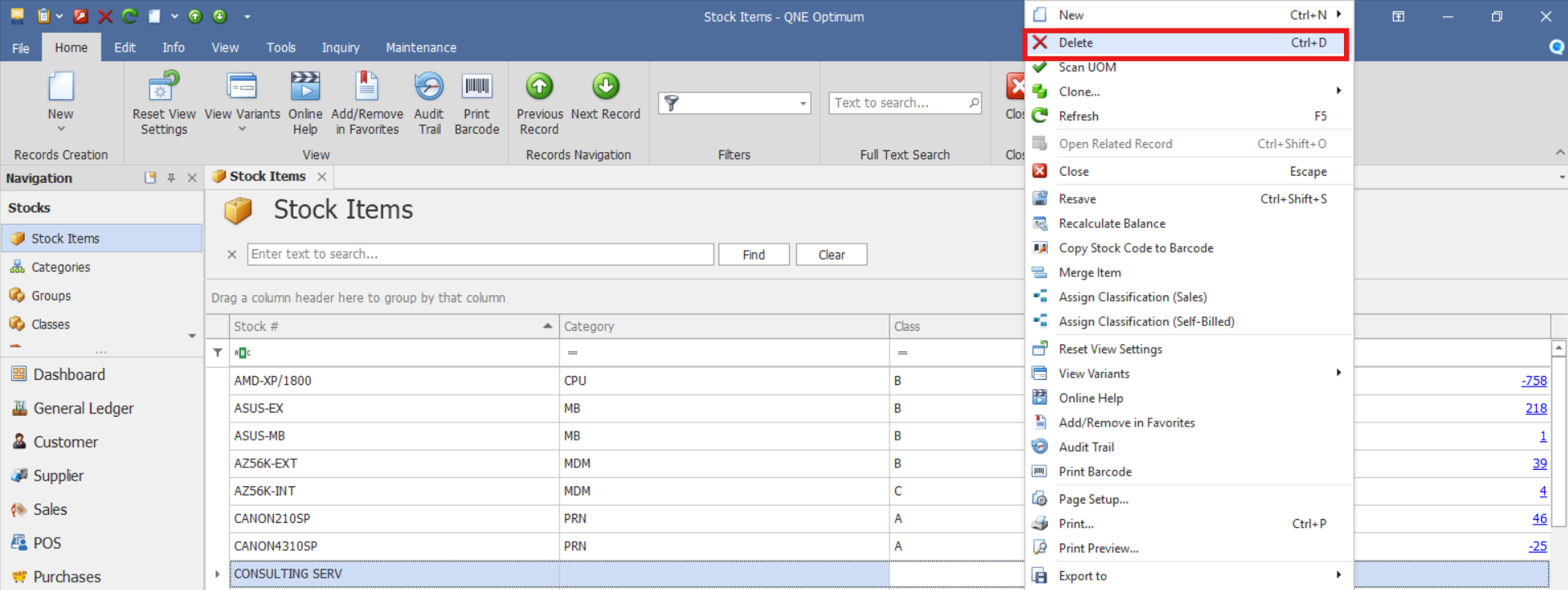
Verify that the Service Item no longer appears in the Stock Items List.
Preferred Method: If the service item should no longer be used, consider marking it as inactive instead of deleting it to preserve historical transaction references.

Example Scenario:
Your customer requires network infrastructure assessment and IT advisory services.
Here’s how you'd set them up in QNE Optimum:
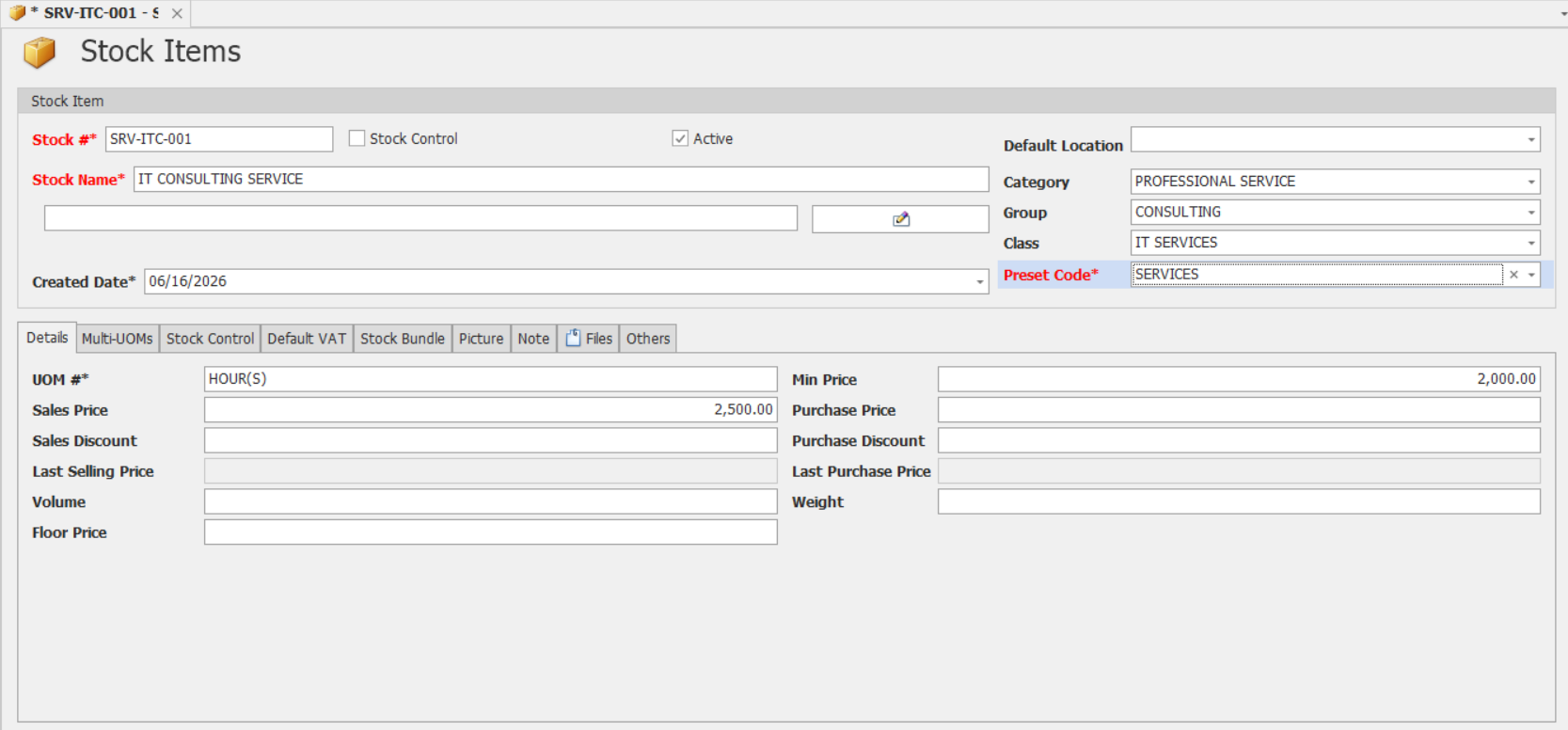
Stock #: SRV-ITC-001
Stock Name: IT CONSULTING SERVICE
Stock Control: Not selected
Default Location: Input if applicable
Category: PROFESSIONAL SERVICE
Group: CONSULTING
Class: IT SERVICES
UOM #: HOUR(S)
Sales Price: 2500.00
Sales Discount: Input as needed
Floor Price: Input as needed
Min. Price: 2000 (input if applicable)
Purchase Price: Input as needed
Purchase Discount: Input as needed
Application:
Standardized Service Offerings
Maintain reusable service definitions for recurring transactions.Consistent Billing
Support consistent pricing and descriptions for professional services.Reduced Manual Entry
Improve transaction accuracy by reducing repetitive data entry.Reporting Classification
Organize services using categories, groups, and classes.Faster Transaction Processing
Enable users to select predefined service items during sales transactions.
Once configured in QNE Optimum, the service item becomes available for use in sales transactions. Depending on system configuration, predefined information such as the service description, unit of measure, and pricing may be available when the service item is selected.
System Scope: QNE Optimum
Was this article helpful?
That’s Great!
Thank you for your feedback
Sorry! We couldn't be helpful
Thank you for your feedback
Feedback sent
We appreciate your effort and will try to fix the article