The Receipt Voucher module is used to record incoming payments that are posted directly to the General Ledger and not linked to Sales Invoices or the Accounts Receivable (AR) module.
This is typically used for receipts that do not follow the standard customer invoicing and collection process.
By recording receipt vouchers, businesses can record incoming funds and help keep financial records up to date.
For transactions requiring official receipt details or tax reporting, relevant payer information may be captured using the BIR Classification field.
When to Use Receipt Voucher
Use Receipt Voucher in the following scenarios:
Employee cash returns or expense recoveries
Petty cash replenishments or internal fund transfers
Owner or shareholder capital contributions
Refunds or rebates received from suppliers or service providers
Interest income or bank credits
Insurance claims or recoveries
Donations or grants received
One-time or walk-in receipts where no invoice is issued
When NOT to Use Receipt Voucher
Do not use Receipt Voucher when:
The receipt is intended to settle a Sales Invoice / Customer Invoice
The transaction should be recorded through the Accounts Receivable (AR) module
You need to track outstanding customer balances
Prerequisites:
Before recording a Receipt Voucher, ensure the following:
Relevant General Ledger accounts are properly set up
Cash or Bank accounts are available for selection
User has the necessary access rights and permissions
Required BIR Classification (if applicable) is properly maintained.
Scenario:
A company received ₱10,000 as a direct cash donation for a company-sponsored outreach program on May 20, 2026. Since the transaction is not linked to a Sales Invoice or processed through Accounts Receivable, the receipt will be recorded using the Receipt Voucher module.
Procedure 1: Recording a Receipt Voucher
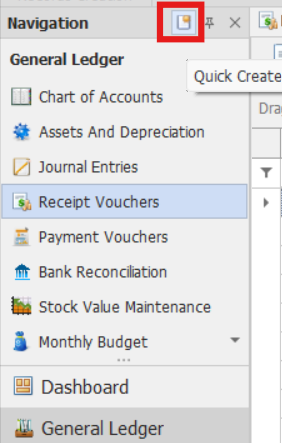
Go to General Ledger > Receipt Vouchers
Note: If the Quick Create Icon (the one inside the red box) is highlighted, clicking Receipt Vouchers will immediately redirect you to the new Receipt Vouchers transaction form. If the Quick Create Icon is not highlighted, you will be directed to the Receipt Vouchers Listing instead.
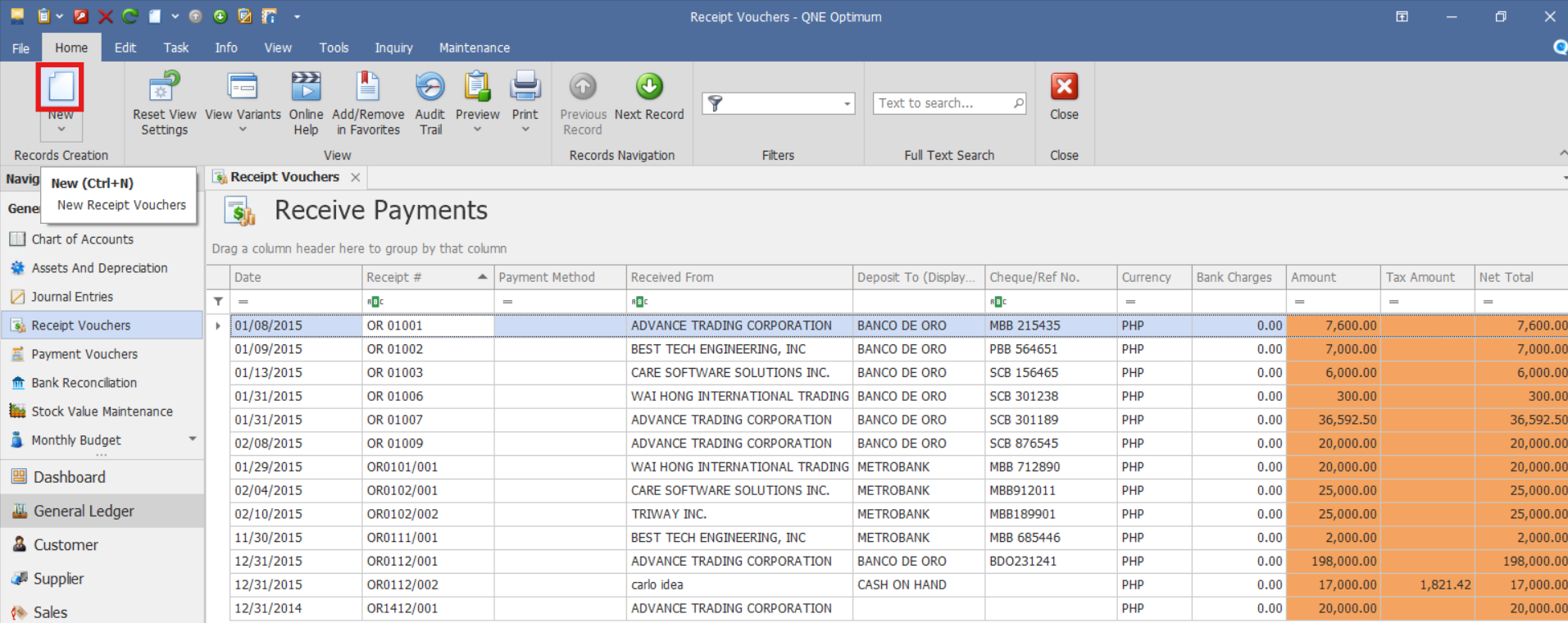
From there, select the New button to create a new Receipt Voucher transaction.
Enter header information:
Receive From – Select an existing payer, if available, or enter a name for one-time or walk-in payers.
Date
Currency Rate
Deposit To – Select the receiving cash or bank account.
Optional fields:
Cheque/Ref No. – Enter reference details related to the deposit if applicable.
Bank Charges (Local Amt.) – Enter any associated bank charges
Description – Provide a brief explanation
Project – Assign the transaction to a project if applicable
Tax Inclusive – Toggle ON if amounts already include tax
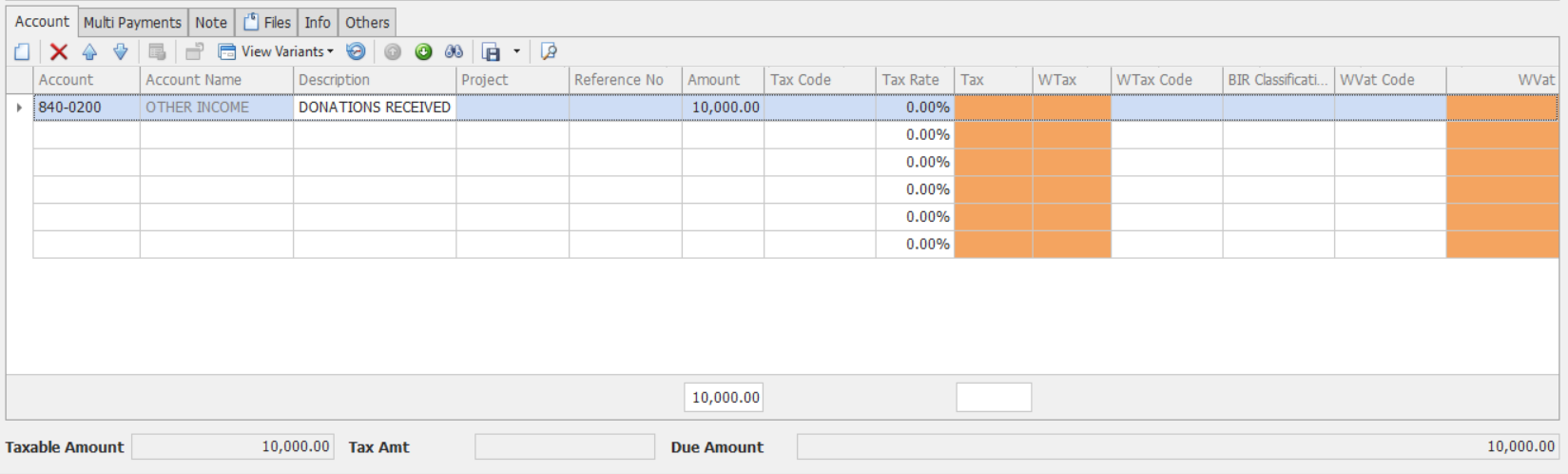
Under the Account tab, allocate the received amount:
Account – Select the appropriate ledger account
Description – Enter line description
Ref. No. – Supporting reference (if applicable)
Amount – Enter the allocated amount
Project – Assign if applicable
Tax Code – Select tax treatment if required
BIR Classification (When Applicable) – Use this field only if the transaction requires official receipt details or tax reporting information.
Applicable when:
Issuing an official receipt
Recording VAT-able or tax-reportable receipts
The payer is not maintained in a customer or supplier master record
Not required when:
Recording internal transfers
Capturing non-taxable receipts without reporting requirements
The payer information is already maintained in a linked master record
Note: Ensure that the information provided is accurate if used for reporting or document generation.
Optional: Using Multi-Payment
If the receipt is collected through multiple payment methods:
Go to the Multi-Payments tab
Tick the Use Multi Payment check box then click the New button to record payment types.

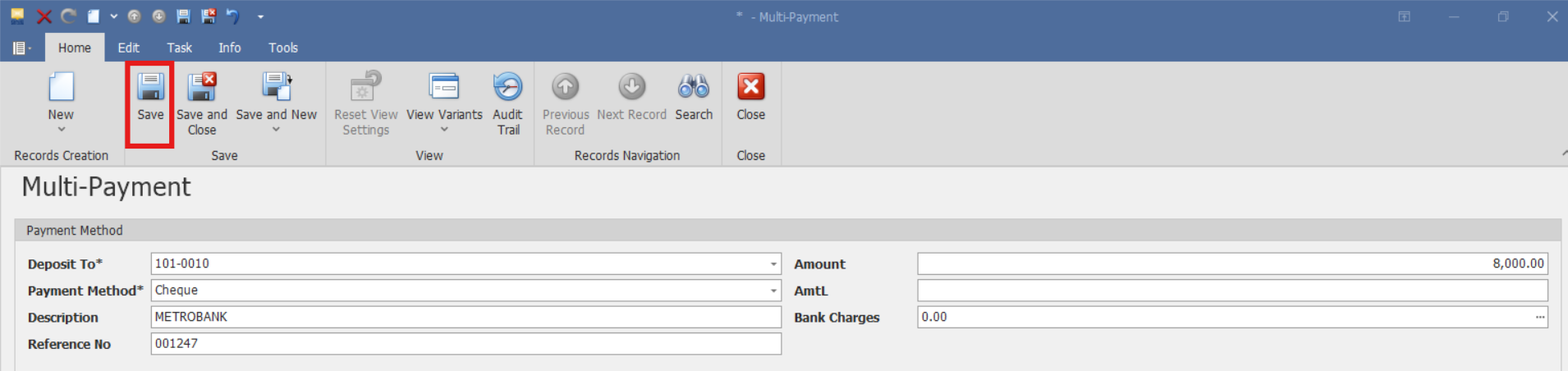
Enter the required payment details in the Multi-Payment window then click Save once done recording.
Ensure totals match the receipt amount

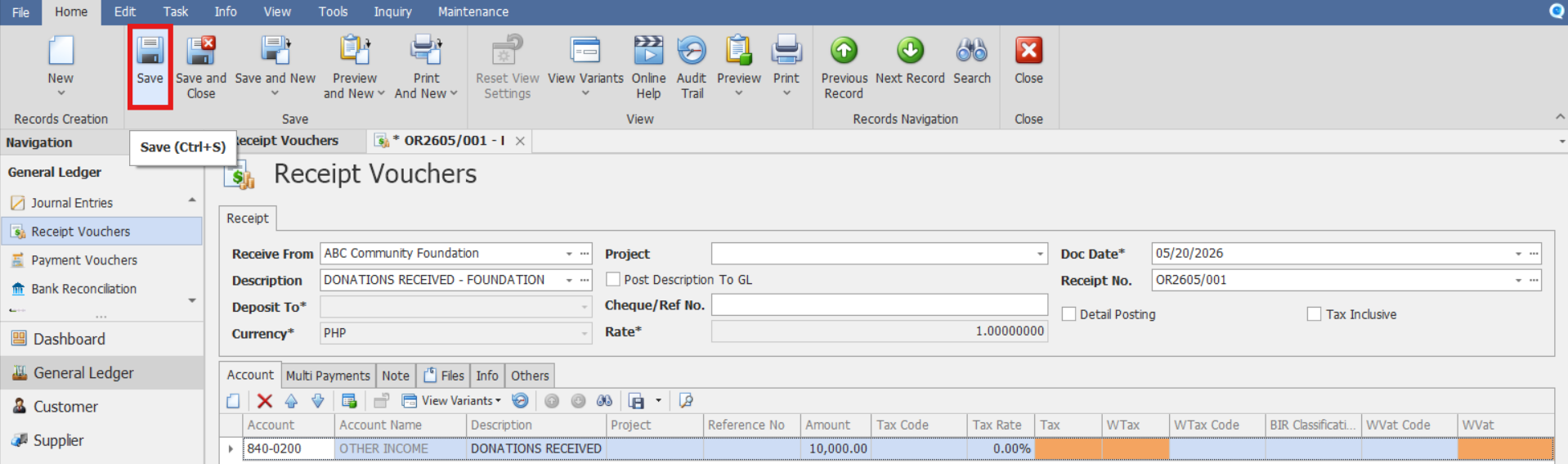
Click Save to record the receipt voucher.
Optional:
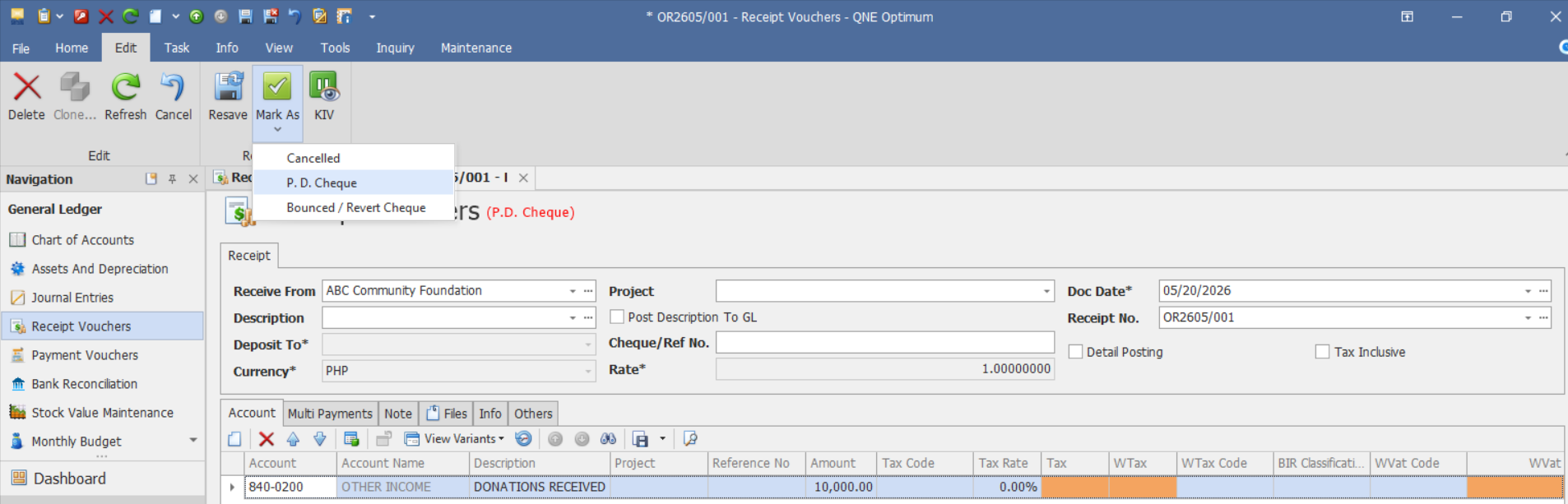
Mark as Post Dated Cheque if applicable, to enable go to Edit ribbon > Mark As > P.D. Cheque. To remove the mark, follow the same process of marking receipt vouchers as P.D. Cheque.
Procedure 2: Validation of Recorded Receipt Voucher
After saving the transaction, verify that:
The receipt voucher is saved successfully.
The receipt voucher number is generated or displayed correctly.
The totals reflect the entered amounts, BIR Classification details, VAT and WTax codes (if applicable), and other adjustments.
Verify that the receipt voucher appears in the Receipt Voucher List.
Procedure 3: Editing a Receipt Voucher
Go to General Ledger > Receipt Vouchers, then select the Doc # of the Receipt Voucher that you want to update.

Once opened, make the required changes, then click Save.
Procedure 4: Deleting a Receipt Voucher
In the Receipt Vouchers List View, identify the document you wish to delete. Hover your cursor over the document and right-click on it. Then click Delete to remove the transaction.

Verify that the Receipt Voucher no longer appears in the Receipt Vouchers List.
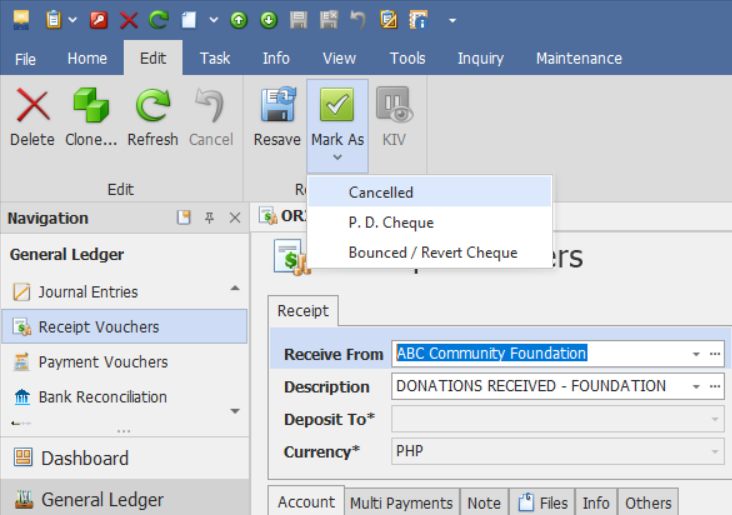
Preferred Method: If the Receipt Voucher is no longer required, click Cancel instead. This preserves the transaction history while marking it as inactive.
Application:
Receipt Vouchers are commonly used to record incoming funds that are posted directly to the General Ledger without creating or settling Accounts Receivable transactions.
Common applications include:
Recording donations, grants, or sponsorship funds
Capturing employee reimbursements and miscellaneous recoveries
Recording owner or shareholder capital contributions
Posting bank interest income or direct bank credits
Recording supplier refunds, rebates, or insurance recoveries
Tracking one-time receipts that do not require customer account management
Allocating receipts directly to specific accounts, projects, or cost centers for reporting purposes
Important Note:
Editing and Deleting Transactions: Editing and deletion permissions may be restricted based on system configuration, organizational policy, or applicable regulatory requirements (such as CAS approval, where applicable). Ensure modifications and deletions follow your organization's internal policies and applicable regulatory requirements.
System Scope: QNE Optimum
Was this article helpful?
That’s Great!
Thank you for your feedback
Sorry! We couldn't be helpful
Thank you for your feedback
Feedback sent
We appreciate your effort and will try to fix the article