A quotation in QNE Optimum is a formal proposal sent to potential customers, detailing the products or services offered, quantities, prices, and payment terms. Creating a quotation accurately ensures professional communication, reduces errors, and facilitates the transition from quote to sales order. This guide focuses on efficiently creating a quotation and applying pricing, discounts, and taxes correctly.
Prerequisites:
Customer record exists.
Items or services have been created.
Tax codes and pricing have been configured, if applicable.
The user has permission to create quotations.
Scenario:
You have received a request from a client for a quotation on multiple products or services. The client expects a clear, professional document that includes pricing, applicable discounts, and delivery terms. Using QNE Optimum, you can create quotations directly in the system and export them to supported file formats such as PDF and document files, helping maintain consistency and accuracy while saving time.
Procedure 1: Creating a Quotation
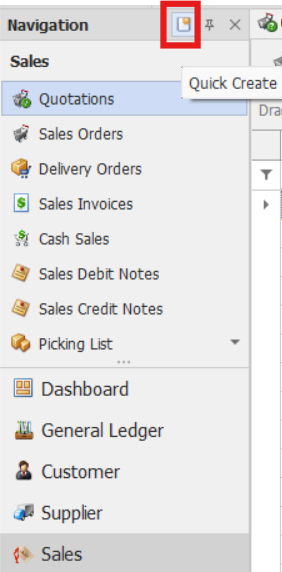
In the navigation pane click Sales > Quotations.
Note: If the Quick Create icon is enabled (the highlighted button in the red box), selecting Quotations opens the new Quotation transaction form. Otherwise, the Quotations List opens.
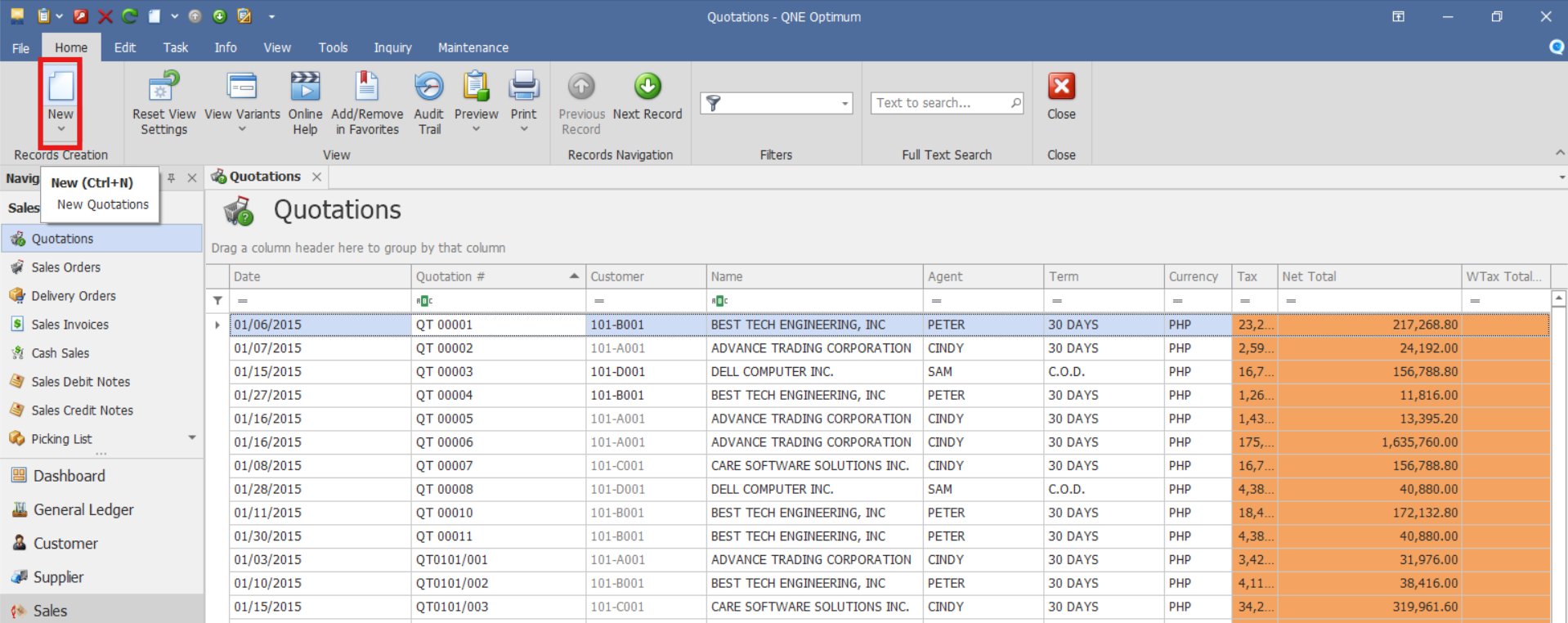
From there, select the New button to create a new quotation.
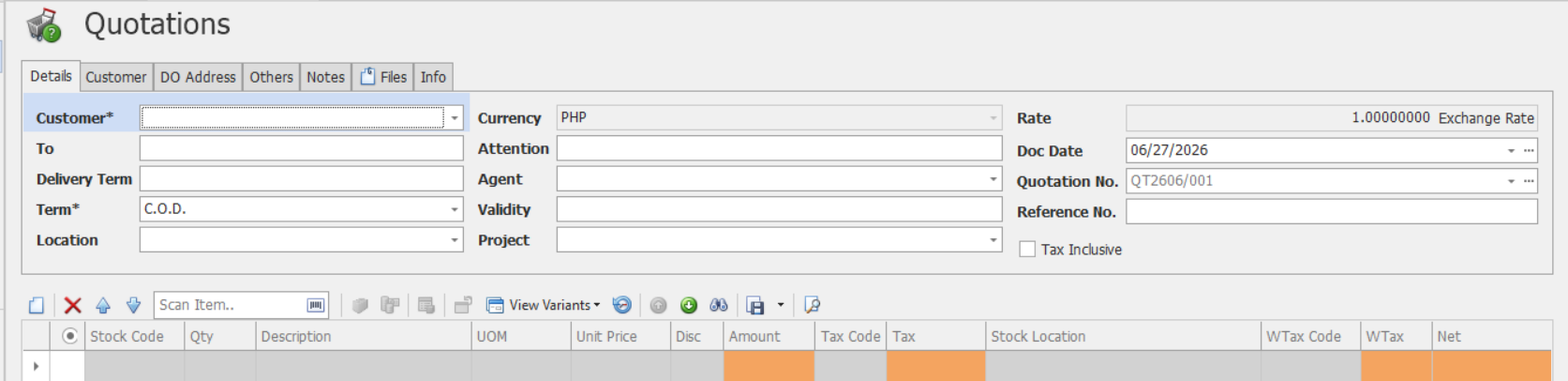
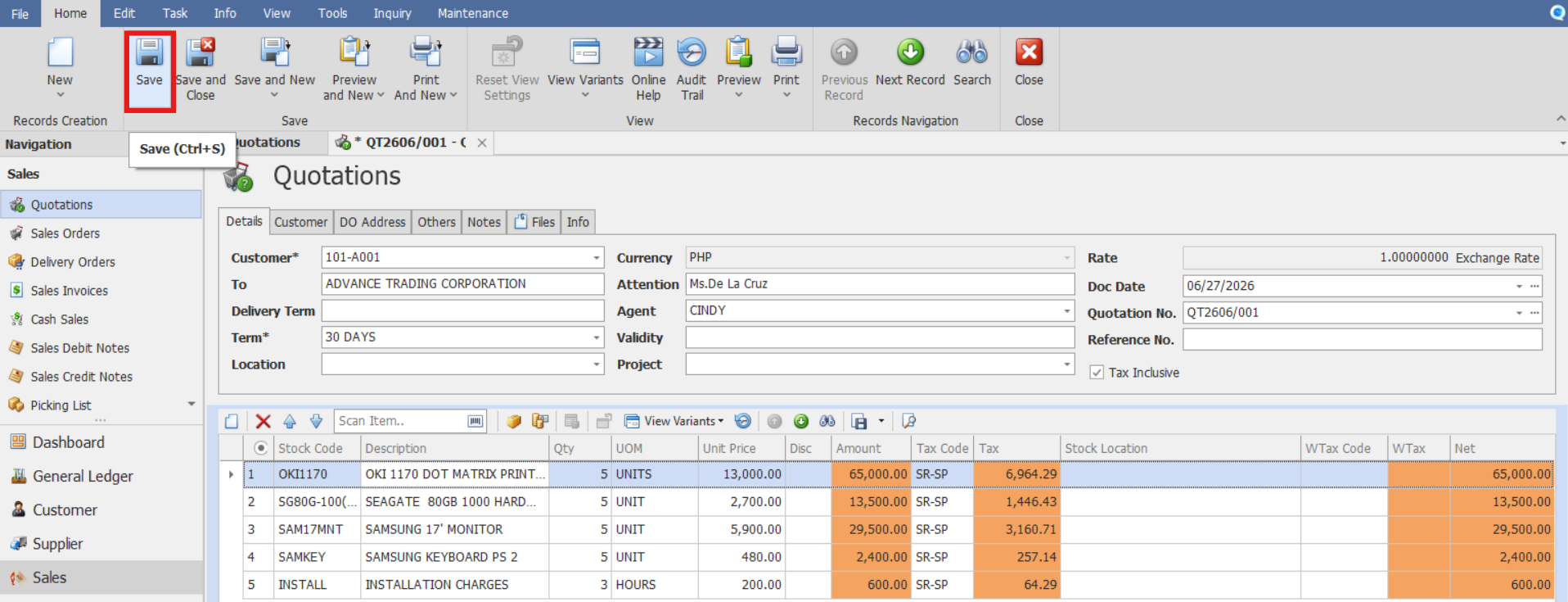
Complete the required fields in the quotation header.
Customer – Select the customer requesting the quotation.
Delivery Term - Specifies the agreed delivery conditions, such as delivery location, shipping arrangements, or delivery instructions.
Term - Payment terms offered to the customer, such as C.O.D., 30 Days, or 60 Days.
Currency – Displays the transaction currency and exchange rate. Update the exchange rate if required.
Location – Warehouse, branch, or business location from which the items will be supplied.
Attention – Name of the customer representative or contact person who will receive the quotation.
Agent - Salesperson or account manager responsible for handling the customer's order.
Validity - Indicates how long the quotation remains valid and available for customer acceptance.
Project - Project code associated with the quotation, if the sale is project-related.
Reference No. - Internal reference number used for tracking purposes, if applicable.
Doc Date– Date the quotation is created or issued.
Quotation No. – Document number used to identify the quotation.
Tax Inclusive – Enable if prices include tax.
In the Details section, enter the item information
Stock Code – Stock code of the item.
Description – Automatically populated with the stock name once the Stock code is selected.
QTY – Quantity of the item being offered to the customer.
UOM - Unit of Measure (e.g., pcs, boxes, liters).
Unit Price - Proposed selling price per unit.
Disc – Any Discount applied.
Stock Location - Warehouse or inventory location where the item is available.
Tax Code - Tax code assigned to the quoted item, if applicable.
WTAX Code - Withholding tax code assigned to the quoted item, if applicable.
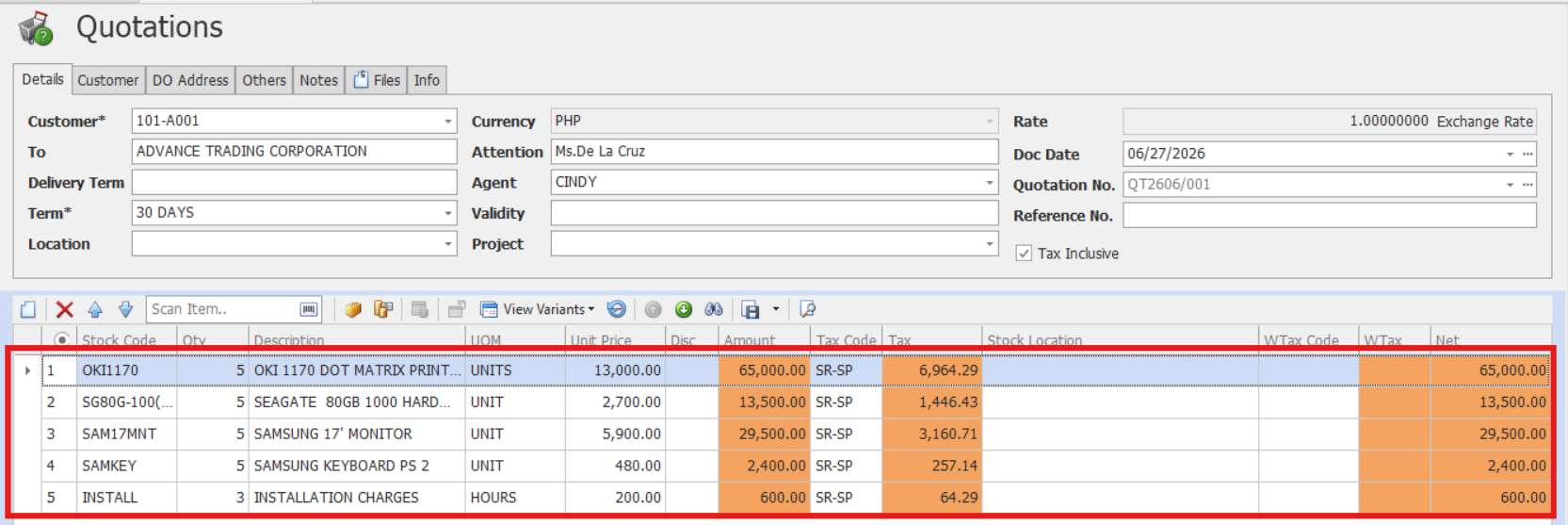
Confirm that the totals are calculated correctly and reflect all adjustments. Then proceed by clicking Save.
Optional Steps:
The Others and Notes tabs can be used to enter additional remarks or references related to the quotation.

The Files tab can be used to attach supporting documents from your workstation.

The Info tab displays:
document creation timestamp,
user who created the document,
print history information.
Procedure 2: Validation of Recorded Quotation
After saving the transaction, verify if:
The quotation is saved successfully.
The quotation number is generated or displayed correctly.
The totals reflect the entered pricing, discounts, and taxes.

Procedure 3: Editing a Quotation
Go to Sales > Quotations, then select the Doc # of the Quotation that you want to update.

Once opened, make the required changes, then click Save.
Procedure 4: Deleting a Quotation
In the Quotations List View, identify the document you wish to delete. Hover your cursor over the document and right-click on it. Then click Delete to remove the transaction.

Verify that the quotation no longer appears in the Quotations List.
Application:
Quotations can be used to:
Sales Efficiency: Quickly generate quotations in response to customer inquiries.
Pricing Consistency: Help maintain consistent pricing and tax information across quotations.
Client Communication: Provide customers with clear pricing, terms, notes, and supporting information.
Integration with Sales Orders: Use quotation information when creating Sales Orders, helping reduce the need to re-enter information.
Important Notes:
Editing and Deleting Transactions: Editing and deletion permissions may be restricted based on system configuration, organizational policy, or applicable regulatory requirements (CAS Approval). It's vital to adhere to your company's internal policy regarding these functionalities. Editing and deletion permissions should follow your organization's internal policies and any applicable regulatory requirements.
System Scope: QNE Optimum
Was this article helpful?
That’s Great!
Thank you for your feedback
Sorry! We couldn't be helpful
Thank you for your feedback
Feedback sent
We appreciate your effort and will try to fix the article