Customer Debit Notes in QNE Optimum are used to document additional charges that need to be billed to customers—such as service fees, penalties, or billing corrections. These notes help ensure that the customer's balance reflects all legitimate charges, supporting accurate receivable management and financial reporting. This guide provides a clear, step-by-step process for recording customer debit notes correctly and efficiently.
Prerequisites
Customer record exists.
General Ledger revenue or adjustment accounts are configured.
Tax codes are configured, if applicable.
The original invoice exists if the debit note references a previous transaction.
The user has permission to record Customer Debit Notes.
Scenario:
You discover that a customer was undercharged on a previous invoice due to a missed service fee. To correct the customer’s outstanding balance, you need to issue a debit note in QNE Optimum. This transaction will reflect an additional amount the customer must pay and ensure your receivables and revenue are properly recorded.
Procedure 1: Recording a Customer Debit Note
In the Navigation Pane, go to Customer > Customer Debit Notes.
Note: If the Quick Create icon is enabled (the highlighted button in the red box), selecting Customer Debit Notes opens the new Customer Debit Note transaction form. Otherwise, the Customer Debit Note List opens.
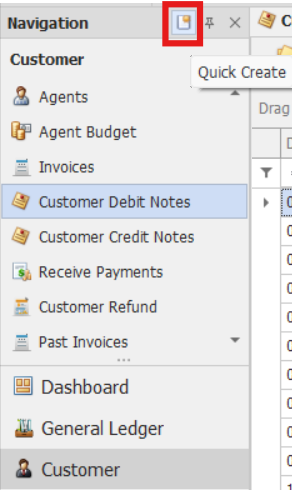
From there, select the New button to create a new Customer Debit Note transaction.

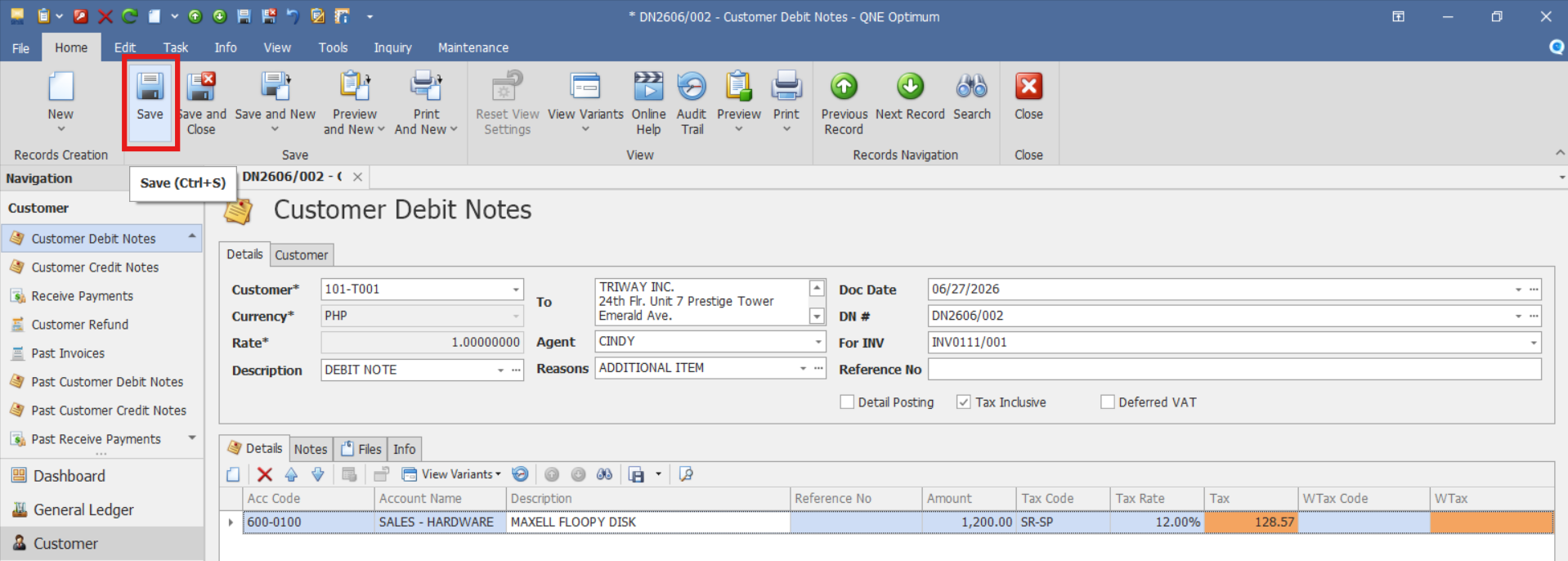
Complete the required fields in the customer debit note header.
Customer – Select the customer to whom the additional charge will be billed.
Description – Brief explanation of the debit note, such as "Sales," "Additional Service Charge," or "Billing Adjustment."
Reasons – Specifies the reason for issuing the debit note, such as underbilling, additional charges, or billing corrections.
Agent - Salesperson or account manager responsible for the transaction.
Reference No. - Internal reference number used for tracking purposes, if applicable.
Doc Date – Date the Customer Debit Note is created or issued.
DN #. – Unique Customer Debit Note number assigned by the system.
For INV - Reference to the original invoice that is being adjusted by the debit note.
Tax Inclusive – Enable if prices include tax.
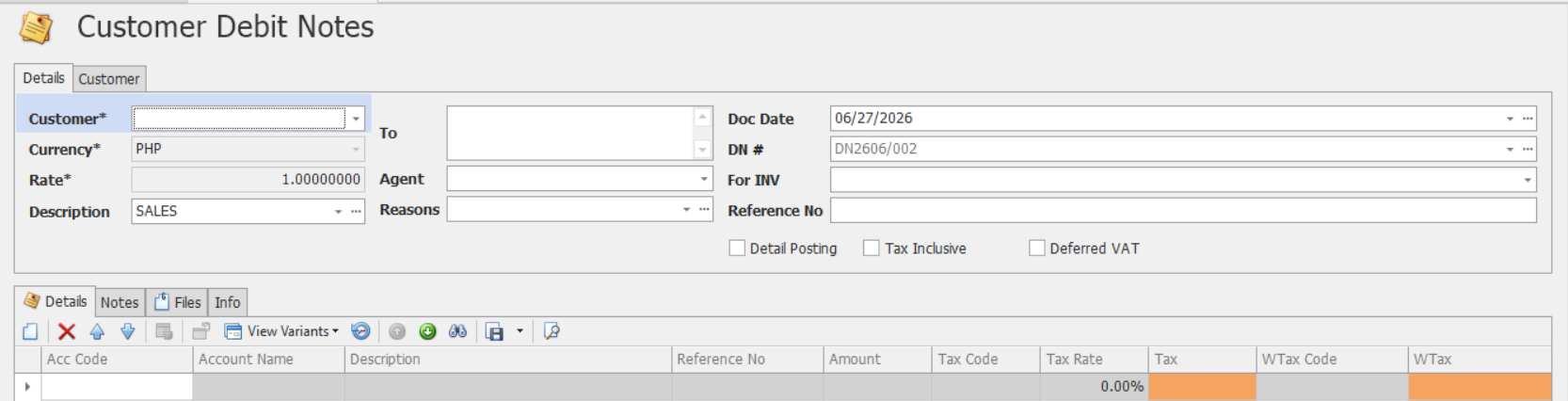
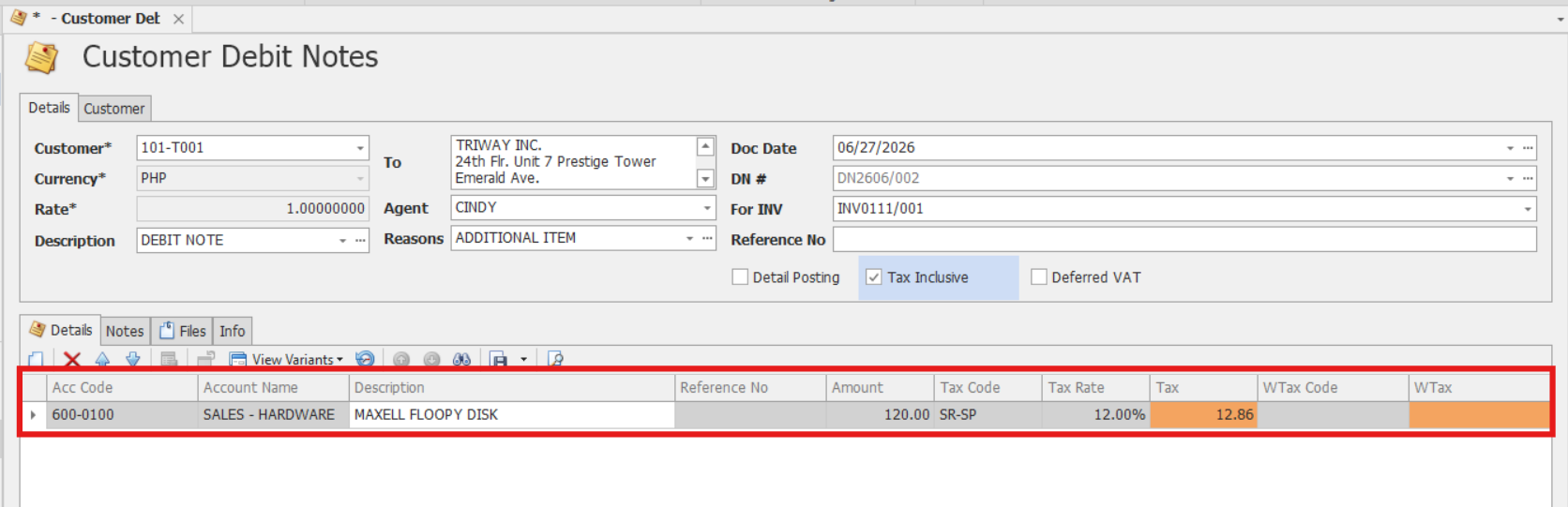
In the Details section, enter the item information
Acc Code – General Ledger account code where the additional charge or income will be recorded.
Account Name – Description of the selected General Ledger account.
Description – Additional explanation of the charge or adjustment.
Reference No. - Reference number associated with the individual account line, if applicable.
Amount – Amount being additionally charged to the customer.
Tax Code - Tax code assigned to the customer debit note item, if applicable.
WTAX Code - Withholding tax code assigned to the customer debit note item, if applicable.
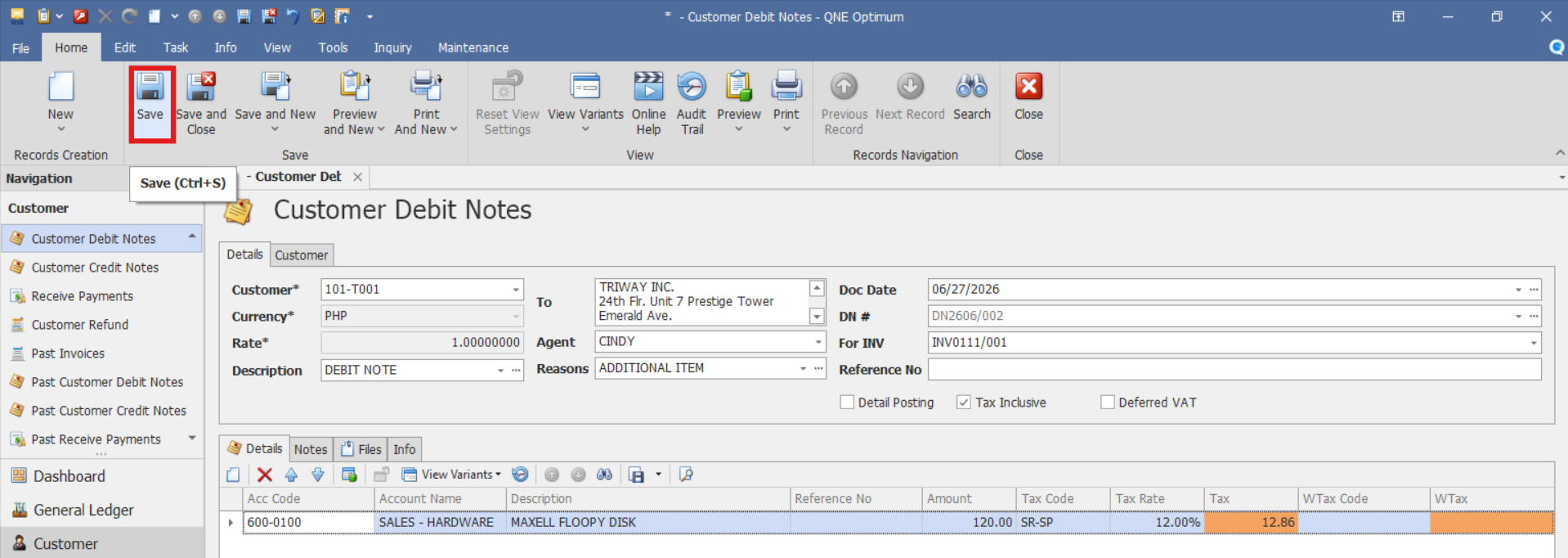
Confirm that the totals are calculated correctly and reflect all adjustments. Then proceed by clicking Save.
Procedure 2: Validation of Recorded Customer Debit Note
After saving the transaction, verify that:
The customer debit note is saved successfully.
The customer debit note number is generated or displayed correctly.
The totals reflect the entered pricing, discounts, and taxes.
Verify that the Customer Debit Note appears in the Customer Debit Notes List.
Procedure 3: Editing a Customer Debit Note
Go to Customer > Customer Debit Notes, then select the Doc # of the Debit Note that you want to update.

Once opened, make the required changes, then click Save.
Procedure 4: Deleting a Customer Debit Note
In the Customer Debit Notes List View, identify the document you wish to delete. Hover your cursor over the document and right-click on it. Then click Delete to remove the transaction.

Verify that the Debit Note no longer appears in the Customer Debit Notes List.
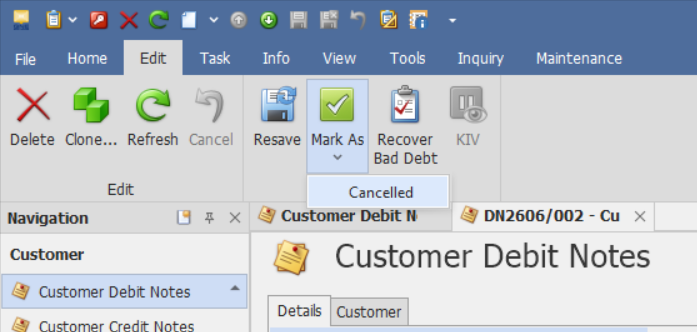
Preferred Method: If the Debit Note is no longer required, click Cancel instead. This preserves the transaction history while marking it as inactive.
Example Scenario:
Your customer “Delta Enterprises” was previously invoiced PHP 100,000 but was later found to have underpaid due to a missing service charge of PHP 5,000.
Steps to record the adjustment:
Go to Customer Debit Note and click Add.
Select Delta Enterprises as the customer.
Date: July 15, 2025
Global Description: Underbilling Adjustment
Add a line with:
Account Code: Service Revenue – Adjustments
Description: Missed service fee for May
Amount: PHP 5,000
Tax Code: Vatable (12%)
Save the transaction.
This adds the PHP 5,000 charge to Delta Enterprises’ account, keeping your records accurate and enabling you to reprint customer statements including the adjustment.
Application:
Customer Debit Notes can be used to:
Underbilling Adjustments
A customer was previously invoiced PHP 100,000 but was later found to have underpaid due to a missed service charge of PHP 5,000. A Customer Debit Note can be issued to record the additional charge and update the customer's outstanding balance.Additional Service Charges
A business incurs additional service fees after an invoice has already been issued. The Customer Debit Note records the extra charges without modifying the original invoice.Billing Corrections
A pricing error is discovered after invoicing. A Customer Debit Note can be used to document the adjustment and maintain accurate receivable records.Statement Adjustments
Customer Debit Notes can be used to help keep customer statements up to date with valid charges and adjustments.
Important Notes:
Editing and Deleting Transactions: Editing and deletion permissions may be restricted based on system configuration, organizational policy, or applicable regulatory requirements (such as CAS approval, where applicable). Ensure modifications and deletions follow your organization's internal policies and applicable regulatory requirements.
System Scope: QNE Optimum
Was this article helpful?
That’s Great!
Thank you for your feedback
Sorry! We couldn't be helpful
Thank you for your feedback
Feedback sent
We appreciate your effort and will try to fix the article