Recording received payments in QNE Optimum is essential for keeping your accounts receivable accurate and up to date. Whether a customer pays in full or partially, applying the payment correctly helps maintain accurate ledger balances, supports cash flow tracking, and contributes to reliable financial reporting. This guide will walk you through the process of recording a customer payment and applying it to the correct invoice(s).
Prerequisites
Customer record exists.
Cash and bank accounts are configured.
Payment methods are configured, if applicable.
Withholding tax codes are configured, if applicable.
The user has permission to record Receive Payments.
Scenario:
A customer has settled their invoice via bank transfer. You now need to record the payment and apply it against the specific outstanding invoice(s) in QNE Optimum. This records the payment against the customer's outstanding invoice(s), updates receivable balances, and records the amount in the selected cash or bank account.
Procedure 1: Recording a Receive Payment Transaction
Go to Customer > Receive Payments
Note: If the Quick Create Icon (the one inside the red box) is enabled, selecting Receive Payments opens the new Receive Payment transaction form. Otherwise, the Receive Payments List opens.
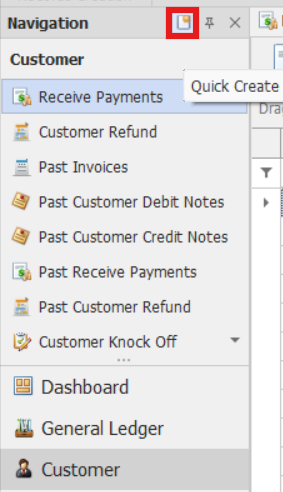
From there, select the New button to create a new Receive Payment transaction.

Complete the required fields in the receive payment header.
Customer – Select the customer from whom the payment is being received.
Doc Date – Date the payment is received and recorded in the system.
Cheque/Ref No. - Enter the cheque number or bank transaction reference number associated with the payment.
Receipt # - Unique receipt number assigned to the transaction.
Amount - Total amount received from the customer. The Pay All option can automatically populate the full outstanding balance.
Description – Brief explanation of the payment transaction, such as "Payment for Invoice INV00018."
Agent – Salesperson or account manager responsible for the customer account.
Receive – Displays the customer’s name and address after a customer is selected.
Deposit To - Select the cash or bank account where the payment received will be deposited.
Payment Method - Specify how the customer made the payment, such as Cash, Check, Bank Transfer, Credit Card, or Online Payment.
Bank Charges - Additional charges or bank fees deducted from the payment, if applicable.

Under the Knock Off tab, enable the checkbox under the Match column beside the invoice(s) to which the payment will apply.
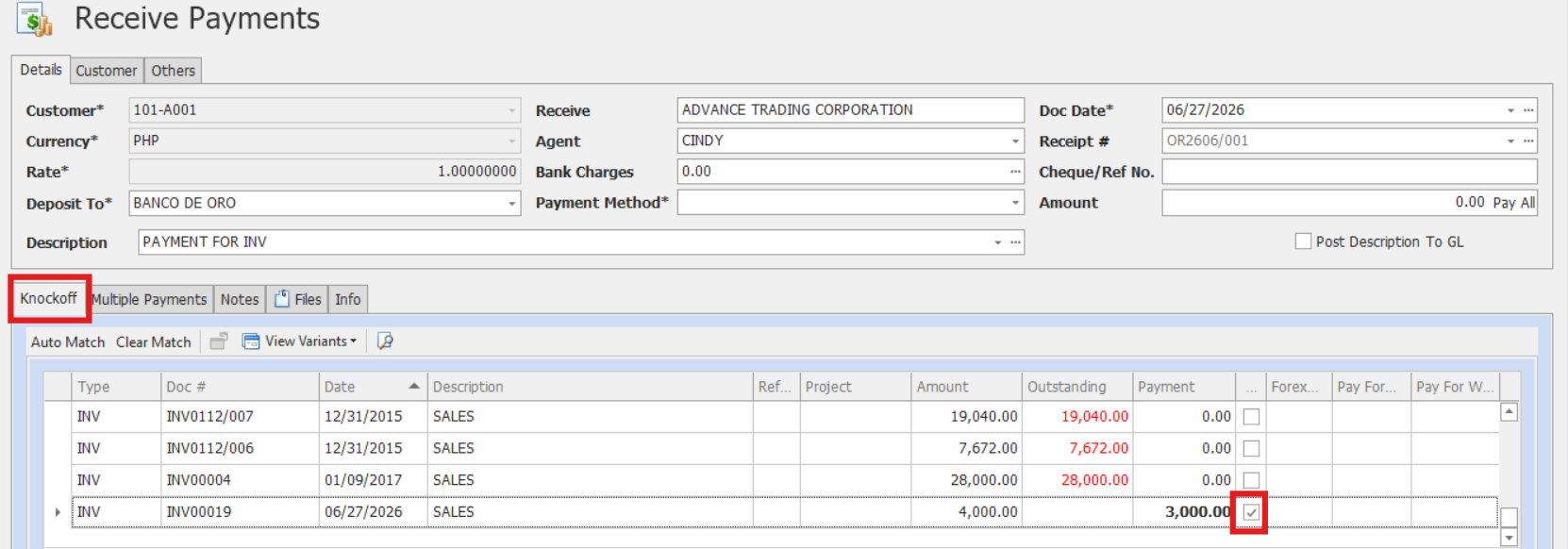
Payment - Amount will auto-fill based on invoice balance, but you can edit this manually if the payment covers multiple invoices or is a partial payment.
Pay for WTax– If applicable, click the ellipsis (⋯) to select the appropriate withholding tax rate.
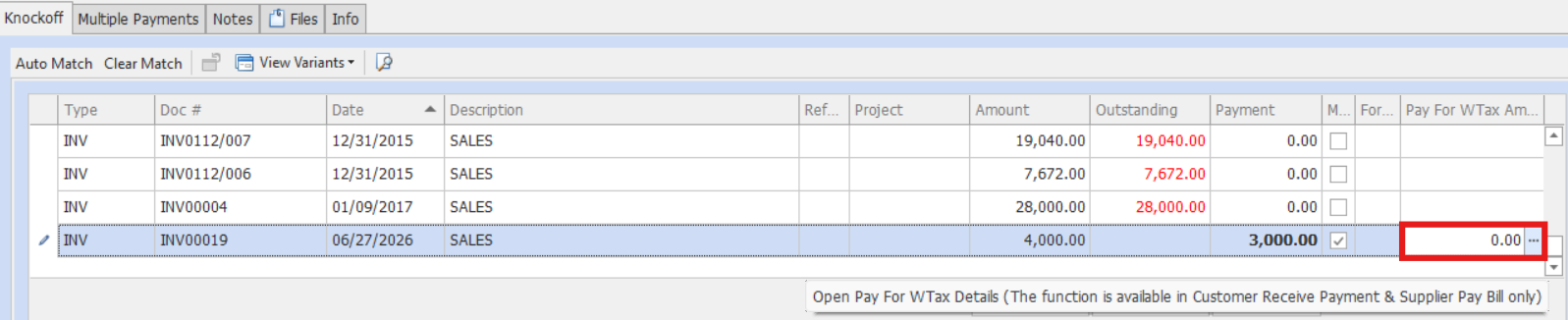
Note: Upon selection of the WTax Code and the Taxable Amount inputted, the System will generate a corresponding Withholding Tax Amount to be deducted from the payment collected.
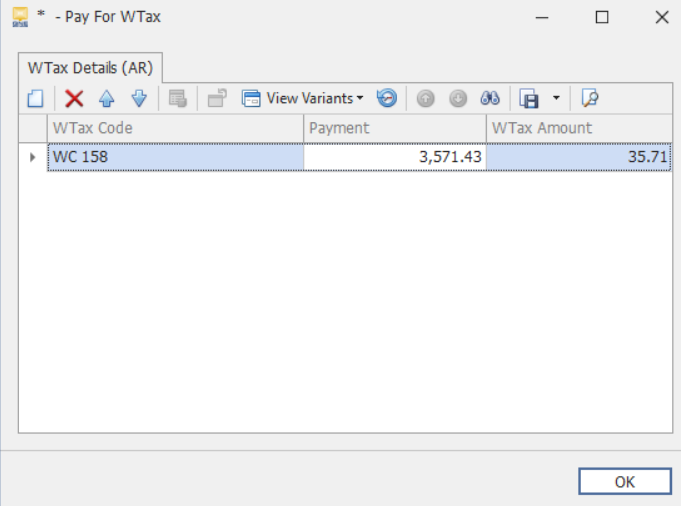
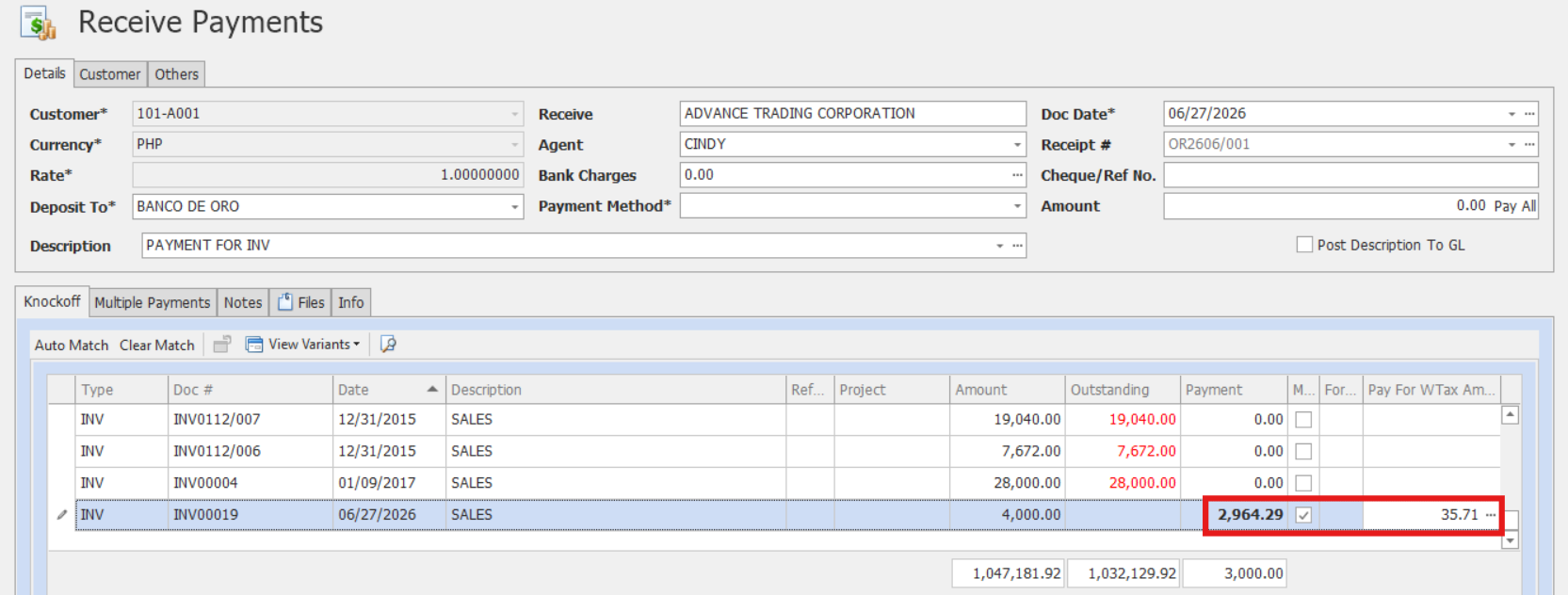
Once all line items are entered, click Save.
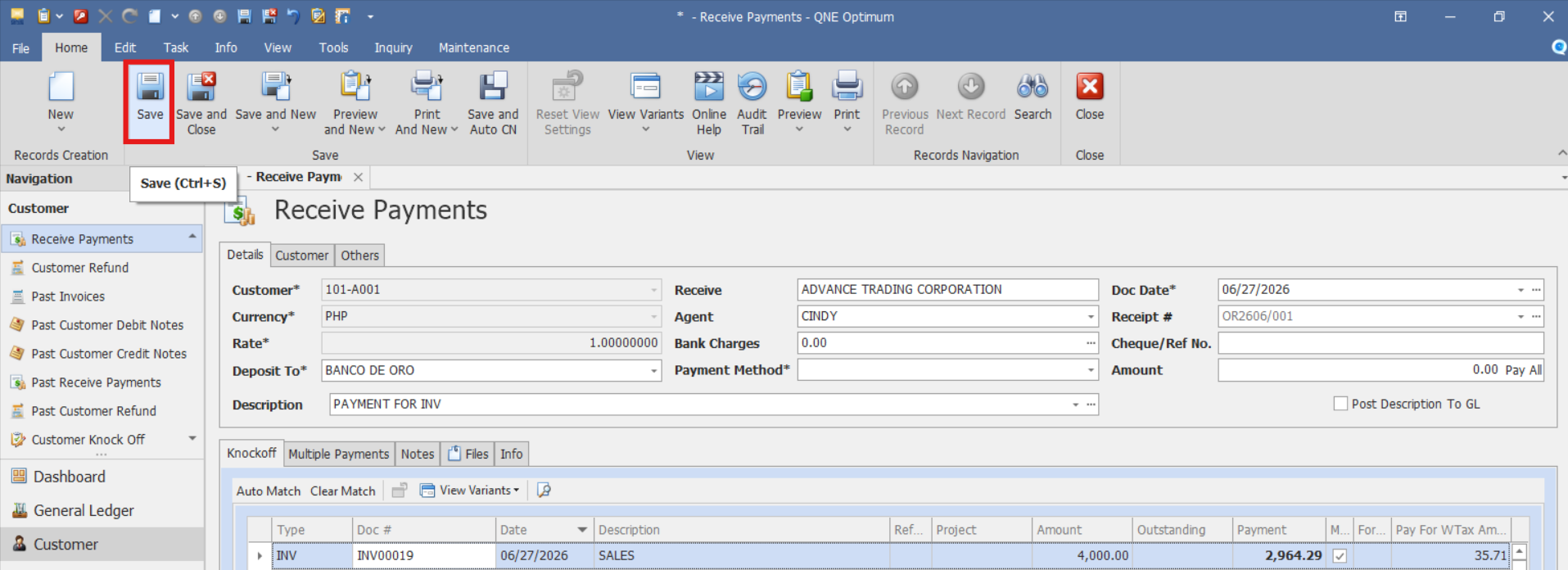
Note: If the Amount was not filled out initially in the transaction form. If the Amount field is left blank, the system prompts you to use the total unmatched amount as the payment amount.
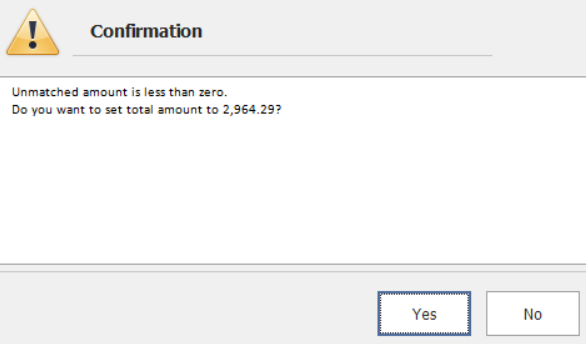
Click Yes to set the unmatched amount as the payment amount and save the transaction.
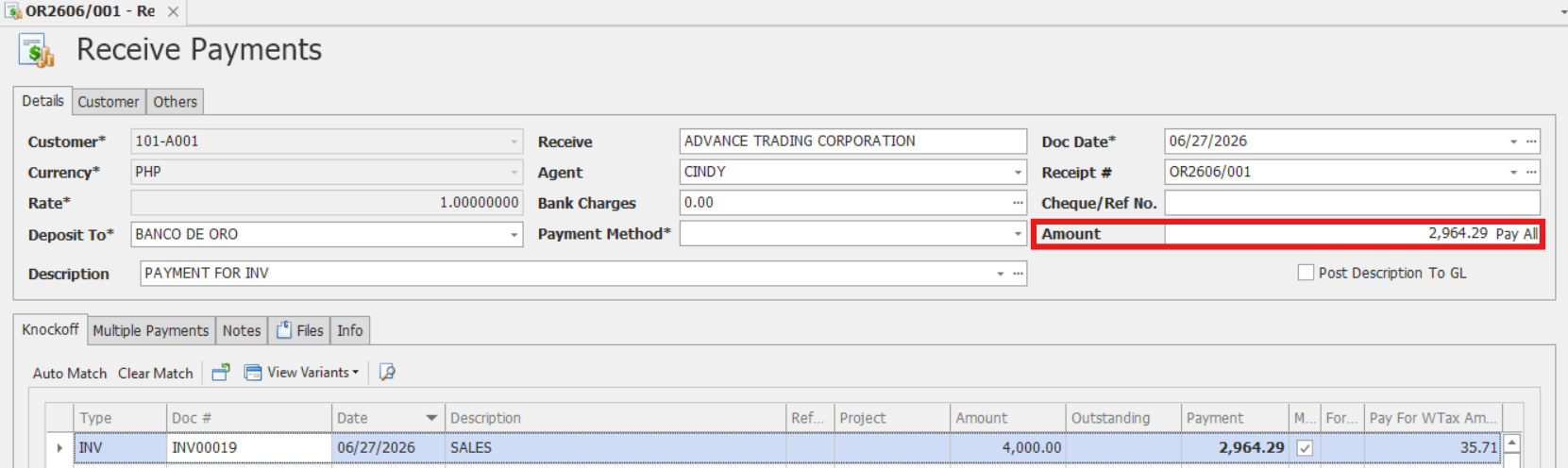
Preview the Receipt Voucher.
After saving, click the Preview button to view the Receipt Voucher Form.

This can be printed or exported as needed for documentation and audit.
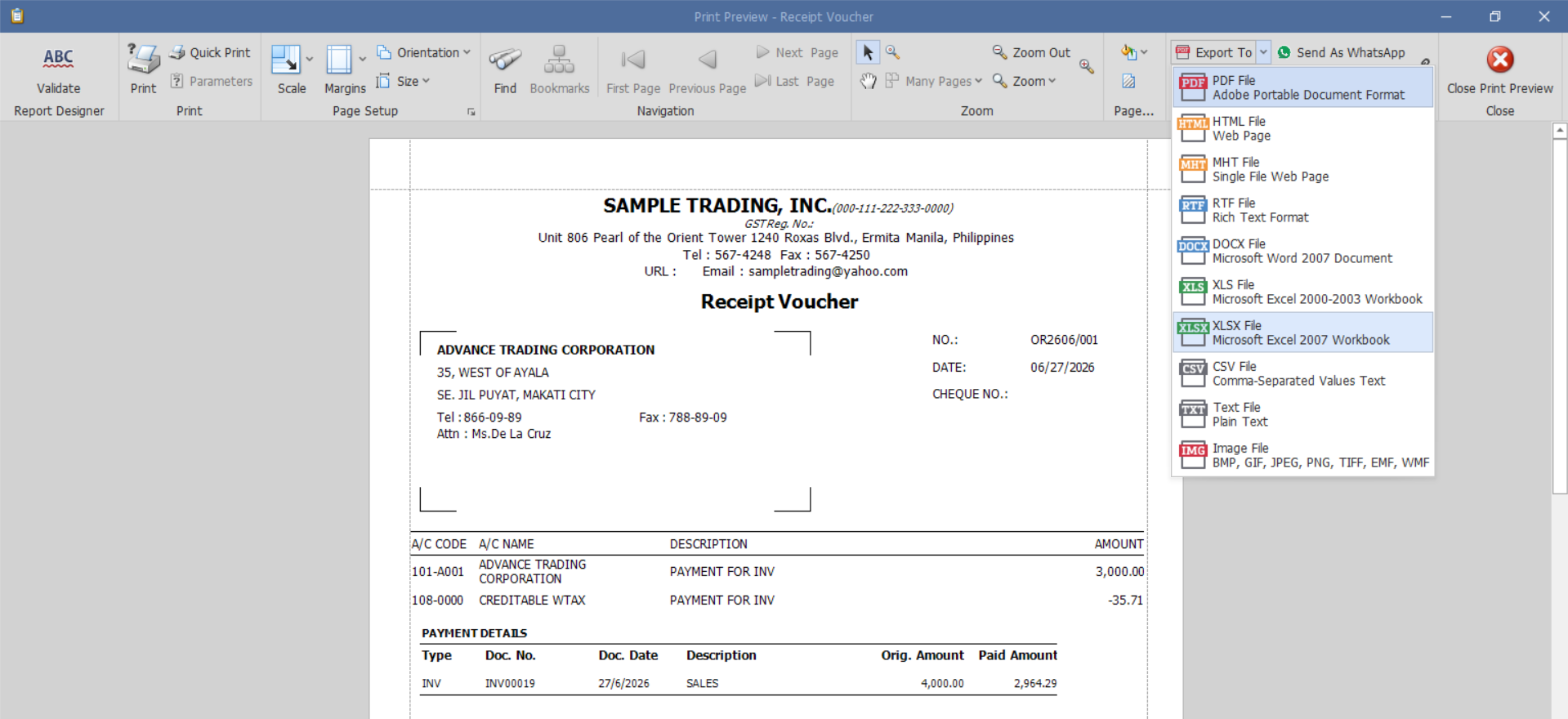
Verify all the recorded information and check if the selected Invoices or Debit Notes are marked as paid or have updated outstanding balances.
Procedure 2: Validating a Receive Payment
After saving, verify that:
The Receive Payment is saved successfully.
The Receipt number is generated correctly.
The payment amount matches the applied transactions.
The selected invoices or debit notes reflect updated outstanding balances.
The transaction appears in the Receive Payments List.
Procedure 3: Editing a Receive Payment
Go to Customer > Receive Payments, then select the Doc # of the Receive Payment that you want to update.

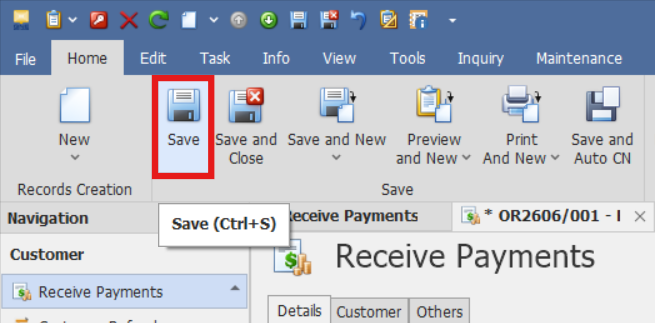
Make the required changes, then click Save.
Procedure 4: Deleting a Receive Payment
In the Receive Payment List View, identify the document you wish to delete. Hover your cursor over the document and right-click on it. Then click Delete to remove the transaction.

Verify that the Receive Payment no longer appears in the Receive Payments List.
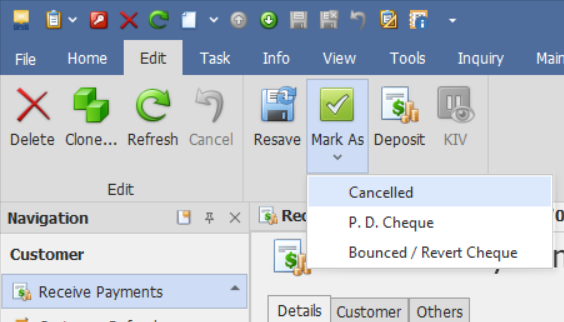
Preferred Method: If the Receive Payment is no longer required, click Cancel instead. This preserves the transaction history while marking it as inactive.
Example Scenario:
Your customer “ABC Enterprises” pays ₱12,000 in full for Invoice No. INV-1023.
Select ABC Enterprises as the customer.
Date: July 5, 2025
Deposit To: BPI – Current Account
Amount: ₱12,000
Tick Invoice INV-1023 and apply ₱12,000
Save the transaction.
Application:
Receive Payments can be used to:
Full Invoice Payments
A customer settles an invoice in full. The payment is recorded and applied to the outstanding invoice, reducing the customer's balance.Partial Payments
A customer pays only a portion of an invoice. The payment can be applied partially while leaving the remaining balance outstanding.Multiple Invoice Payments
A customer submits a single payment covering several invoices. The payment can be allocated across multiple outstanding transactions.Customer Payments with Withholding Tax
A customer deducts withholding tax before remitting payment. The Receive Payment transaction records both the payment received and the withholding tax amount.Advance Collections
A payment can be recorded before it is fully allocated to invoices and applied later as needed.
Important Notes:
Editing and Deleting Transactions: Editing and deletion permissions may be restricted based on system configuration, organizational policy, or applicable regulatory requirements (such as CAS approval, where applicable). Ensure modifications and deletions follow your organization's internal policies and applicable regulatory requirements.
System Scope: QNE Optimum
Was this article helpful?
That’s Great!
Thank you for your feedback
Sorry! We couldn't be helpful
Thank you for your feedback
Feedback sent
We appreciate your effort and will try to fix the article