Stock Adjustments in QNE Optimum allow users to manually update inventory levels due to various reasons such as stock count discrepancies, damaged goods, promotional giveaways, or internal use. This feature helps keep inventory records accurate and up to date, supporting reliable stock valuation and reporting.
Prerequisites
Inventory items have been created.
Stock locations have been configured.
The user has permission to create Stock Adjustments.
Physical stock count results or supporting documentation are available, if applicable.
Scenario:
You’ve just completed a monthly physical stock count and discovered that some items are missing, damaged, or incorrectly recorded in the system. To reconcile the actual stock on hand with the system quantities, you need to perform a stock adjustment.
Procedure 1: Recording a Stock Adjustment
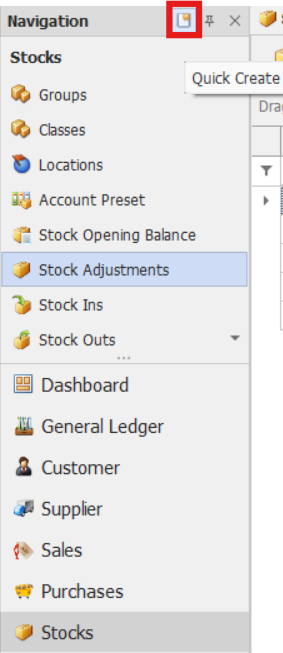
In the Navigation Pane, go to Stocks > Stock Adjustments.
Note: If the Quick Create icon is enabled (the highlighted button in the red box), selecting Stock Adjustments opens the new Stock Adjustment transaction form. Otherwise, the Stock Adjustments List opens.
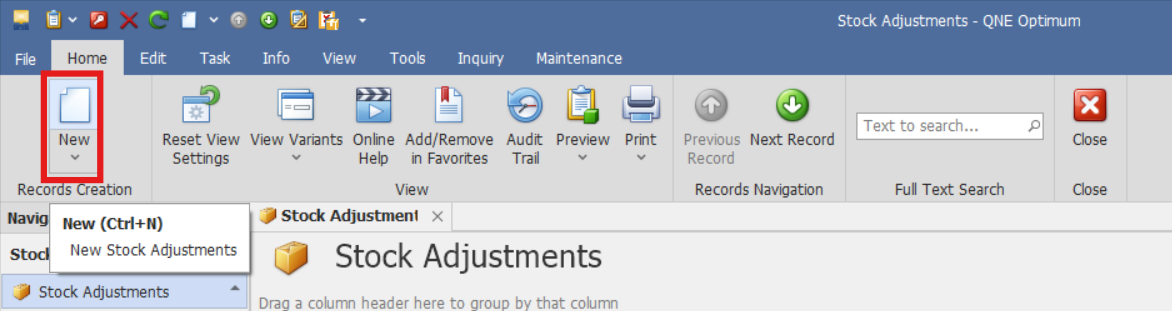
From there, select the New button to create a new Stock Adjustment transaction.
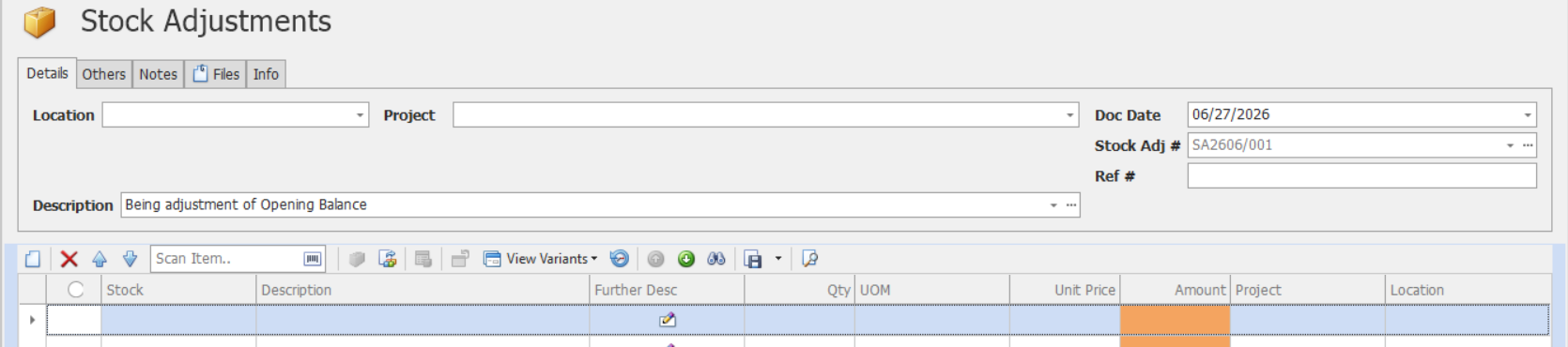
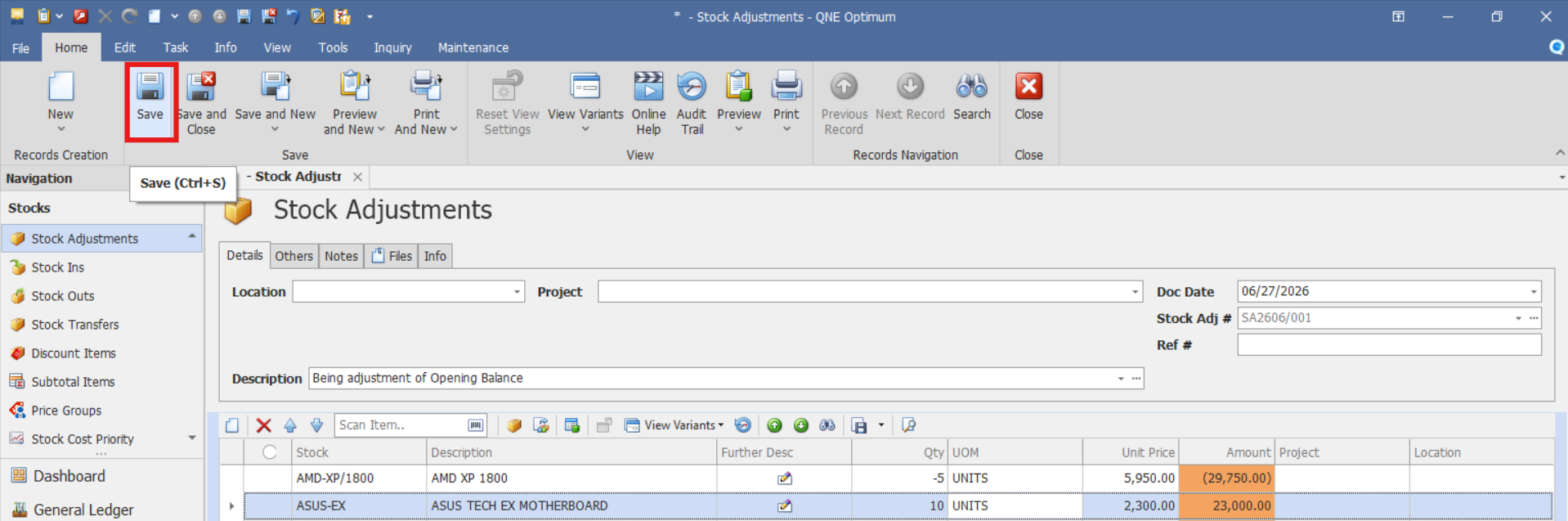
Complete the required fields in the stock adjustment header.
Location – Select the warehouse, branch, or inventory location where the stock adjustment will be applied.
Project – Specify the project associated with the inventory adjustment, if applicable.
Doc Date – Date the stock adjustment is created or recorded.
Stock Adj # - Unique Stock Adjustment document number assigned by the system.
Ref # - Additional reference number, such as a physical inventory count sheet number, adjustment request number, or internal control reference.
Description – Brief explanation of the reason for the adjustment, such as "Opening Balance Adjustment," "Physical Count Variance," or "Damaged Inventory."
In the Details section, enter the item information
Stock – Select the stock item that requires an inventory adjustment.
Description – Name or description of the selected stock item.
Further Desc. - Additional information or remarks regarding the item adjustment.
QTY – Quantity being adjusted. Positive quantities increase stock, while negative quantities reduce stock. Enter the quantity variance to be adjusted.
UOM - Unit of Measure of the stock item.
Unit Price - Cost per unit of the item being adjusted.
Amount - Total value of the adjustment, calculated based on the quantity and unit price.
Project - Project associated with the specific stock adjustment line, if applicable.
Location - Inventory location where the stock adjustment is applied.
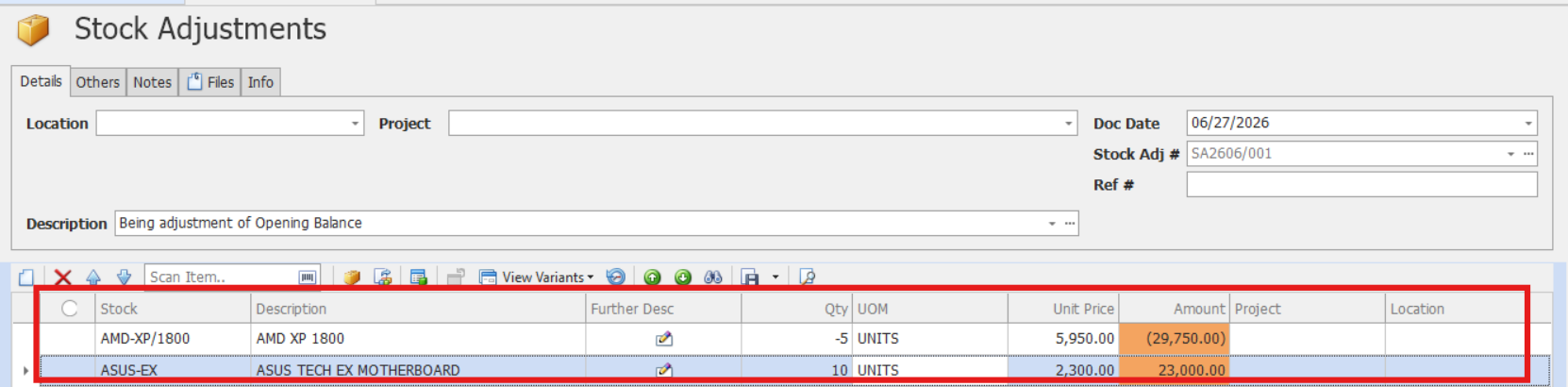
Confirm that the totals are calculated correctly and reflect all adjustments. Then proceed by clicking Save.
Optional Steps:
The Others and Notes tabs can be used to enter additional remarks or references related to the stock adjustment.

The Files tab can be used to attach supporting documents from your workstation.

The Info tab displays:
document creation timestamp,
user who created the document,
print history information.

Procedure 2: Validation of Recorded Stock Adjustment
After saving the transaction, verify that:
The stock adjustment is saved successfully.
The stock adjustment number is generated or displayed correctly.
The totals reflect the entered quantities and adjustment values.
Verify that the Stock Adjustment appears in the Stock Adjustments List.
Procedure 3: Editing a Stock Adjustment
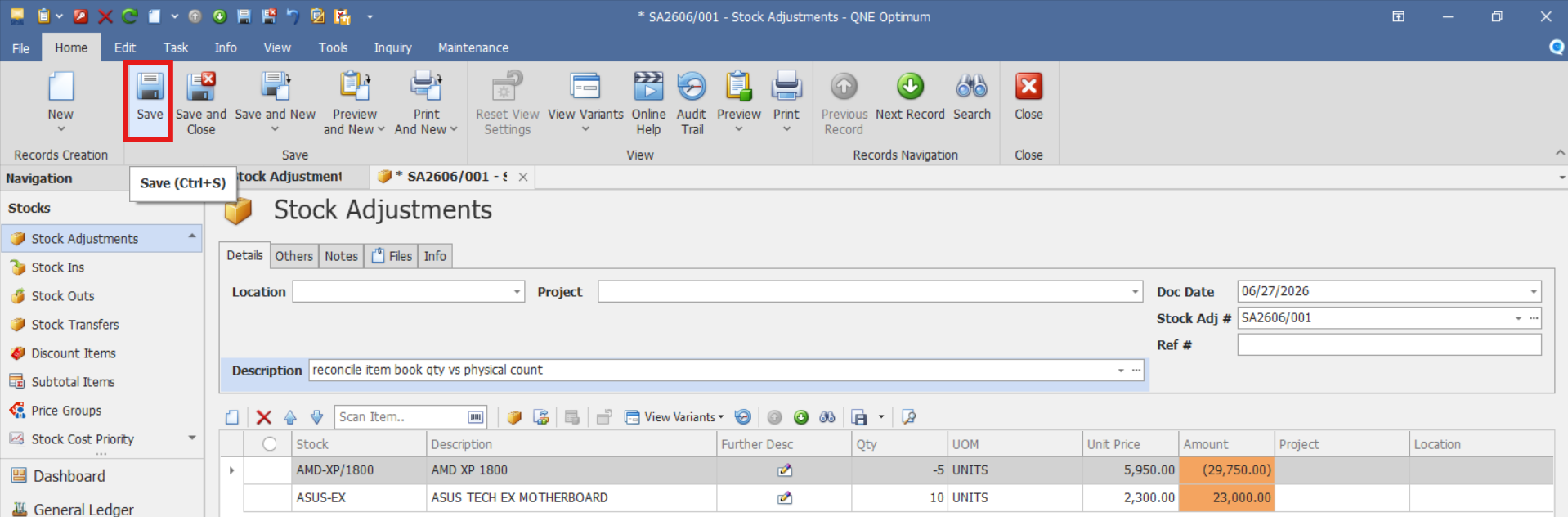
Go to Stocks > Stock Adjustments, then select the Doc # of the Stock Adjustment that you want to update.

Once opened, make the required changes, then click Save.
Procedure 4: Deleting a Stock Adjustment
In the Stock Adjustments List View, identify the document you wish to delete. Hover your cursor over the document and right-click on it. Then click Delete to remove the transaction.

Verify that the Stock Adjustment no longer appears in the Stock Adjustments List.
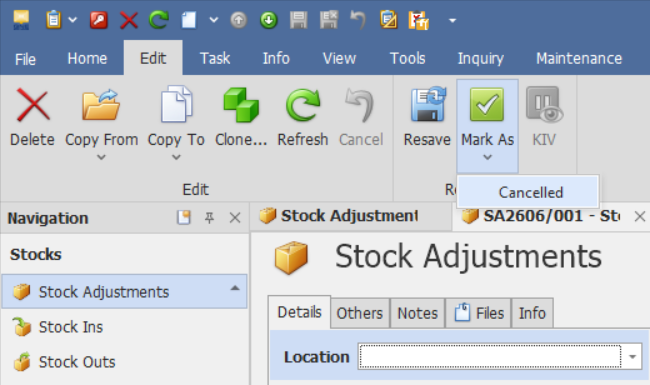
Preferred Method: If the Stock Adjustment is no longer required, click Cancel instead. This preserves the transaction history while marking it as inactive.
Example Scenario: Physical Inventory Count Variance
Let’s say your warehouse team discovers during a monthly audit that:
3 units of Product A are missing,
5 units of Product B are damaged and need to be written off,
and 10 units of Product C were used internally for a marketing display.
With QNE Optimum, you can:
Create one stock adjustment entry for all these items,
Record the appropriate descriptions and quantities,
Help keep inventory records aligned with physical stock counts.
Maintaining accurate inventory records not only helps finance and audit teams but also supports more informed decision-making in purchasing, sales, and inventory planning.
Application:
Stock Adjustments can be used to:
Physical Stock Count Variances
A business performs a physical inventory count and discovers differences between the actual stock on hand and the quantities recorded in the system. Stock Adjustments are used to reconcile these variances.Damaged or Expired Inventory
Items that are damaged, expired, or no longer saleable can be written off through a Stock Adjustment to maintain accurate inventory records.Internal Consumption
Inventory used internally for demonstrations, office use, or marketing activities can be removed from stock through a Stock Adjustment.Inventory Corrections
Incorrect quantities caused by data entry errors or operational issues can be corrected without modifying historical transactions.Promotional Giveaways and Samples
Products distributed as free samples, demonstrations, or promotional giveaways can be deducted from inventory through a Stock Adjustment.
Important Notes:
Editing and Deleting Transactions: Editing and deletion permissions may be restricted based on system configuration, organizational policy, or applicable regulatory requirements (such as CAS approval, where applicable). Ensure modifications and deletions follow your organization's internal policies and applicable regulatory requirements.
System Scope: QNE Optimum
Was this article helpful?
That’s Great!
Thank you for your feedback
Sorry! We couldn't be helpful
Thank you for your feedback
Feedback sent
We appreciate your effort and will try to fix the article