Overview:
The lock button is used to lock the user's screen without logging out, which will force all open forms to close.
Procedure:
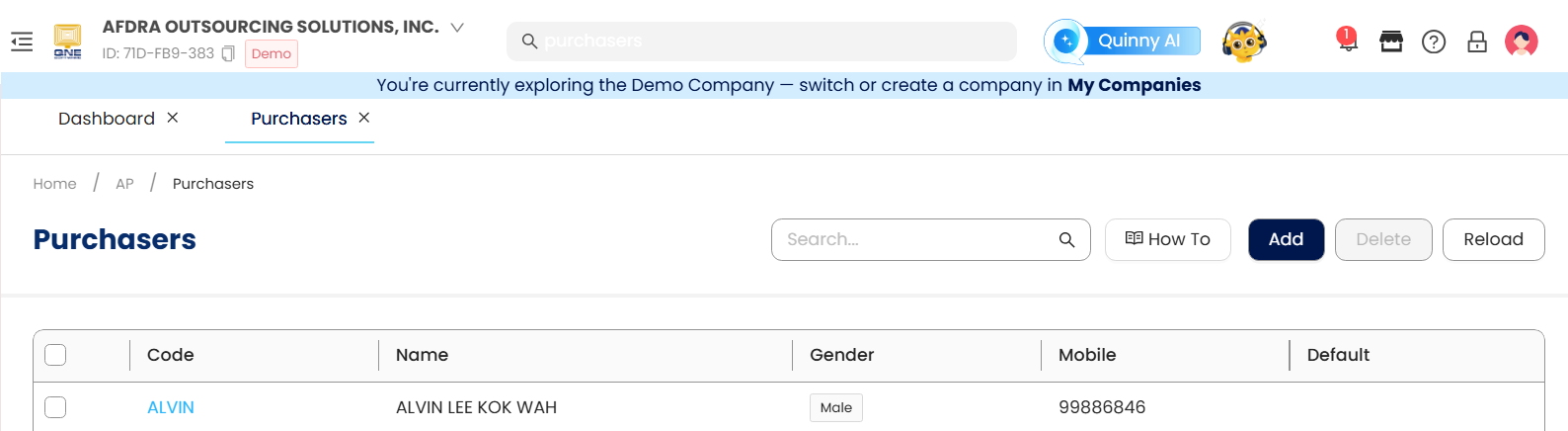
In Banner, click Lock icon

2. The user's screen will locked and can only be accessed by entering the correct password
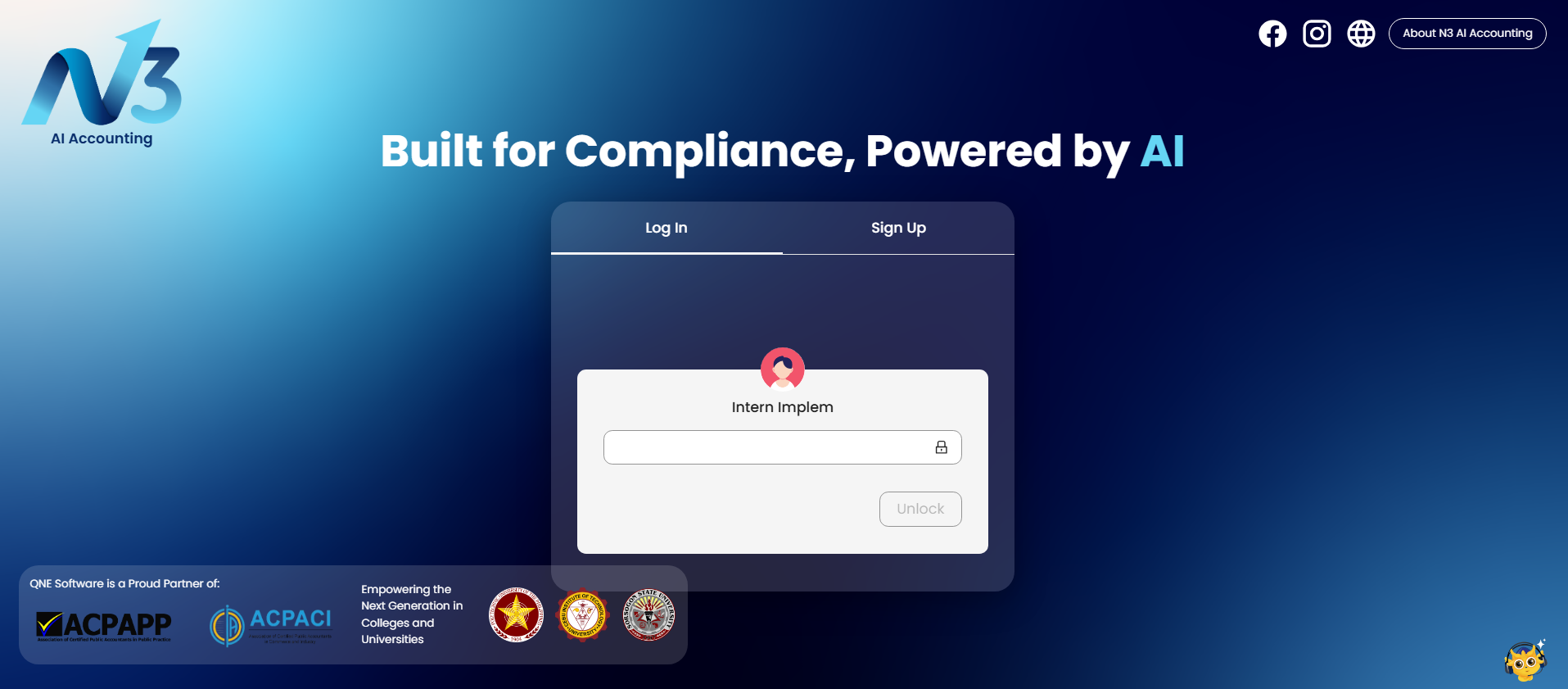
Note: Password used to unlock the screen is the same password used upon login
Application:
Upon unlocking, all previously opened tabs will remain open.
System Scope: QNE AI Cloud Accounting / N3 AI Accounting
Was this article helpful?
That’s Great!
Thank you for your feedback
Sorry! We couldn't be helpful
Thank you for your feedback
Feedback sent
We appreciate your effort and will try to fix the article