Overview:
Setting a default Deposit To account ensures that payments you receive are automatically posted to the correct bank or cash GL account. This reduces manual corrections and improves bank reconciliation accuracy.
In N3 AI Accounting you can set:
Default Interface Accounts — global defaults applied to all users.
User Default Settings — personal defaults applied only to a specific user.
This article explains how to set your Deposit To account under User Default Settings (user-level default).
Scenario:
You want all incoming receipts (such as customer payments, cash sales, or card payments) recorded by a specific user to automatically post to their preferred bank or cash account. This ensures consistent journal entries and simplifies month-end reconciliation.
Procedure:
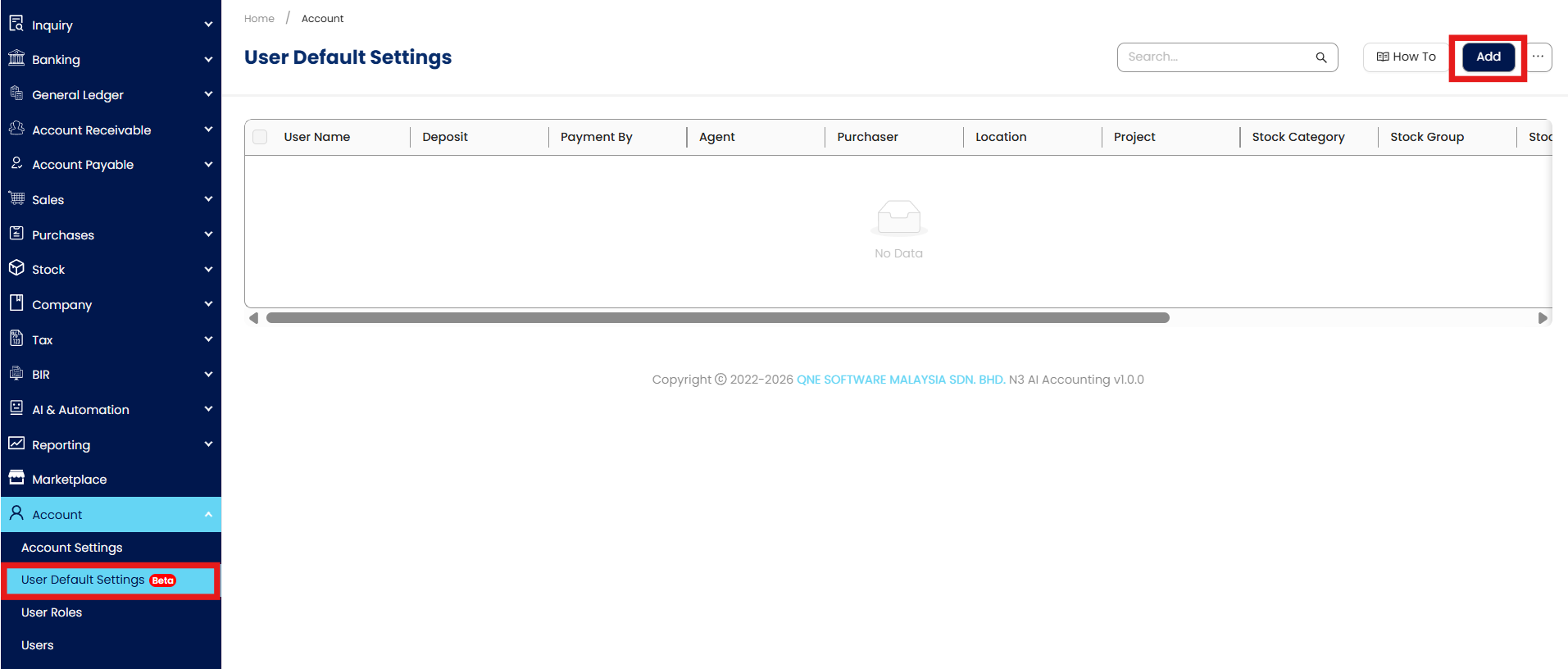
Step 1: Go to Account > User Default Settings, then click Add.
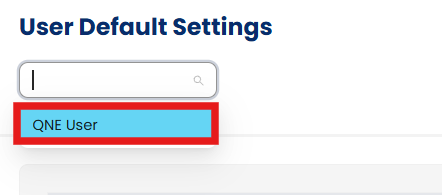
Step 2: In the User Account field, select the user whose default deposit account you want to set.
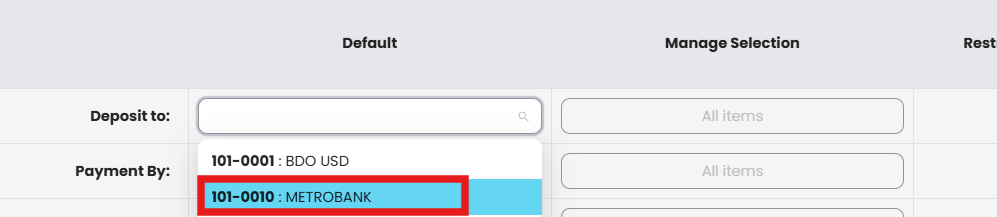
Step 3: In the Deposit To field, choose the bank or cash GL account to use as the default for that user.
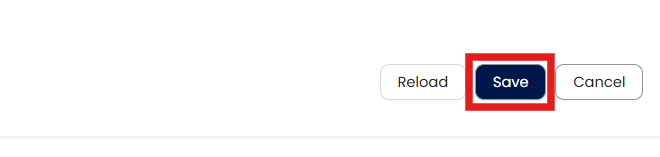
Step 4: Click Save.
The selected account will now be automatically used whenever this user records customer receipts or cash sales.
Note: This setting applies only to the selected user. To define a company-wide deposit default, use Default Interface Accounts instead.
Application:
Use this feature when you want to:
Assign specific deposit accounts per cashier or collector.
Separate deposits made by different branches or departments.
Simplify reconciliation by ensuring each user’s transactions post to their respective accounts.
Prevent accidental posting to the wrong bank or cash GL.
Combine with Default Interface Accounts to maintain both user-level and company-level consistency.
System Scope: QNE AI Cloud Accounting / N3 AI Accounting
Was this article helpful?
That’s Great!
Thank you for your feedback
Sorry! We couldn't be helpful
Thank you for your feedback
Feedback sent
We appreciate your effort and will try to fix the article