Overview:
The Copy From and Copy To functions streamline the creation of related Sales, Purchase, and Inventory documents by reusing existing information. These features reduce repetitive data entry, maintain consistency across stages, and increase processing efficiency.
Available Transaction Types:
Sales: Quotation, Sales Order, Delivery Order, Sales Invoice, Sales Debit Note, Sales Credit Note, Cash Sales
Purchases: Purchase Requisition, Purchase Order, Goods Received Note, Purchase Invoice, Purchase Debit Note, Purchase Return, Cash Purchases
Stocks: Stock Adjustment, Stock Transfer* (visible only if the Multi-Location module is enabled), Stock In, Stock Out
Scenario:
A customer places a sales order for items that are currently low in stock. To fulfill the order, the purchasing officer uses Copy To from the Sales Order to quickly generate a Purchase Order. All item details—quantities, descriptions, and pricing—are carried over, allowing the officer to simply select the correct supplier and save the PO. This speeds up the replenishment process and ensures the customer order can be fulfilled on time.
Procedure:
Using Copy To
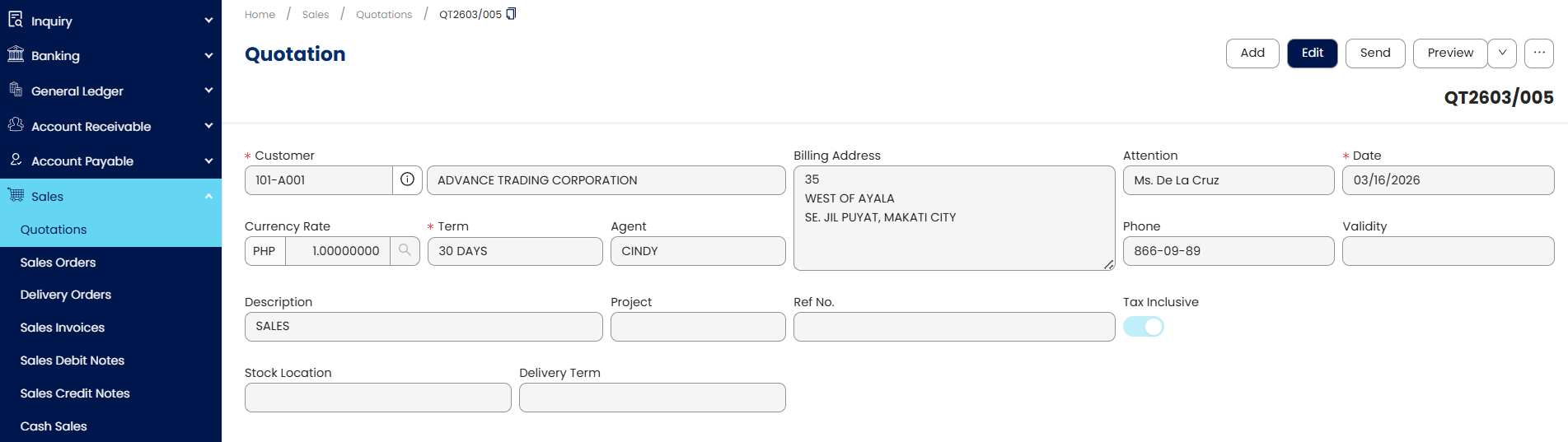
Open an existing transaction that contains the source data (e.g. Quotation).
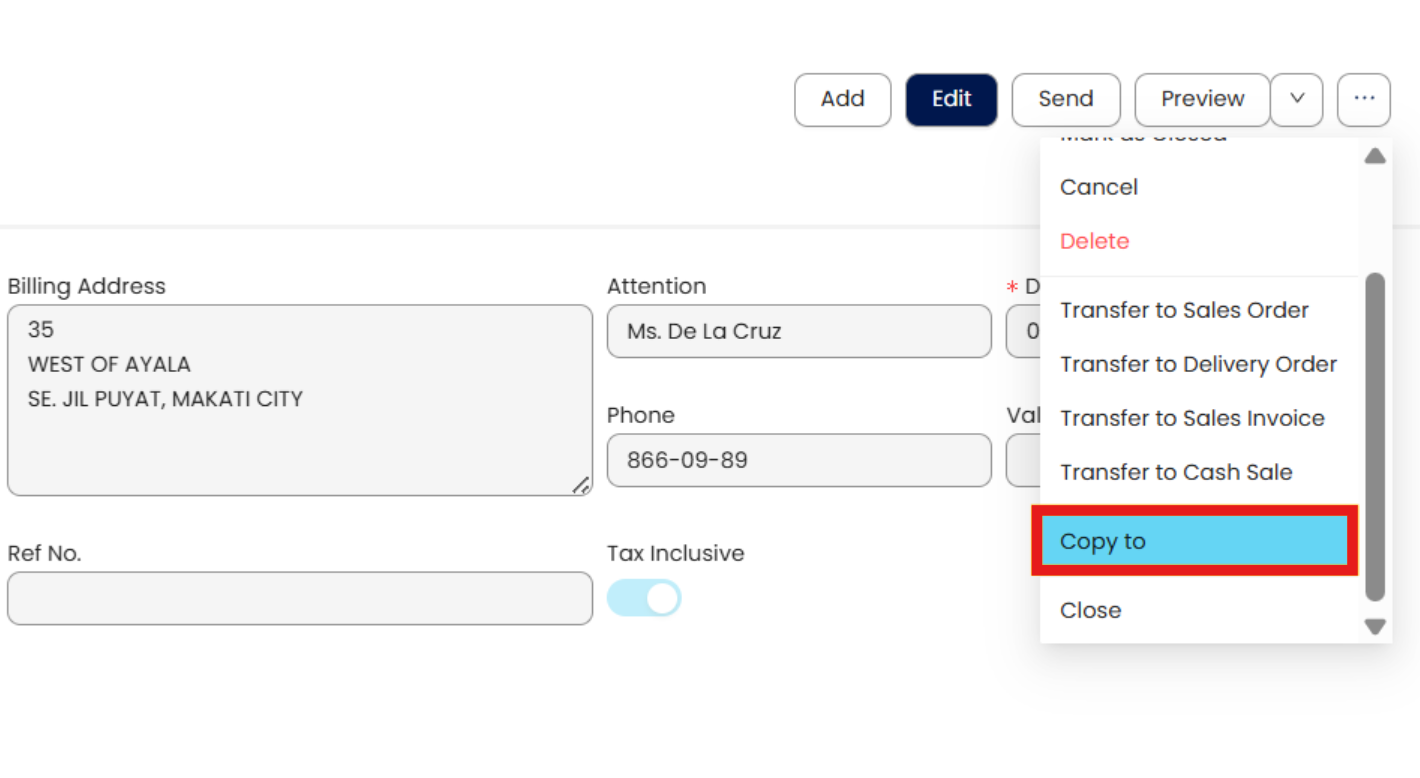
Click the triple-dot button > Select Copy To.
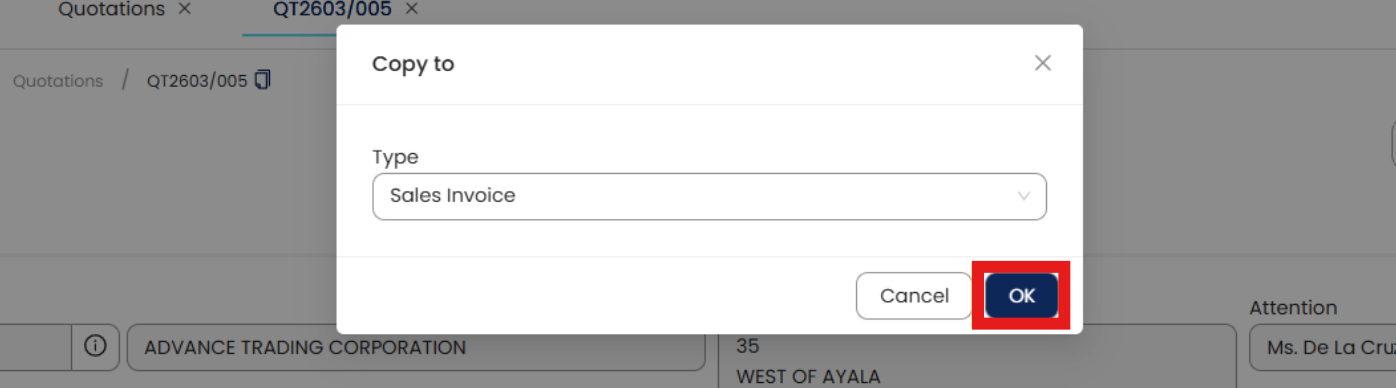
Select the next document to create (e.g. Sales Invoice) > Click OK.
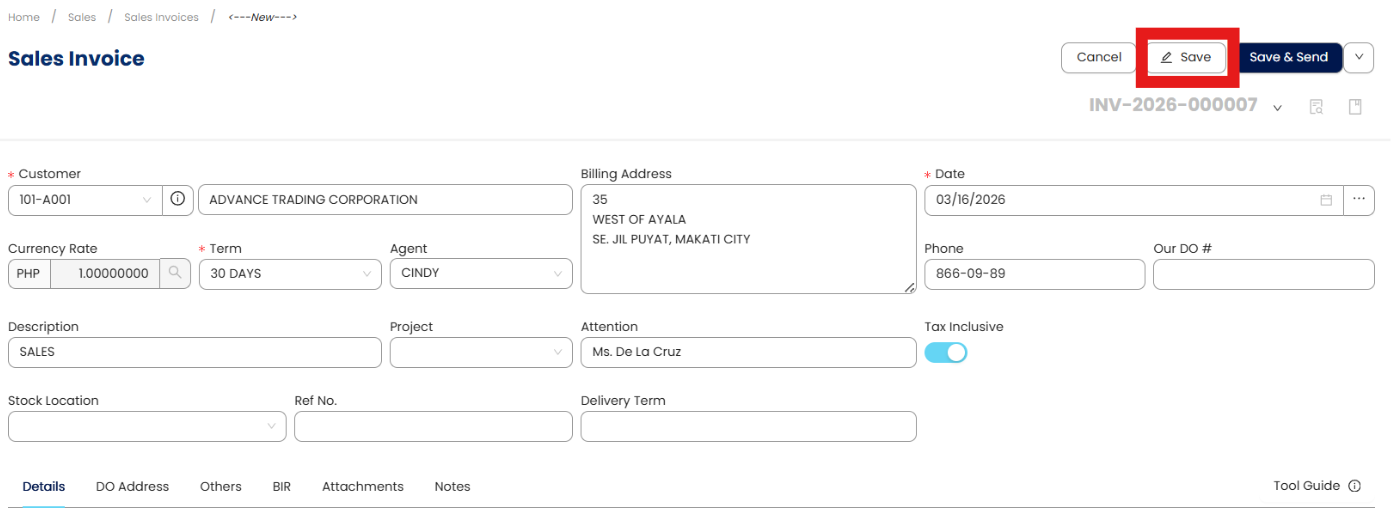
Review the auto-populated information, adjust fields if necessary > Click Save.
Using Copy From
Open the transaction where the data needs to be applied (e.g. Purchase Order) > Click Add.
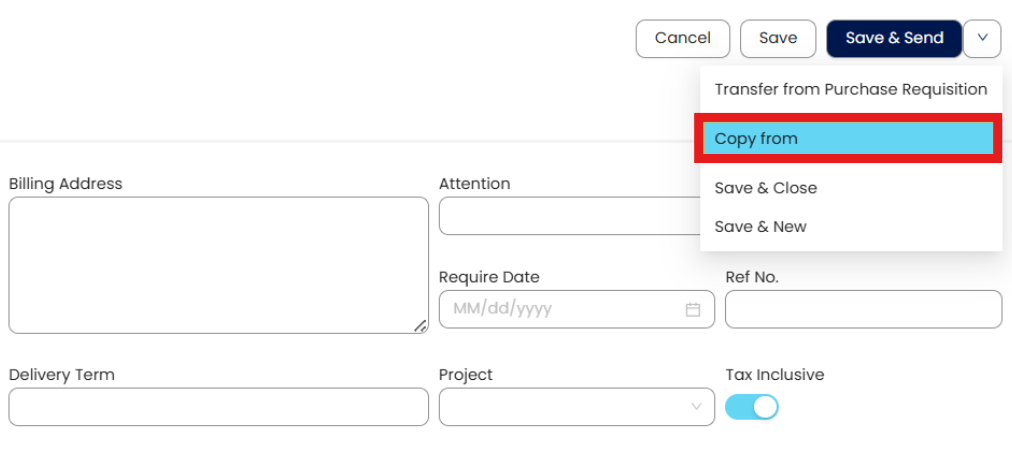
Click the triple-dot button > Select Copy From.
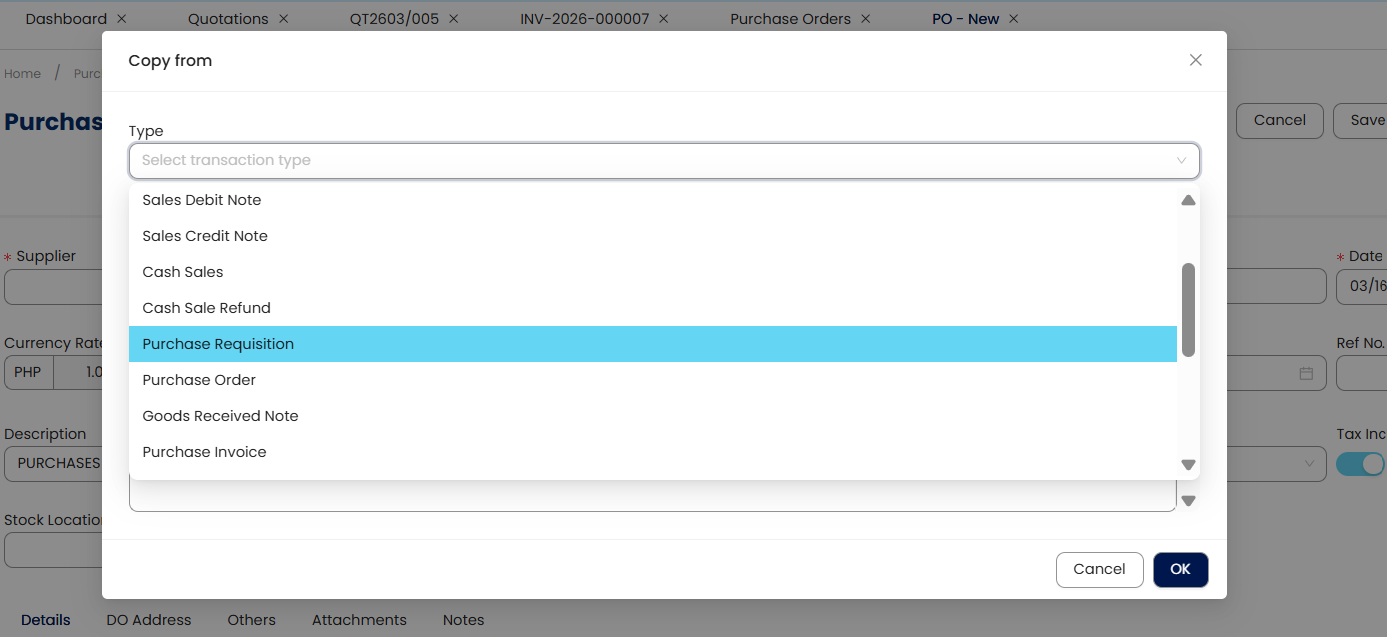
Select the source transaction type (e.g. Purchase Requisition)
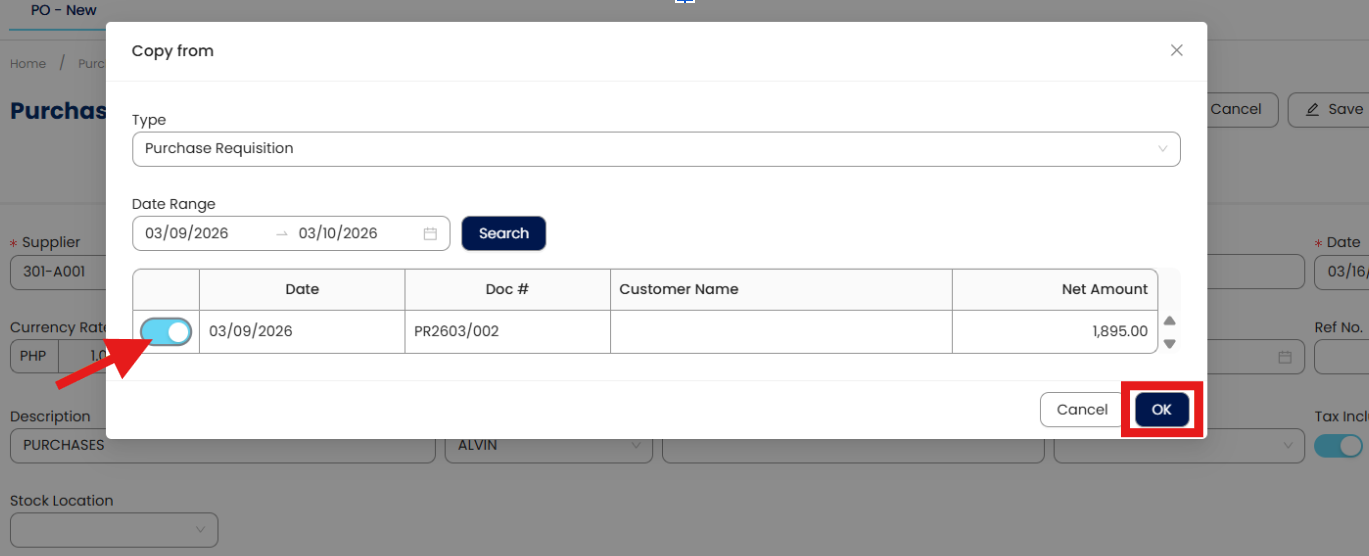
Filter the date range > Click Search > Select the document > Click OK.
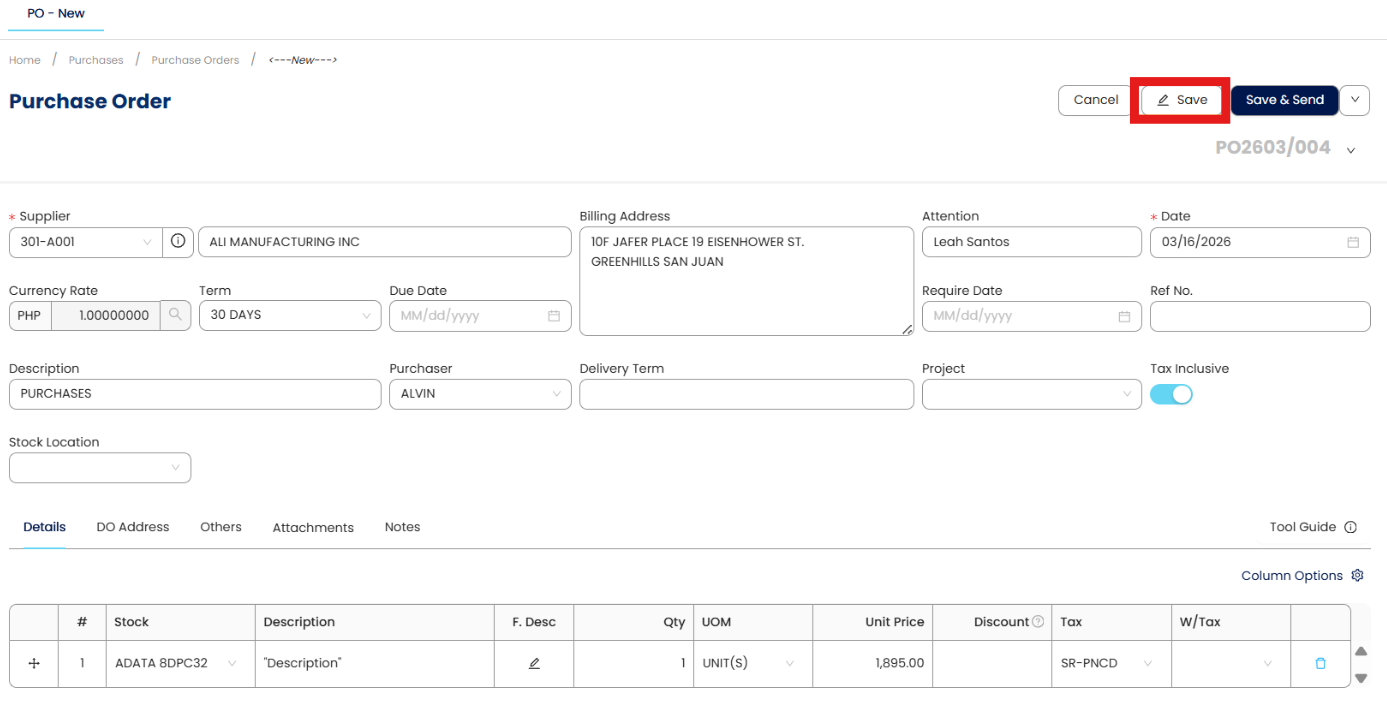
Review the auto-populated information, adjust fields if necessary > Click Save.
Notes:
The dropdown shows only the transaction types the user has access to; options not covered by the user’s subscription will be hidden or disabled.
Cross-module copying is supported (e.g., Sales Invoice → Purchase Order, Purchase Order → Sales Order).
Customer/Supplier fields cannot be auto-matched when copying between Sales, Purchases, or Stock; the user must select the correct party.
Target documents follow their own numbering series, and dates (Document Date, Posting Date, Tax Date) default to the current date unless updated.
Using Copy From on a transaction that already contains data will overwrite all existing information.
Application:
Faster Document Processing: Quickly create the next related document without retyping details.
Consistent Information: Ensures customer, supplier, and item details stay aligned across documents.
Reduced Encoding Errors: Minimizes mistakes by pulling accurate data from the source document.
Improved Workflow Efficiency: Helps sales, purchasing, and inventory teams work more efficiently.
Cross-Module Convenience: Allows copying between Sales, Purchases, and Stock when needed.
Clear Document Traceability: Maintains a smooth audit trail by linking related transactions.
System Scope: N3 AI Accounting (formerly QNE AI Cloud Accounting)
Was this article helpful?
That’s Great!
Thank you for your feedback
Sorry! We couldn't be helpful
Thank you for your feedback
Feedback sent
We appreciate your effort and will try to fix the article