Overview:
The Multi-Payment feature allows users to record multiple payment methods in a single transaction, such as Cash and Bank or Cash and Credit Card, without creating separate transactions or entries. This is useful for businesses that frequently receive or make payments through multiple channels in a single settlement, improving efficiency and reducing reconciliation errors.
This feature is available in the following modules: Receive Payments, Pay Bills, Cash Sales, Cash Sales Refunds, Cash Purchases, Cash Purchases Refunds, Receipt Vouchers, Payment Vouchers
Scenario:
A customer pays an outstanding balance using both cash and bank transfer. At the same time, supplier payments may also be settled using mixed payment methods. Instead of recording multiple transactions, the Accountant uses the Multi-Payment feature to enter all payment methods in one transaction. The system validates the total payment amount and automatically posts each payment to the appropriate accounts.
Procedure:
Using Multi-Payment in Collections
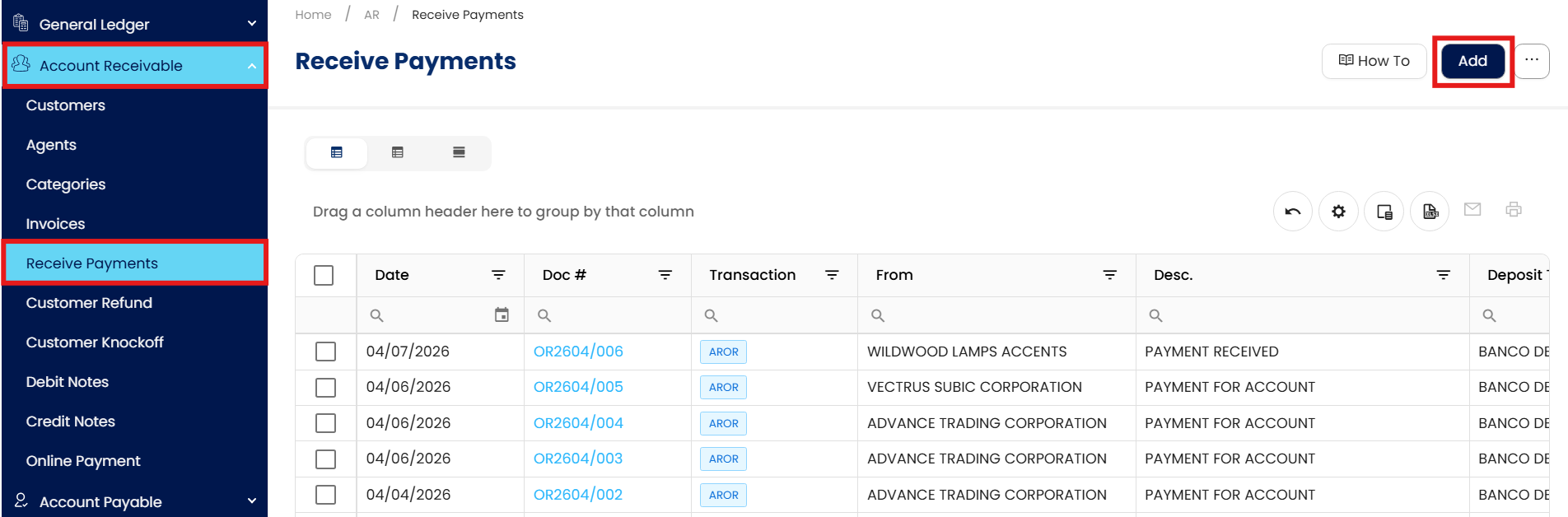
Go to Accounts Receivable > Receive Payments > Click Add.
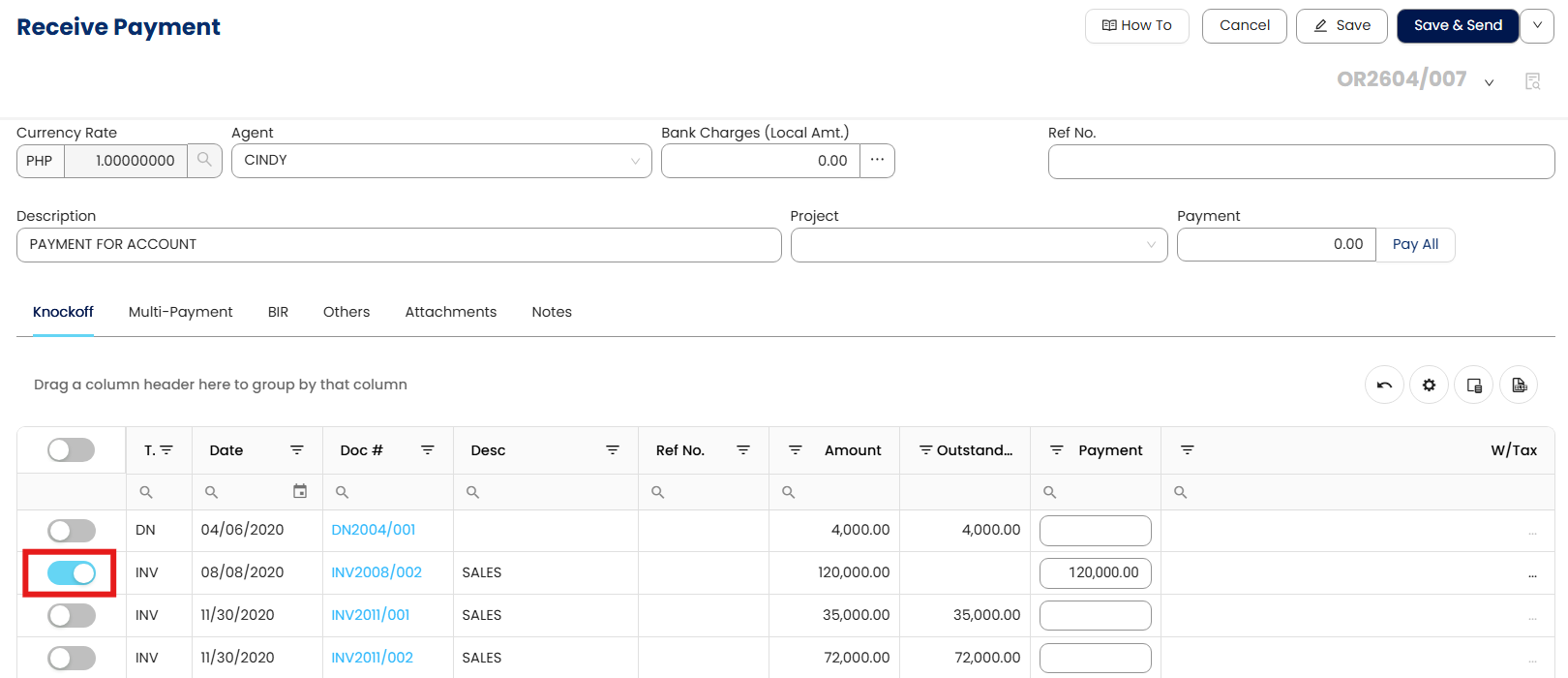
Input the necessary details and select the transaction paid by the customer.
Go to the Multi-Payment Tab > Toggle on Use Multi-Payment
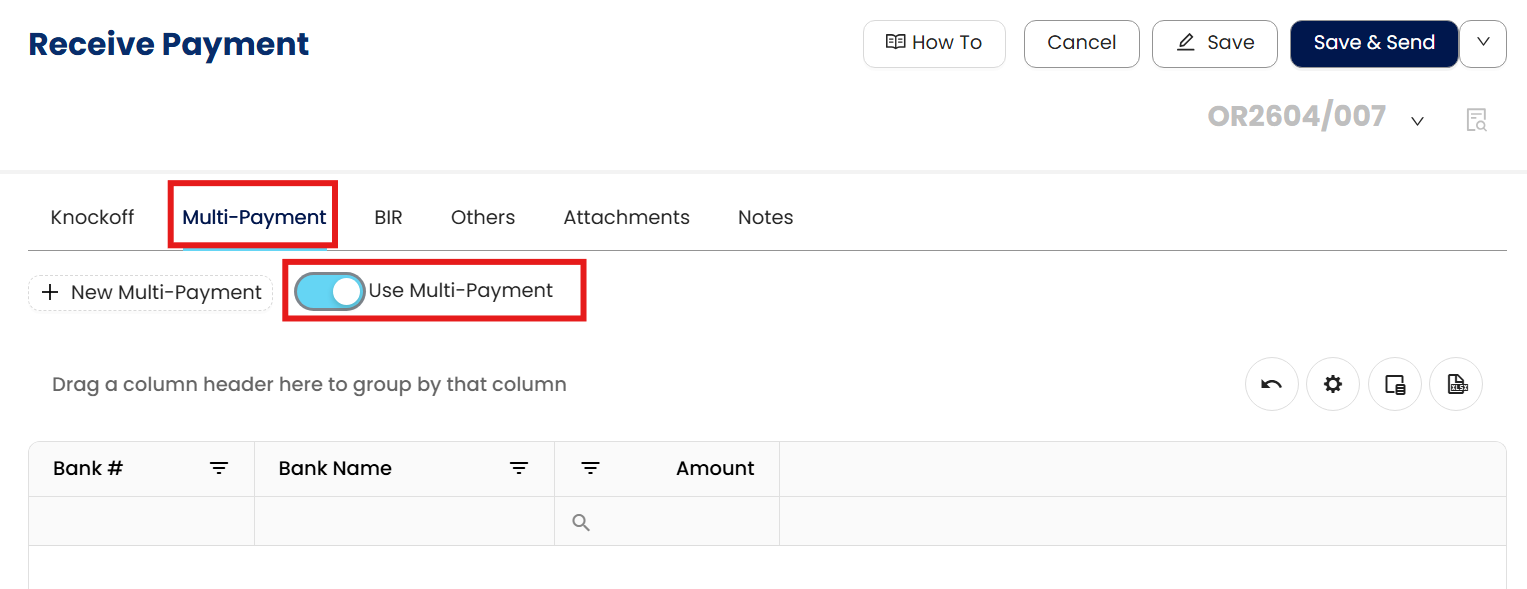
Click New Multi-Payment

Input the payment details > Click OK.
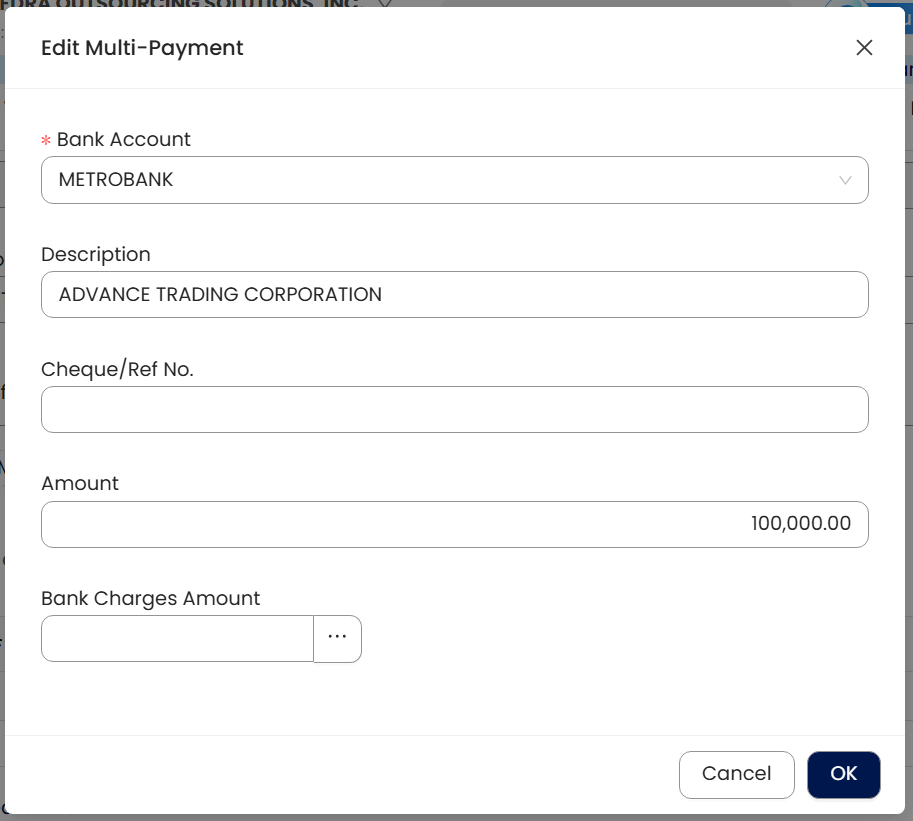
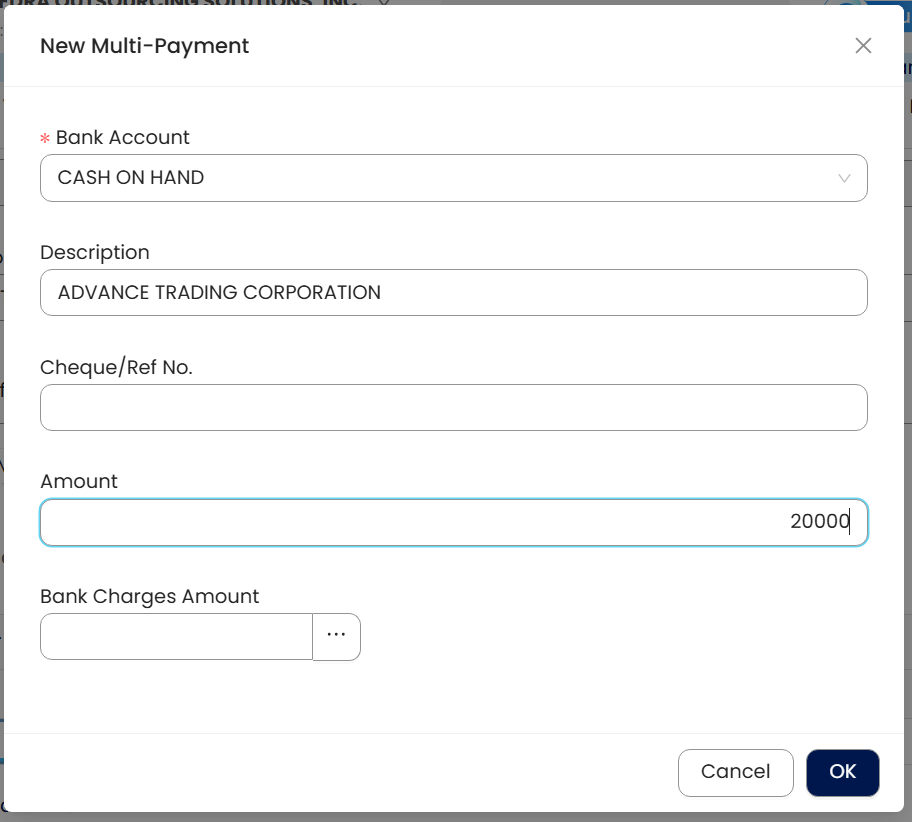
Repeat Step 4 to add additional payment methods as needed.
Review the payment entries and ensure the total matches the transaction amount. Click Save.
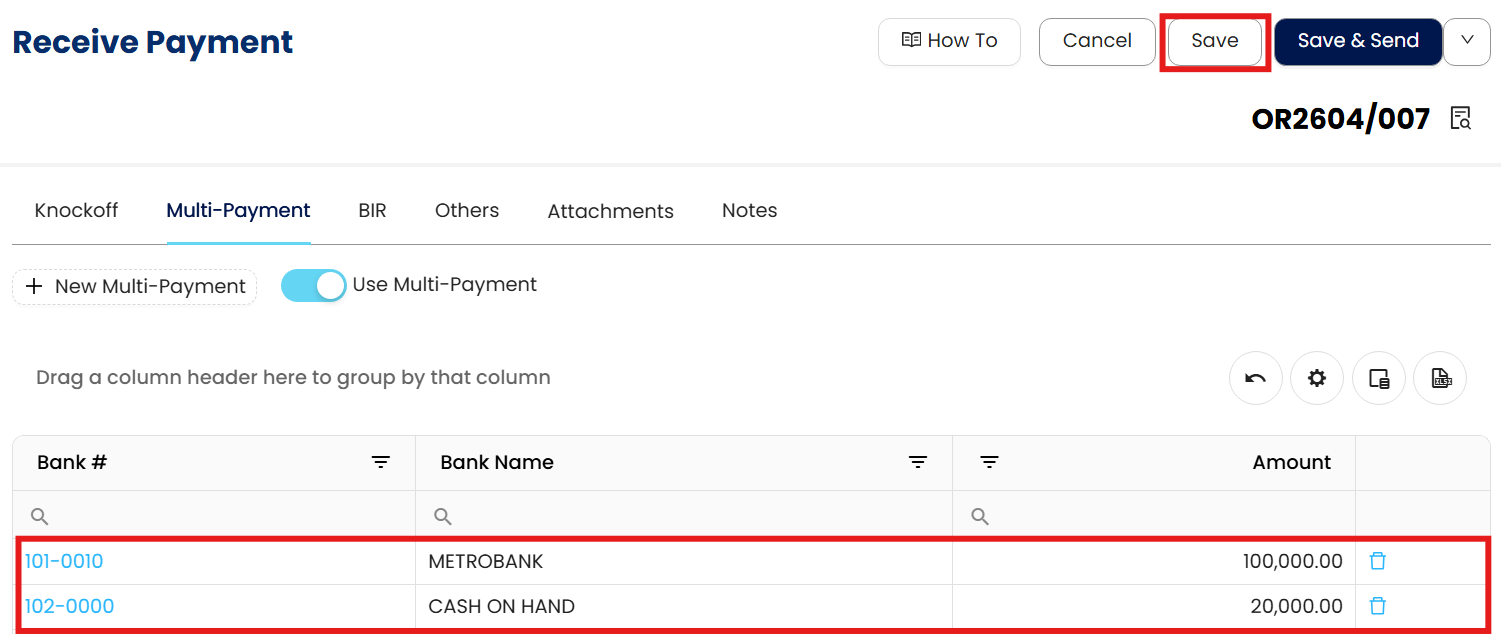
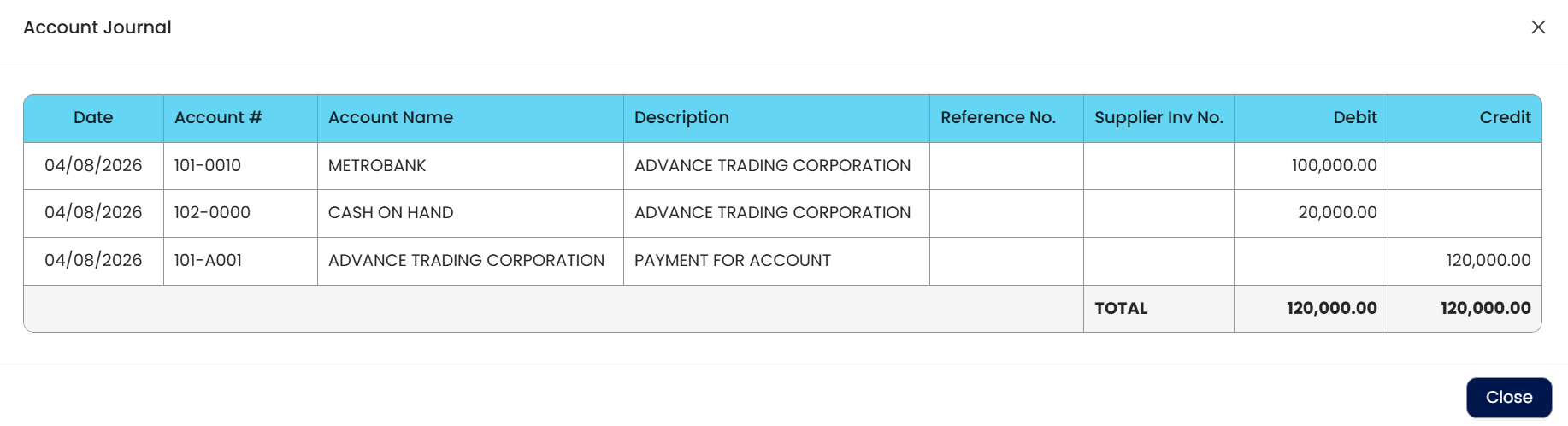
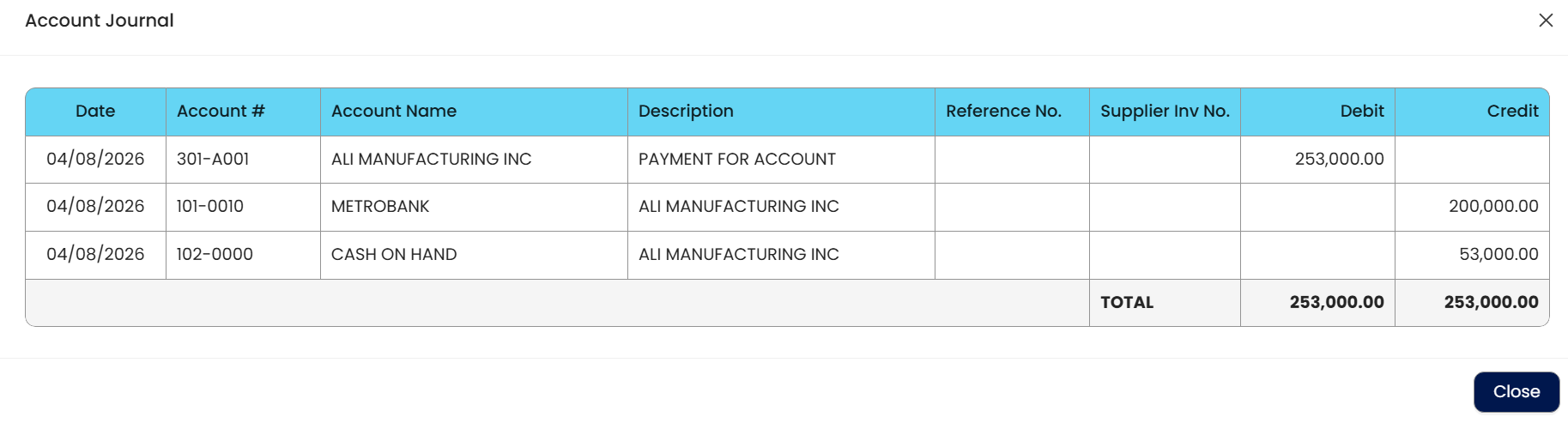
Once saved, the system posts each payment amount to its corresponding General Ledger accounts.
Using Multi-Payment in Payables
Go to Accounts Payable > Pay Bills > Click Add.
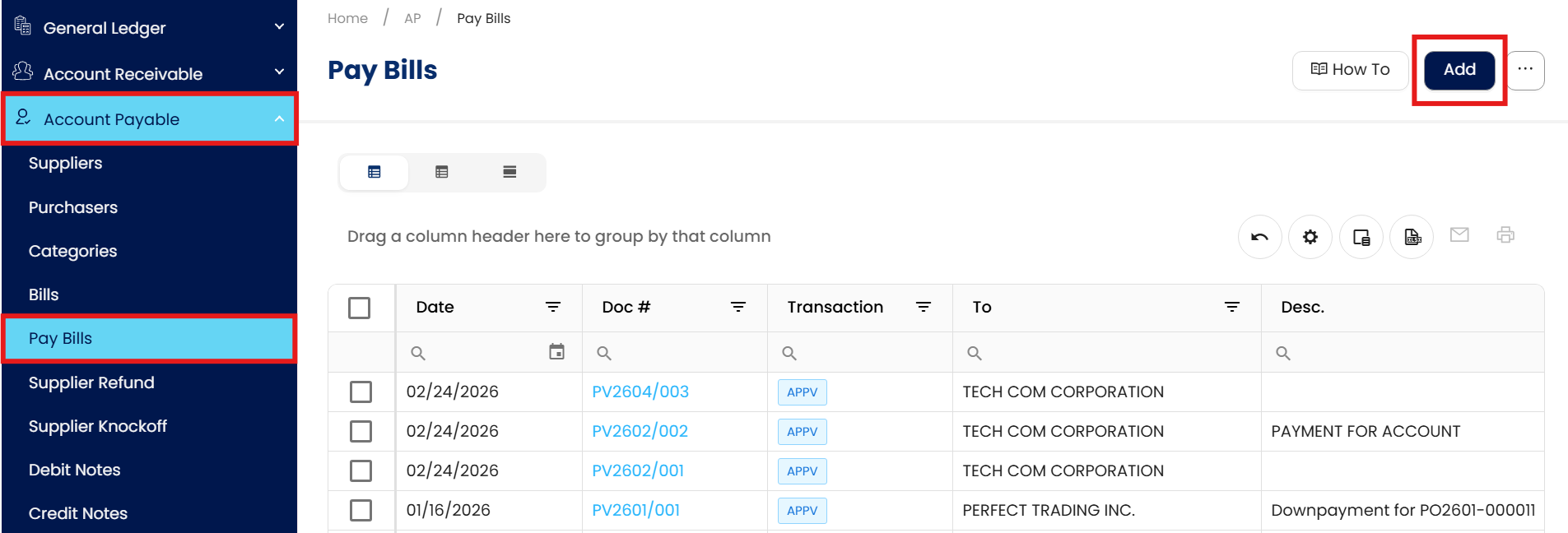
Input the necessary details and select the transaction paid to the supplier.
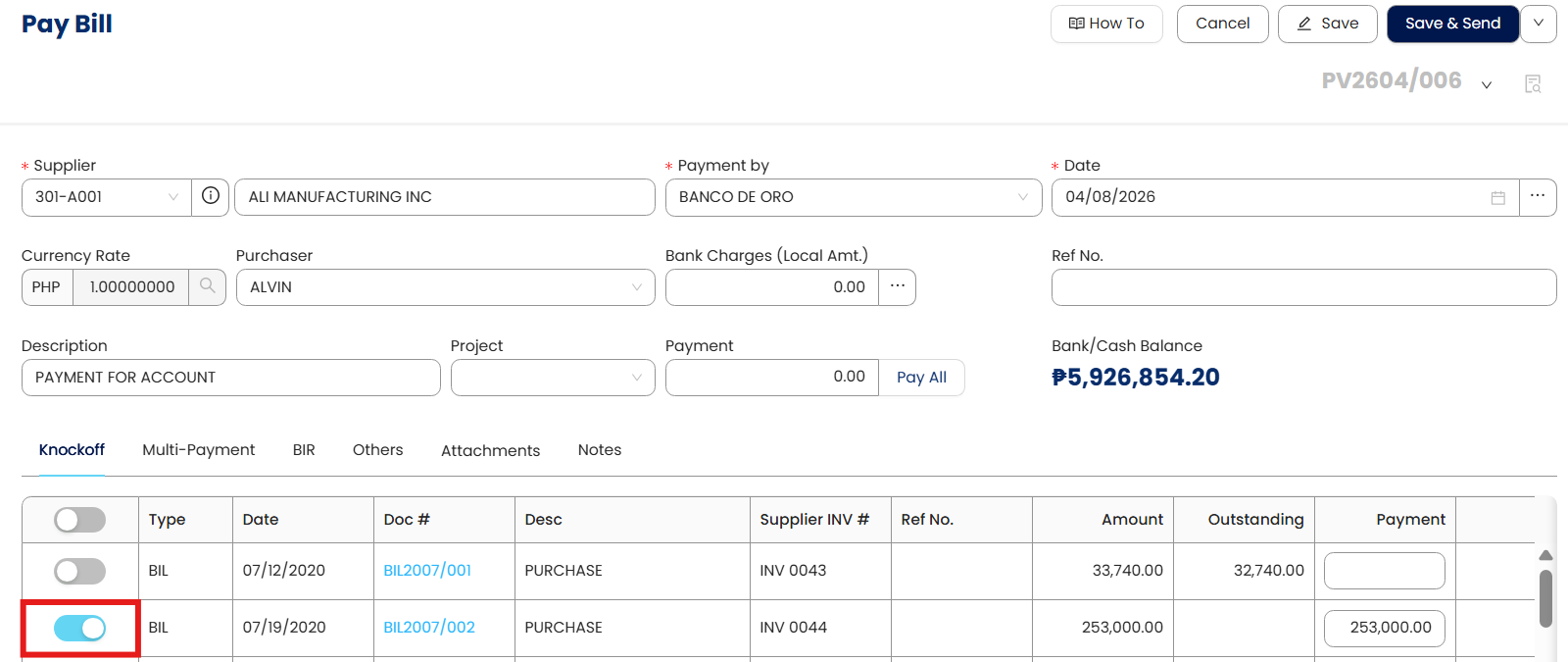
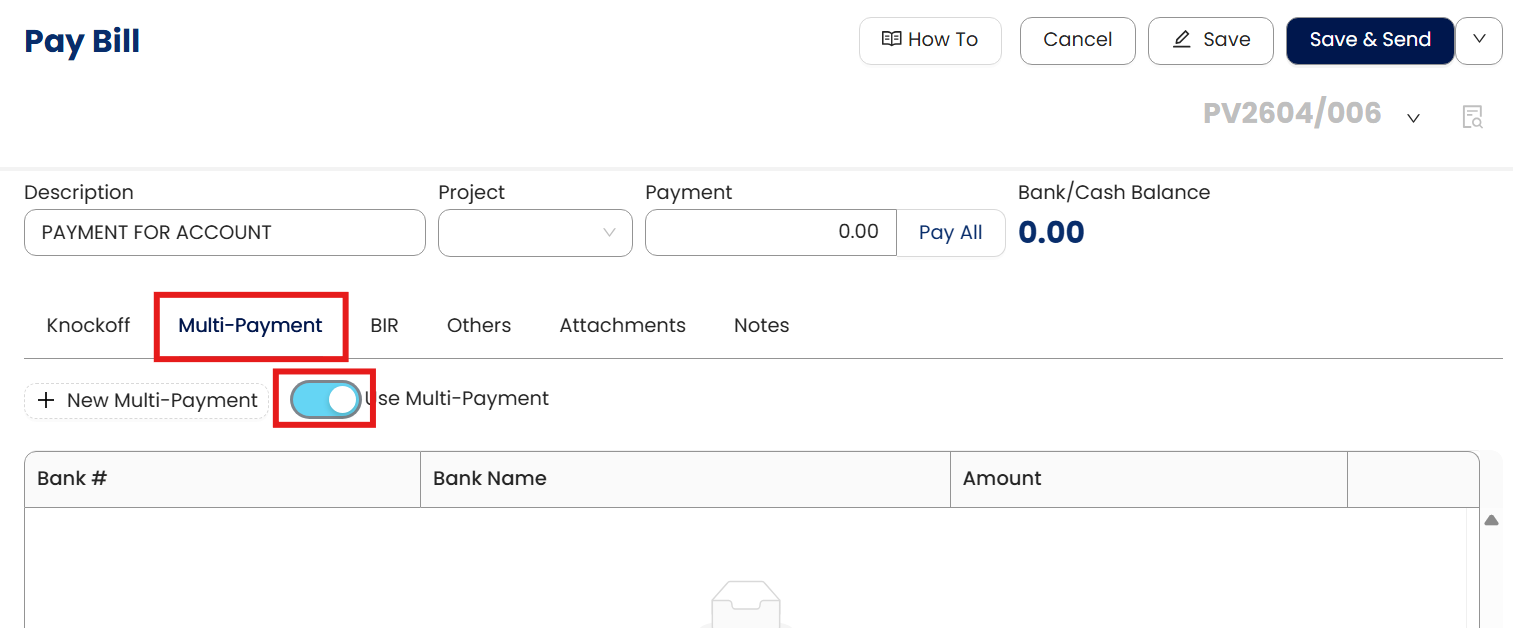
Go to the Multi-Payment Tab > Toggle on Use Multi-Payment
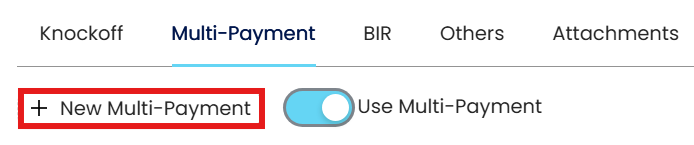
Click New Multi-Payment
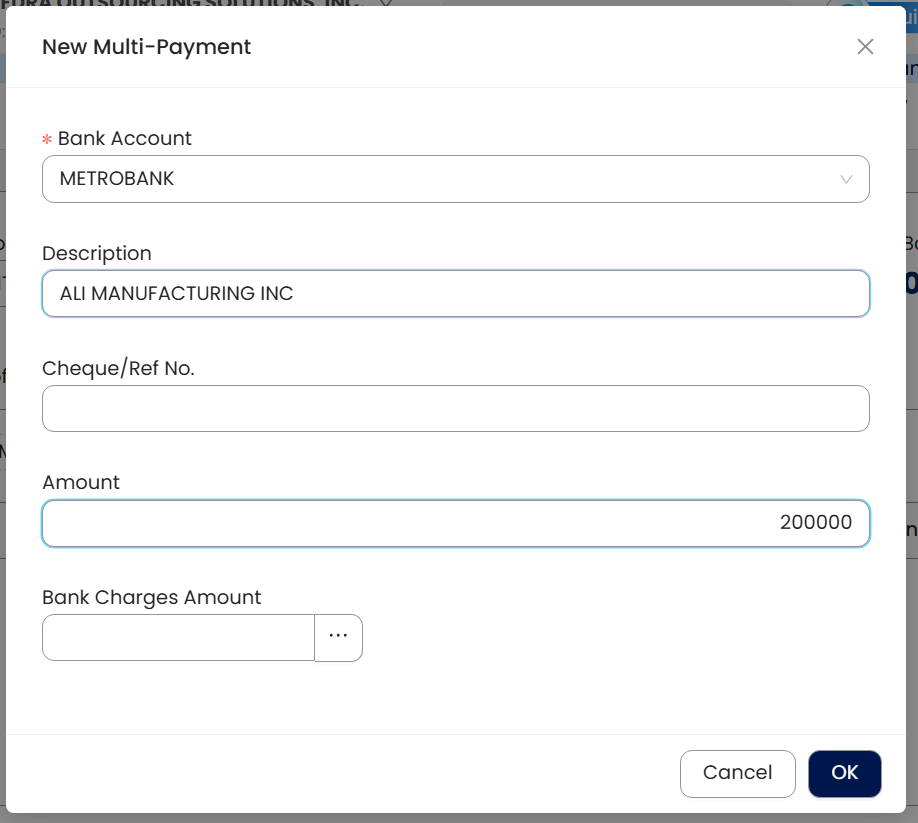
Input the payment details > Click OK.
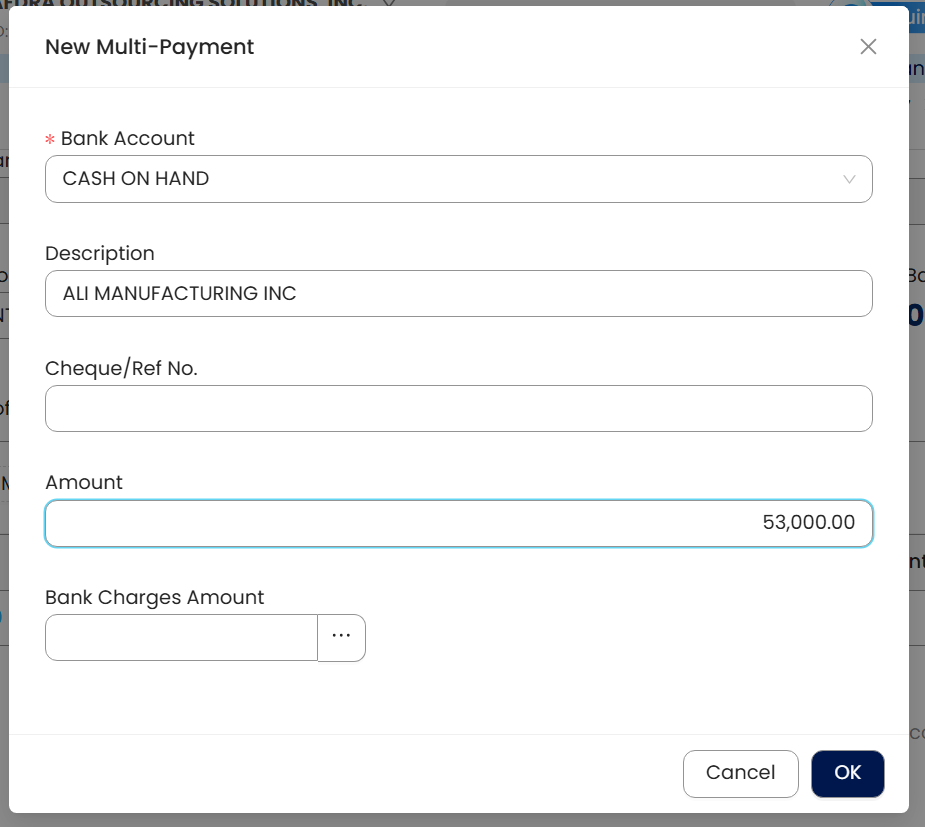
Repeat Step 4 to add additional payment methods as needed.
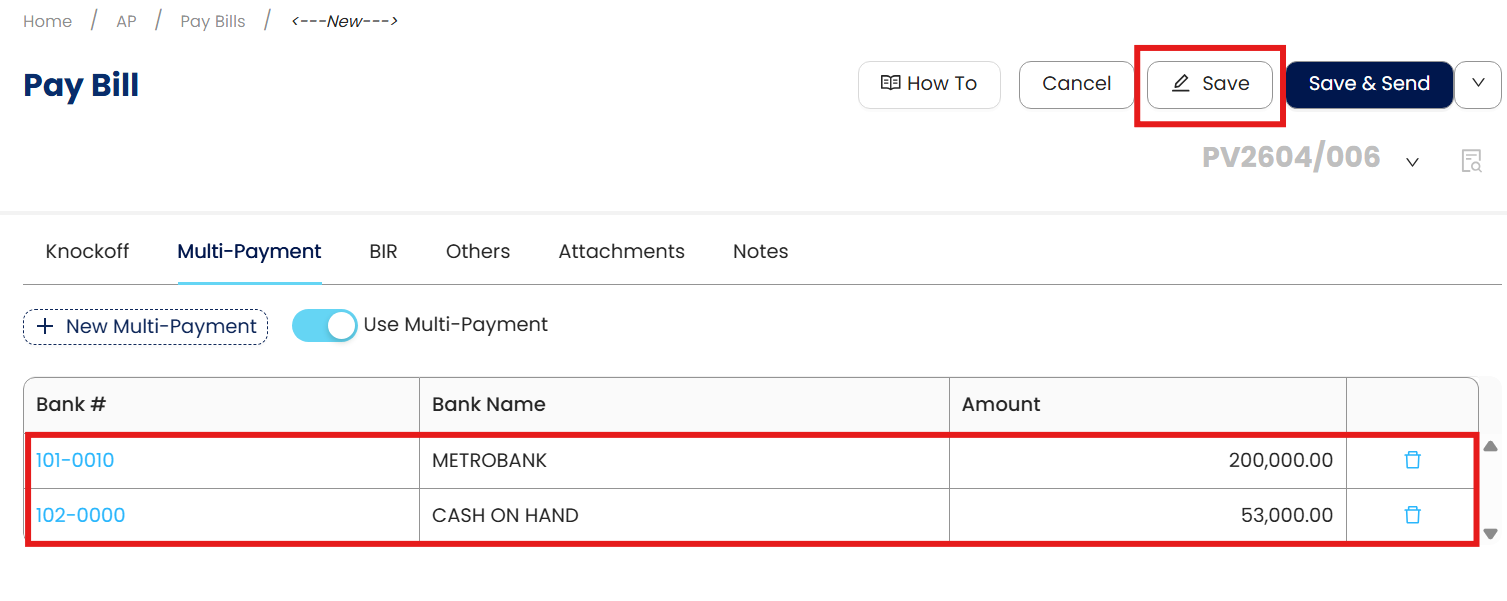
Review the payment entries and ensure the total matches the transaction amount. Click Save.
Once saved, the system posts each payment amount to its corresponding General Ledger accounts.
Note: If the total payment entered does not match the transaction amount, the system will prevent saving and display a validation prompt.
Application:
Payment Recording Accuracy: Capture multiple payment methods in a single transaction while ensuring the total payment matches the transaction amount.
Collection and Payable Visibility: Clearly display the breakdown of payment methods for both customer collections and supplier payments.
GL Posting Integrity: Ensure each payment method is posted to its corresponding cash or bank account without manual adjustments.
Audit and Review Support: Retain detailed payment breakdowns within the transaction for reference, reconciliation, and audit purposes.
Operational Efficiency: Reduce the need for multiple transactions when payments are received or made using mixed payment methods.
System Scope: QNE AI Cloud Accounting / N3 AI Accounting
Was this article helpful?
That’s Great!
Thank you for your feedback
Sorry! We couldn't be helpful
Thank you for your feedback
Feedback sent
We appreciate your effort and will try to fix the article