Overview:
Customer Maintenance is used to create, update, and manage customer master records in QNE Optimum. Customer records serve as the primary source of customer information for sales transactions, receivables management, reporting, and customer-related controls.
This function is typically used by accounts receivable personnel, sales administrators, customer service teams, and system administrators responsible for maintaining customer data.
Maintaining accurate customer records helps support consistent transaction processing, reliable reporting, and proper application of customer-specific settings such as payment terms, credit controls, pricing arrangements, and contact information where configured. Customer-related settings may be maintained based on the organization's configuration.
Scenario
A company begins doing business with a new customer and needs to create sales and accounts receivable transactions for that customer.
Before transactions can be recorded, the customer record must be created and maintained with the necessary business information. Maintaining the customer record ensures that customer details remain consistent across sales and accounts receivable processes.
Procedure:
Step 1: Open the Customer Maintenance function within the system.
Go to Customer in Navigation > Customers
The New Customer screen opens.
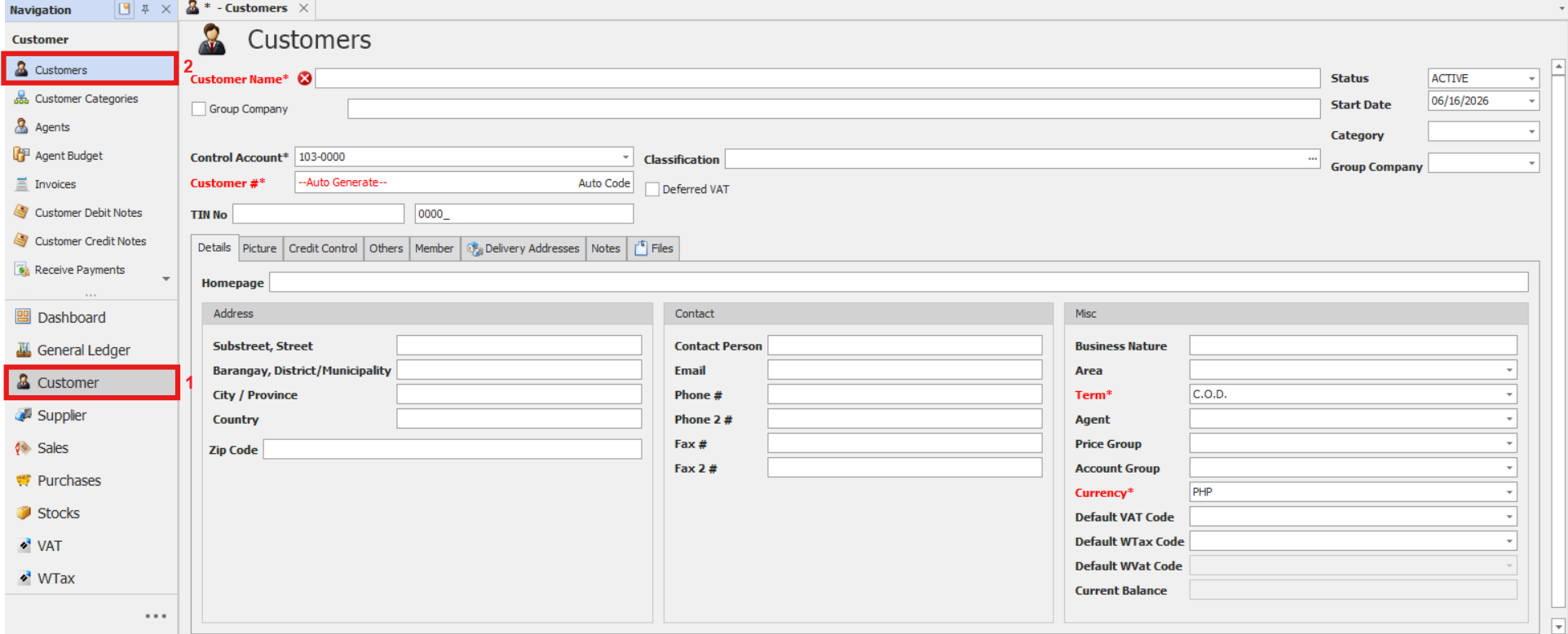
Step 2: Complete the Customer Details
Fill in the relevant customer information to ensure the system can process transactions accurately and generate complete reports:
Important Fields:
Customer Name - Official registered name of the customer.
Customer # - Enter the customer code or use the system-generated code, if configured.
Term - Set appropriate credit terms.
Control Account - Select the correct Customer posting account or the parent customer control account.
Currency - Choose the default currency for billing (e.g., PHP, USD).
Additional Fields:
Classification - Tax-related classification
TIN – Tax Identification Number (if applicable).
Branch Code - Enter the customer's registered branch code, if applicable.
Homepage - Customer’s official website, if available.
Address Fields (Substreet, Street, Barangay, District/Municipality, City/Province, Country, ZIP Code) - Billing or shipping address (as applicable) and for geographic sorting
Business Nature - Industry or sector the customer belongs to.
Customer Name 2 - Secondary name of Customer
Contact Person - Customer contact person.
Email – Customer’s official email address.
Phone # - Primary contact number.
Phone 2 # - Secondary contact number.
Fax # - Primary fax number
Fax 2 # - Secondary fax number.
Business Nature - Type of business or industry of the customer.
Area - Location where customer is located.
Agent - Assign an agent, if applicable.
Category - Optional grouping for customer segmentation.
Group Company - To indicate if the Customer is a part of a Group of Company.
Price Group - Pricing category applied when creating sales transactions.
Account Group - Customer grouping for accounting and reporting purposes.
Default VAT Code - Default VAT code associated with the customer, if configured.
Default WTAX Code - Default withholding tax code associated with the customer, if configured.
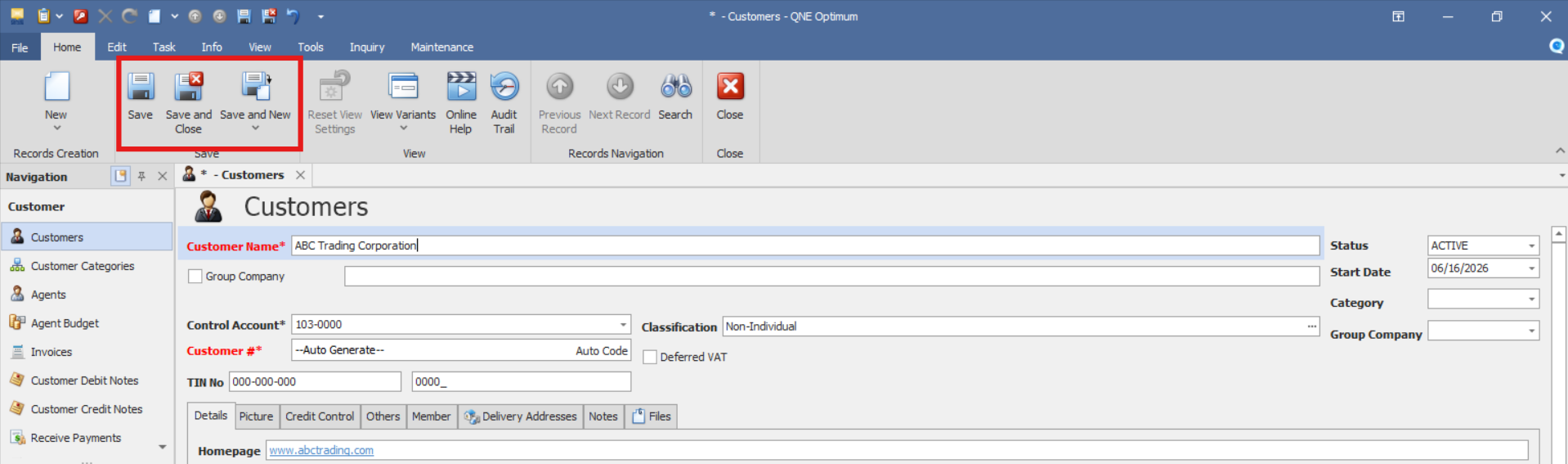
Step 3: Save the Customer Record:
Once all fields are filled out and verified:
Click Save to complete the entry.
Or click Save & Close to save and close the window.
Or choose Save & New to save and create another customer.
Verify that the customer record appears in the customer list and that the customer details were saved correctly.
Application:
Let’s say your company, Sample Trading Inc, has a new customer—ABC Trading Corporation. They are a valued customer who will receive monthly invoices with 30-day payment terms.
Here’s how you'd set them up in QNE Optimum:
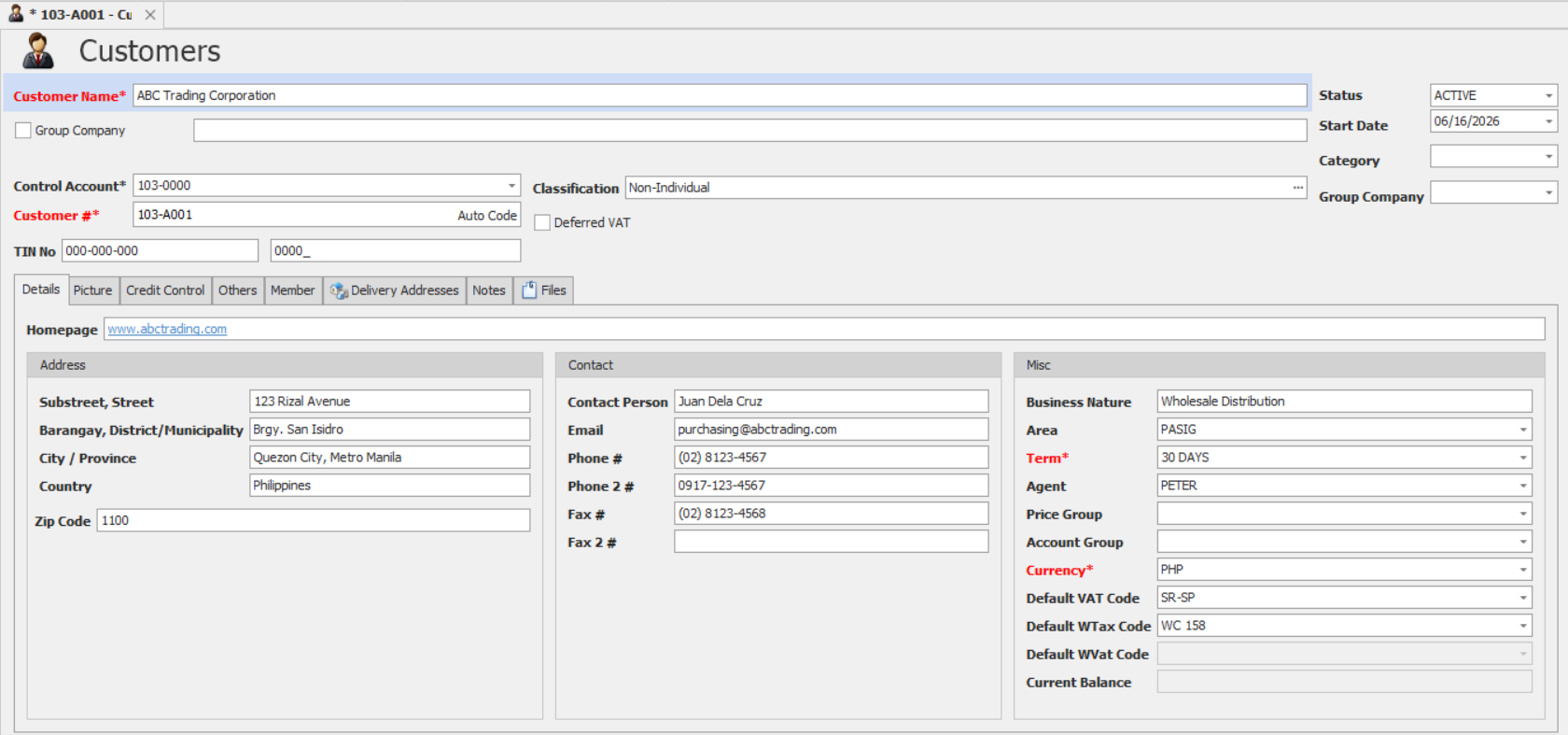
Customer Code: 103-A001
Customer Name: ABC Trading Corporation
Classification: Provide necessary taxpayer information
TIN: Enter their provided tax ID
Control Account: The designated Customer Control Account.
Currency: Set to PHP
Term: Net 30 Days / Specified Payment Terms assigned to Customer.
Phone 1 / Phone 2: Add available contact numbers
Fax 1 / Fax 2: Include if applicable
Address / Email: Input for document delivery, forms generation, and follow-ups
Default VAT/WTAX Code: Tag if applicable.
Application (General Use Cases)
Maintain a centralized repository of customer information.
Support sales transaction processing and customer account management.
Maintain customer-specific payment, pricing, and business settings.
Improve consistency of customer data across departments.
Support accounts receivable monitoring and customer credit management where configured.
Improve reporting accuracy by ensuring customer master records are properly maintained.
Once configured in QNE Optimum, these customer settings can be used as default values when creating transactions, ensuring speed, accuracy, and consistency across your billing and reporting processes.
System Scope: QNE Optimum
Was this article helpful?
That’s Great!
Thank you for your feedback
Sorry! We couldn't be helpful
Thank you for your feedback
Feedback sent
We appreciate your effort and will try to fix the article