Overview:
Recording past supplier bills allows businesses to establish outstanding Accounts Payable (AP) balances from transactions that were created before the cut-off date or go-live date. This process is commonly performed during system migration, opening balance setup, or when transferring records from a legacy accounting system.
Past supplier bills are recorded to reflect unpaid historical purchase transactions so that supplier balances, aging reports, and payment records remain accurate in the new system.
Depending on business requirements, past transactions may be recorded either as:
Consolidated balances per supplier, or
Itemized historical documents based on original bill references
When recording historical transactions, ensure that:
Outstanding balances are verified against prior accounting records
Related historical payments, credit notes, or debit notes should also be considered to help maintain accurate supplier balances.
The Accounts Payable opening balance is derived from the net effect of:
Past Supplier Bills
Past Supplier Debit Notes
Past Pay Bills
Past Supplier Credit Notes
Only outstanding balances as of the cut-off date should be recorded.
Prerequisites:
Supplier master records must already exist in the system.
The financial year and opening balance period must already be configured.
Outstanding supplier balances must be verified against the previous accounting records before migration.
The user has permission to create Past Bills.
Historical supplier bill schedules or migration documents are available for reference.
Scenario:
Your company is migrating from a legacy accounting system to QNE Optimum for the January to December 2015 financial year. As part of the migration, the company needs to record all unpaid supplier bills dated before January 1, 2015, so that supplier balances and Accounts Payable reports remain accurate in the new system.
Some suppliers have a single outstanding balance, while others require individual historical bills to be recorded for tracking and reconciliation purposes.
Procedure 1: Recording a Past Bill
Prepare the list of outstanding supplier bills from the legacy records or prior accounting system.
Verify that the bill balances represent unpaid amounts as of the cut-off date.
Review whether the bills will be recorded as:
Consolidated balances per supplier, or
Individual historical bill transactions
Navigate to Supplier > Past Bills.
Note: If the Quick Create Icon (the one inside the red box) is highlighted, clicking Past Bills will immediately redirect you to the new Past Bills transaction form. If the Quick Create Icon is not highlighted, you will be directed to the Past Bills Listing instead.
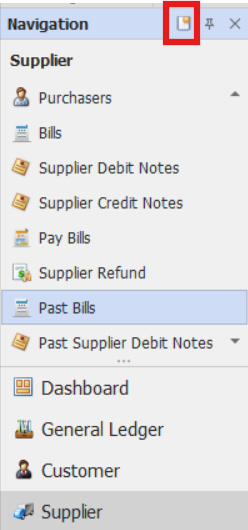
From there, select the New button to create a new Past Bill.

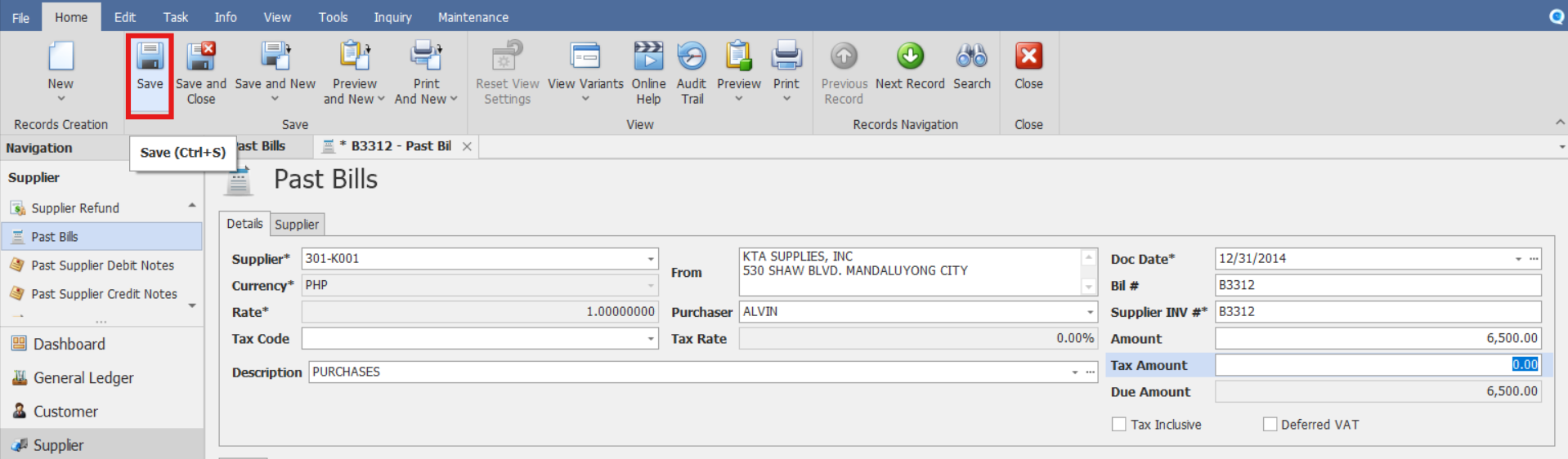
Select the Supplier and enter the historical supplier bill details, such as:
Bill # (Unique bill number assigned within the system for the historical bill record.)
Supplier INV # (Supplier's invoice number appears on the original vendor invoice. Used for reconciliation and audit purposes.)
Description
Doc. Date (Enter or verify the document date for the historical bill.)
Purchaser (Employee or purchaser responsible for the procurement transaction. Used for tracking and reporting purposes.)
Amount
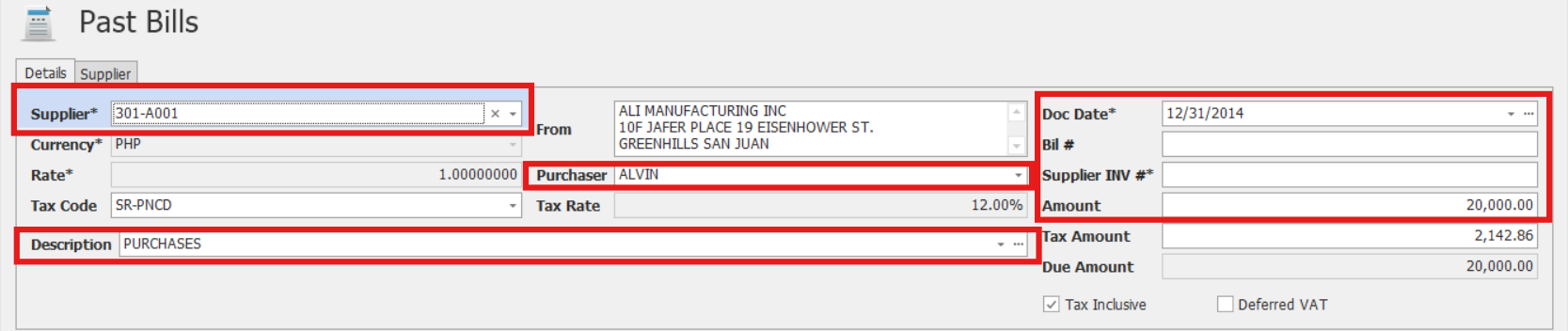
Review the entered amounts carefully and save the transaction.
Note: If Tax/VAT details are entered for historical reference purposes, the VAT portion does not generate a separate posting to the VAT General Ledger account because only the outstanding payable balance contributes to the Accounts Payable opening balance.
Repeat the process for all remaining outstanding supplier bills.
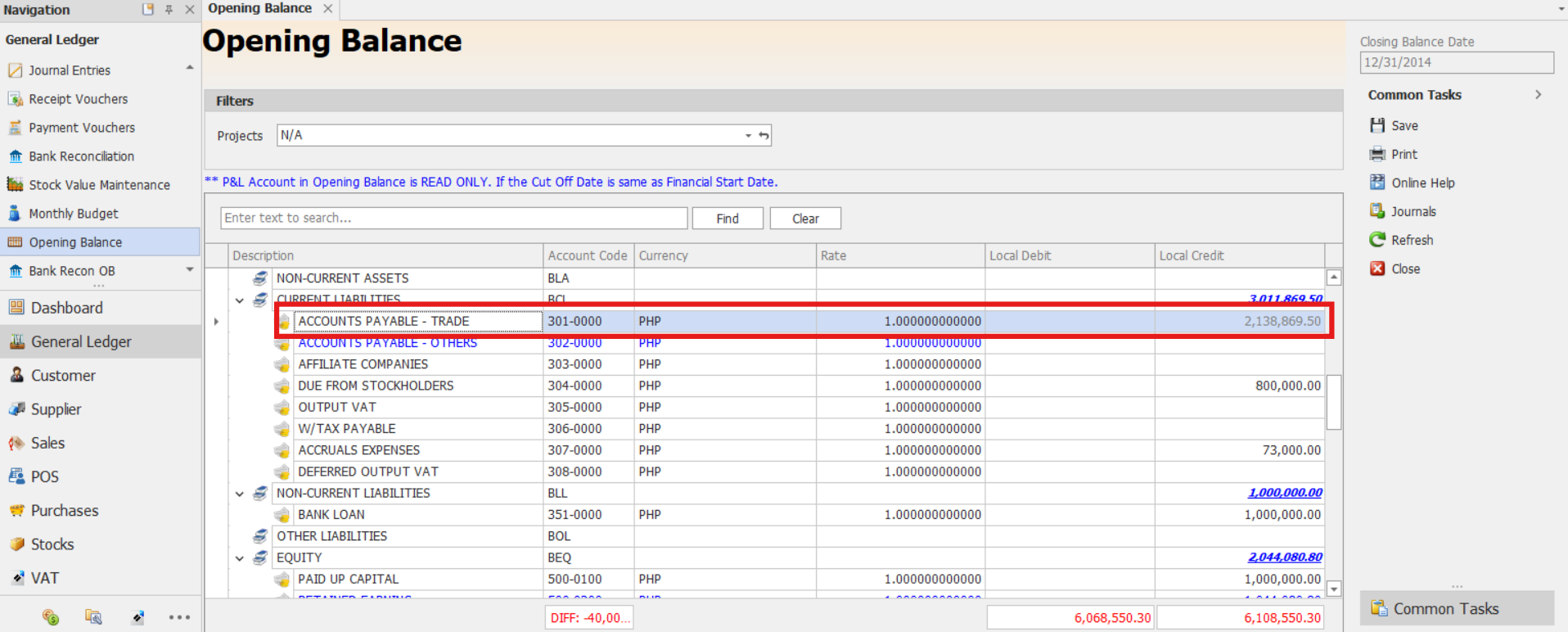
After all entries are completed, review the reflected opening Accounts Payable balance in General Ledger > Opening Balances
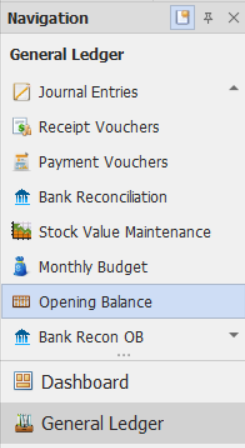
Verify the recorded balances match the historical records.
Procedure 2: Validation of Recorded Past Supplier Bill
After saving the transaction, verify that:
The Past Supplier Bill is saved successfully.
The past supplier bill number is generated or displayed correctly.
The transaction displays the correct outstanding Accounts Payable balance.
Verify that the past supplier bill appears in the Past Bills List.
Procedure 3: Editing a Past Supplier Bill
Go to Supplier > Past Bills, then select the Doc # of the Past Supplier Bill that you want to update.

Once opened, make the required changes, then click Save.
Procedure 4: Deleting a Past Supplier Bill
In the Past Bill List View, identify the document you wish to delete. Hover your cursor over the document and right-click on it. Then click Delete to remove the transaction.

Verify that the Past Supplier Bill no longer appears in the Past Supplier Bills List.
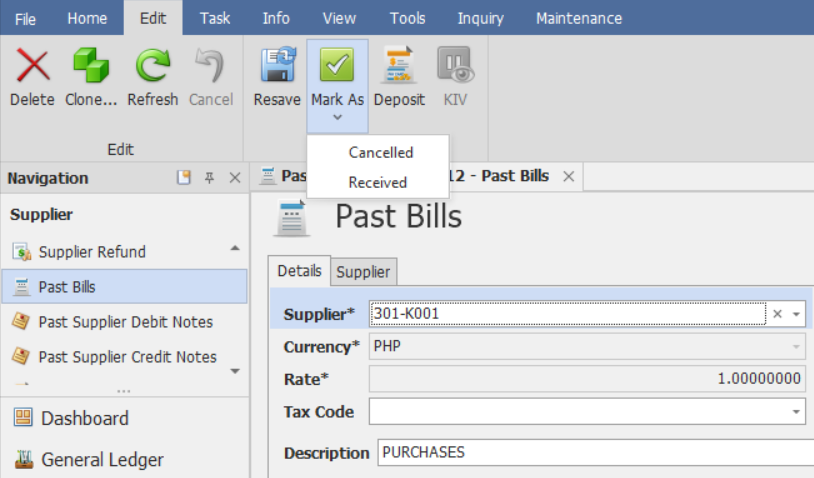
Preferred Method: If the Past Supplier Bill is no longer required, click Cancel instead. This preserves the transaction history while marking it as inactive.
Application (Use Cases):
Past Supplier Bills are used to:
System Migration
Transfer outstanding supplier balances from a legacy accounting system.Opening Balance Setup
Establish opening Accounts Payable balances during system migration.Supplier Aging Continuity
Maintain supplier aging information after go-live.Historical Reconciliation
Support reconciliation of historical supplier balances.Accounts Payable Reporting
Help maintain continuity and accuracy of Accounts Payable reporting.Audit and Historical Reference
Retain historical supplier bill records for audit and tracking purposes.System Scope: QNE Optimum
Was this article helpful?
That’s Great!
Thank you for your feedback
Sorry! We couldn't be helpful
Thank you for your feedback
Feedback sent
We appreciate your effort and will try to fix the article