The Payment Voucher module is used to record all general ledger-related payment transactions, excluding payments made to suppliers or creditors (which are handled under the Accounts Payable module).
This feature is typically used for:
Utility payments
Rent expenses
Government fees
Asset purchases
Miscellaneous operating expenses
By accurately recording payment vouchers, businesses can help keep expenses and other disbursements properly reflected in financial reports, particularly the Profit and Loss Statement.
Prerequisites
General Ledger accounts have been configured.
Cash and bank accounts have been created.
Tax codes and withholding tax codes have been configured, if applicable.
Projects have been created, if project tracking is used.
The user has permission to create Payment Vouchers.
Scenario:
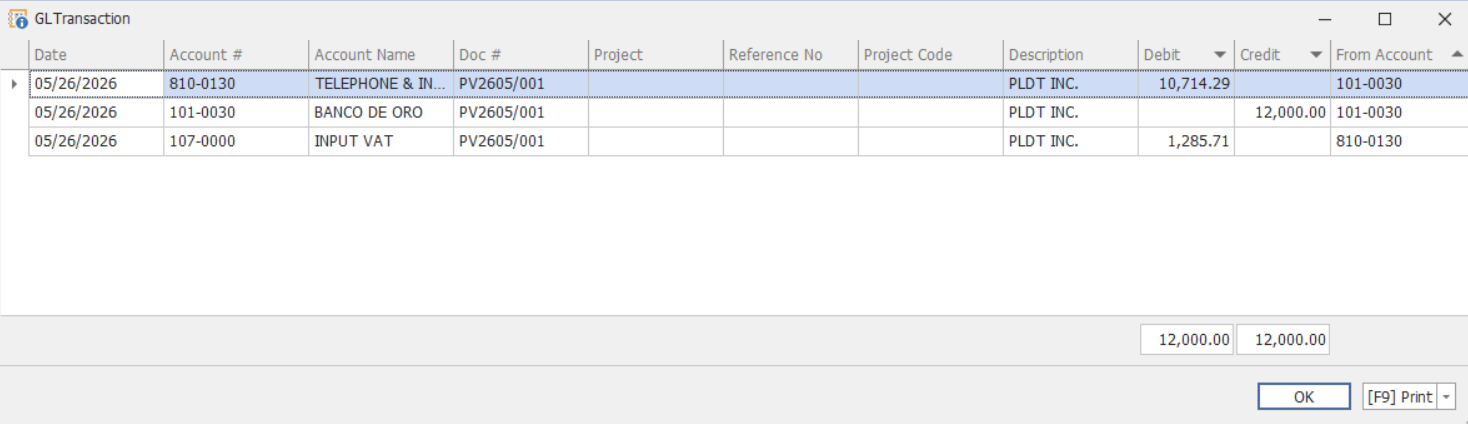
A company paid ₱12,000 for its telephone and internet expenses to PLDT Inc. on May 26, 2026, using its Banco De Oro (BDO) account. Since no supplier invoice was recorded through the Supplier module, this transaction is considered a direct expense.
As such, the payment will be recorded using the Payment Voucher module, which is specifically designed for handling general ledger payments not associated with supplier transactions.
Procedure 1: Recording a Payment Voucher
Go to General Ledger > Payment Vouchers
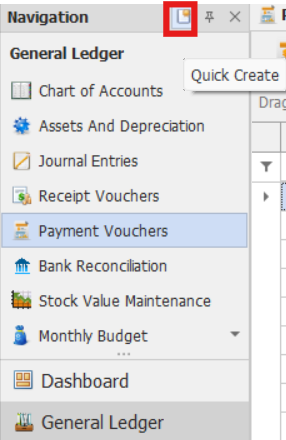
Note: If the Quick Create Icon (the one inside the red box) is highlighted, clicking Payment Vouchers will immediately redirect you to the new Payment Vouchers transaction form. If the Quick Create Icon is not highlighted, you will be directed to the Payment Vouchers Listing instead.
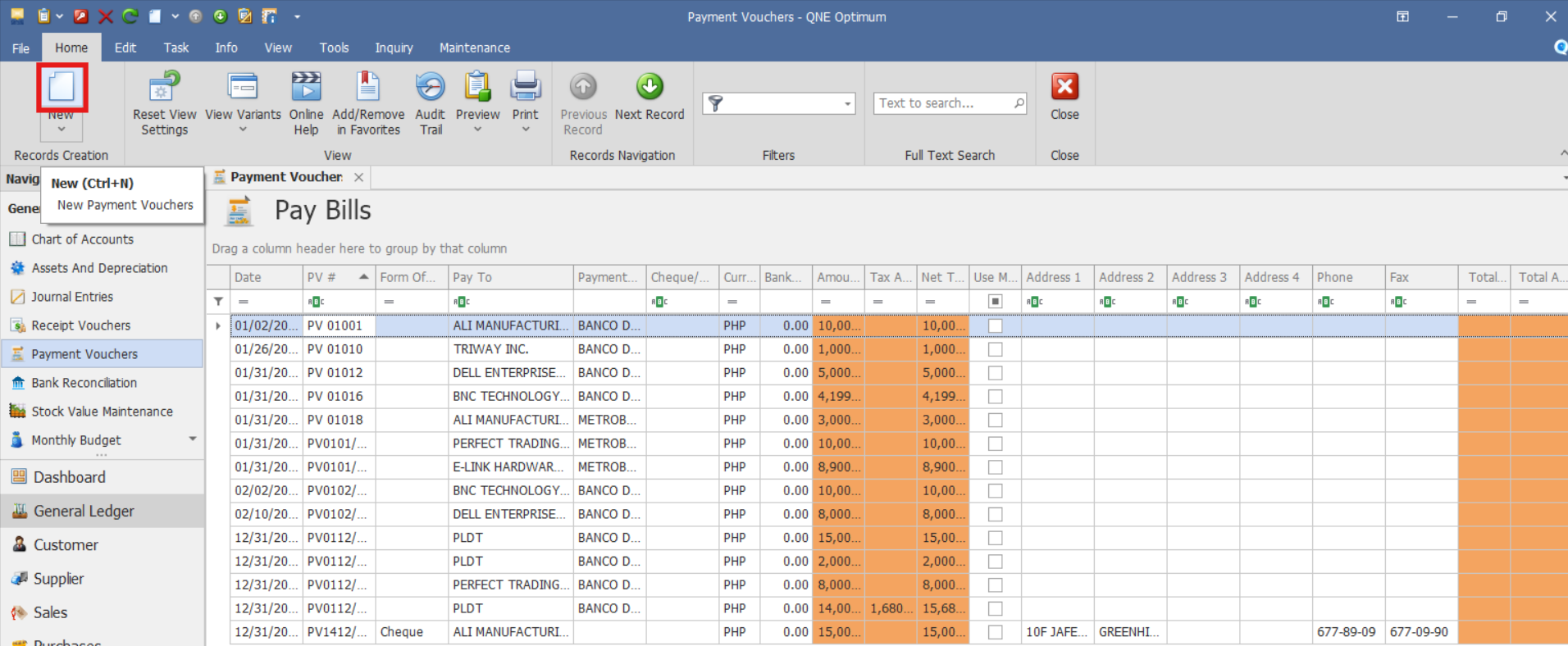
From there, select the New button to create a new Payment Voucher transaction.
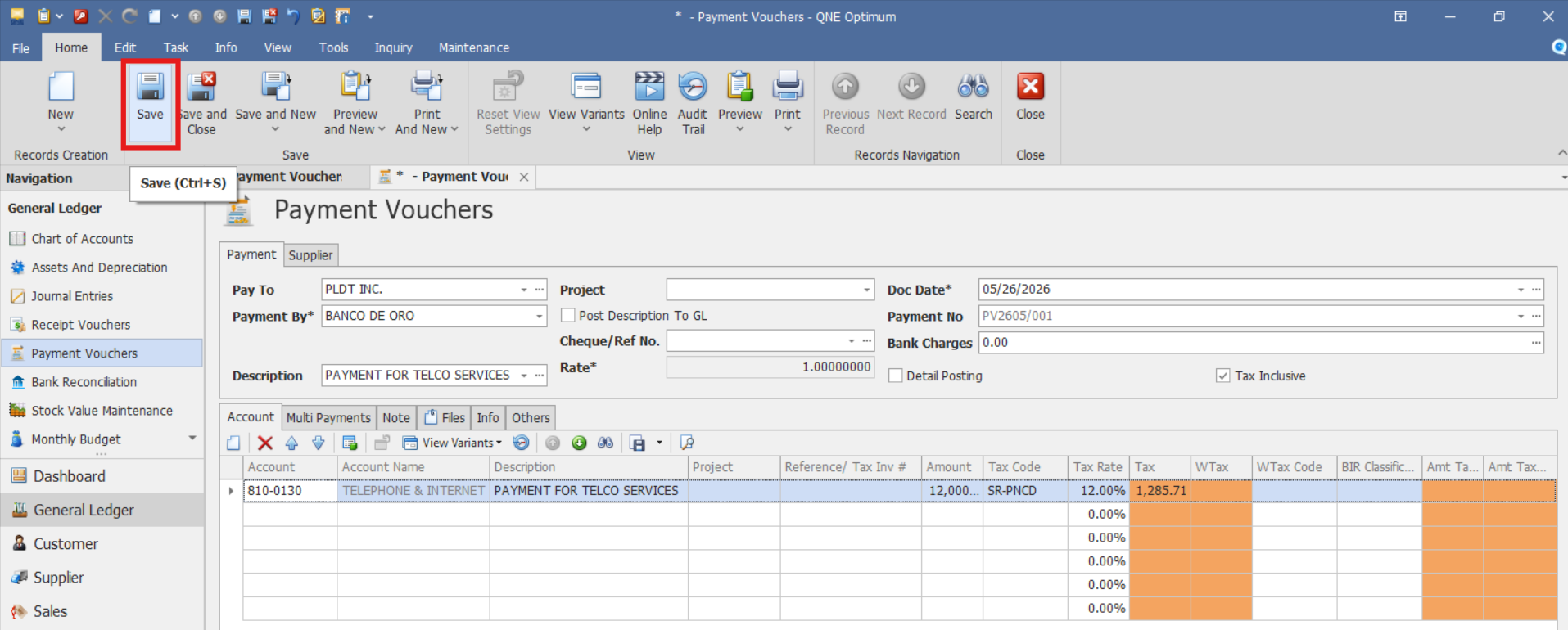
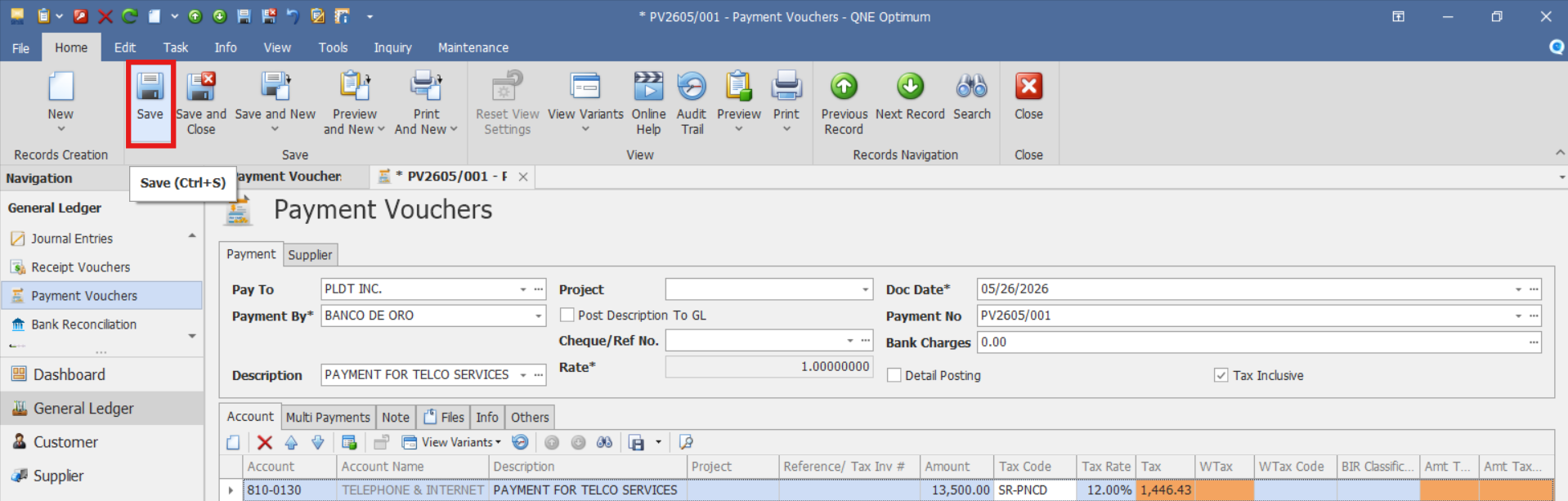
Fill in the following information:
Header Section (Document Details)
Pay To: Name of the individual, company, or entity to whom the payment is being made. This is not linked to the supplier module, so it can be manually entered or selected from existing names.
Payment No: The document number of the recorded transaction.
Date: The actual transaction date when the payment was made. This will affect the posting date in the general ledger.
Currency Rate: Exchange rate applicable if using foreign currency. Default is 1.00 for Philippine Peso (PHP)
Payment By: Select the cash or bank account used for the payment.
Cheque/Ref Number: Enter the reference number or cheque number from the payment method used. Useful for tracking or reconciliation.
Bank Charges: Input any applicable bank charges related to the payment. This can also be accounted for in a separate GL account.
Description: Short summary or narration of the payment purpose. This will show up in reports and GL entries.
Project: Optional. Select the project name if the expense is related to a specific project. This helps in project-level reporting.
Tax Inclusive: Indicates whether the amount entered in the Details section includes VAT.
Account Section (Table for Line Items)
Account: Select the appropriate General Ledger account where the expense or payment should be posted (e.g., Rent Expense, Utilities, etc.).
Amount: Enter the gross amount of the expense or payment. If Tax Inclusive is selected, the system calculates the applicable tax based on the configured tax code.
Reference/ Tax Inv #: Supporting reference or invoice number (if applicable)
Tax Code: Choose the applicable VAT or tax code (e.g., 12% Input VAT, VAT Exempt, or Zero-Rated). This is used to record the applicable VAT for the transaction.
BIR Classification: This field is used to capture BIR-related information for transactions that require tax reporting or withholding tax processing, if applicable.
W/Tax: Select the correct withholding tax code (e.g., 2% EWT for services), if applicable. The system calculates the withholding tax based on the selected code.
Once done click Save.
Note: The Pay To field is manually inputted, and is only used for payments recorded directly in the General Ledger and not processed through Accounts Payable transactions.
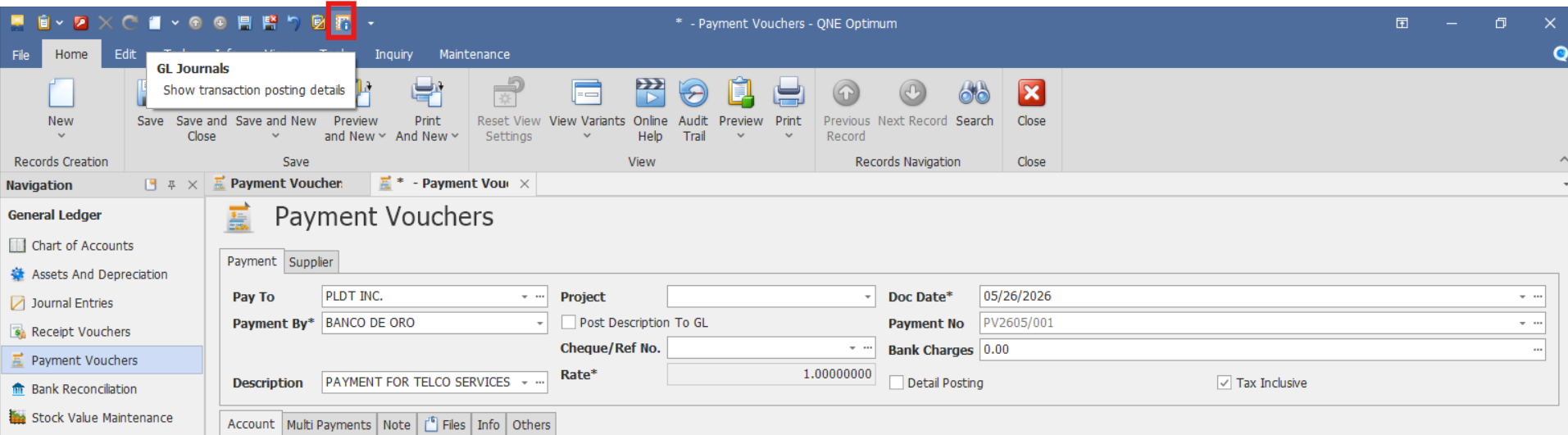
To view the Account Journal, click the GL Journal Icon located on the top left side of the Payment Voucher screen. This will display the system-generated journal entry for review and verification
Procedure 2: Validation of Recorded Payment Voucher
After saving the transaction, verify that:
The payment voucher is saved successfully.
The payment voucher number is generated or displayed correctly.
The totals reflect the entered amounts, BIR Classification details, VAT and WTax codes (if applicable), and other adjustments.
Verify that the payment voucher appears in the Payment Voucher List.
Procedure 3: Editing a Payment Voucher
Go to General Ledger > Payment Vouchers, then select the Doc # of the Payment Voucher that you want to update.

Once opened, make the required changes, then click Save.
Procedure 4: Deleting a Payment Voucher
In the Payment Vouchers List View, identify the document you wish to delete. Hover your cursor over the document and right-click on it. Then click Delete to remove the transaction.

Verify that the Payment Voucher no longer appears in the Payment Vouchers List.
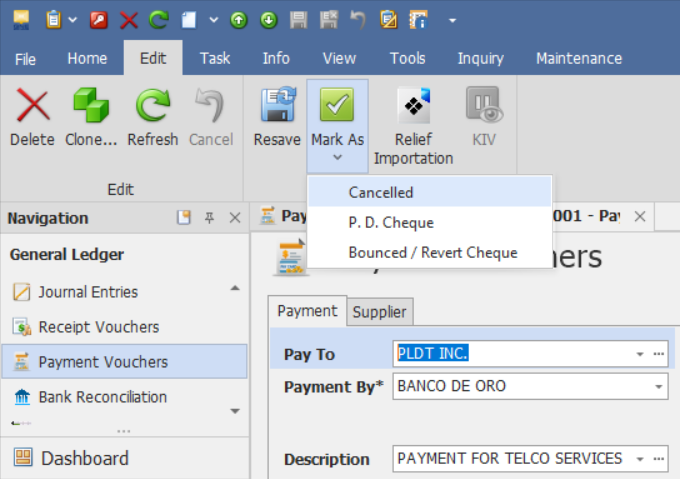
Preferred Method: If the Payment Voucher is no longer required, click Cancel instead. This preserves the transaction history while marking it as inactive.
Application
Payment Vouchers can be used to:
Utility Payments
Record payments for electricity, internet, telephone, and other utility expenses that are not processed through Accounts Payable.Office and Administrative Expenses
Record miscellaneous operating expenses such as office supplies, permits, and government fees.Rental Payments
Record rental expenses paid directly without creating supplier invoices.Asset Purchases
Record purchases of fixed assets that are paid directly through cash or bank accounts.Project-Related Expenses
Track expenses that need to be allocated to specific projects for reporting purposes.Miscellaneous Operating Expenses
Record one-time or incidental expenses that are paid directly and do not require supplier transactions.
Important Note:
Editing and Deleting Transactions: Editing and deletion permissions may be restricted based on system configuration, organizational policy, or applicable regulatory requirements (such as CAS approval, where applicable). Ensure modifications and deletions follow your organization's internal policies and applicable regulatory requirements.
System Scope: QNE Optimum
Was this article helpful?
That’s Great!
Thank you for your feedback
Sorry! We couldn't be helpful
Thank you for your feedback
Feedback sent
We appreciate your effort and will try to fix the article