A Purchase Invoice records a bill received from a supplier for goods or services purchased by the company. It confirms the amount owed to the supplier and creates the corresponding Accounts Payable (AP) entry in the accounting system.
In QNE Optimum, creating a Purchase Invoice ensures supplier transactions are accurately recorded, payment obligations are tracked, and financial reports reflect the company’s liabilities.
This feature is typically used by accounts payable staff, finance teams, and procurement personnel to record supplier invoices, verify purchase details, and track payment obligations.
Scenario:
A company receives an invoice from a supplier for office furniture delivered the previous week. The accounts payable officer reviews the supplier’s invoice and verifies that the items and quantities match the delivery documents.
To properly record the transaction and track the payment due to the supplier, the officer creates a Purchase Invoice in QNE Optimum. This records the payable amount, updates the appropriate expense or inventory accounts and sets the payment due date based on the agreed payment terms.
Procedure:
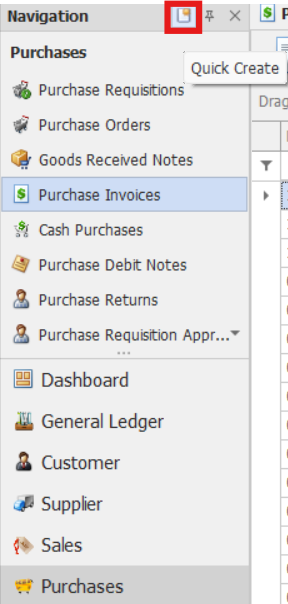
In the navigation pane click Purchases > Purchase Invoices.
Note: If the Quick Create Icon (the one inside the red box) is highlighted, clicking Purchase Invoices will immediately redirect you to the new Purchase Invoices transaction form. If the Quick Create Icon is not highlighted, you will be directed to the Purchase Invoice Listing instead.
From there, select the New button to create a new Purchase Invoices transaction.
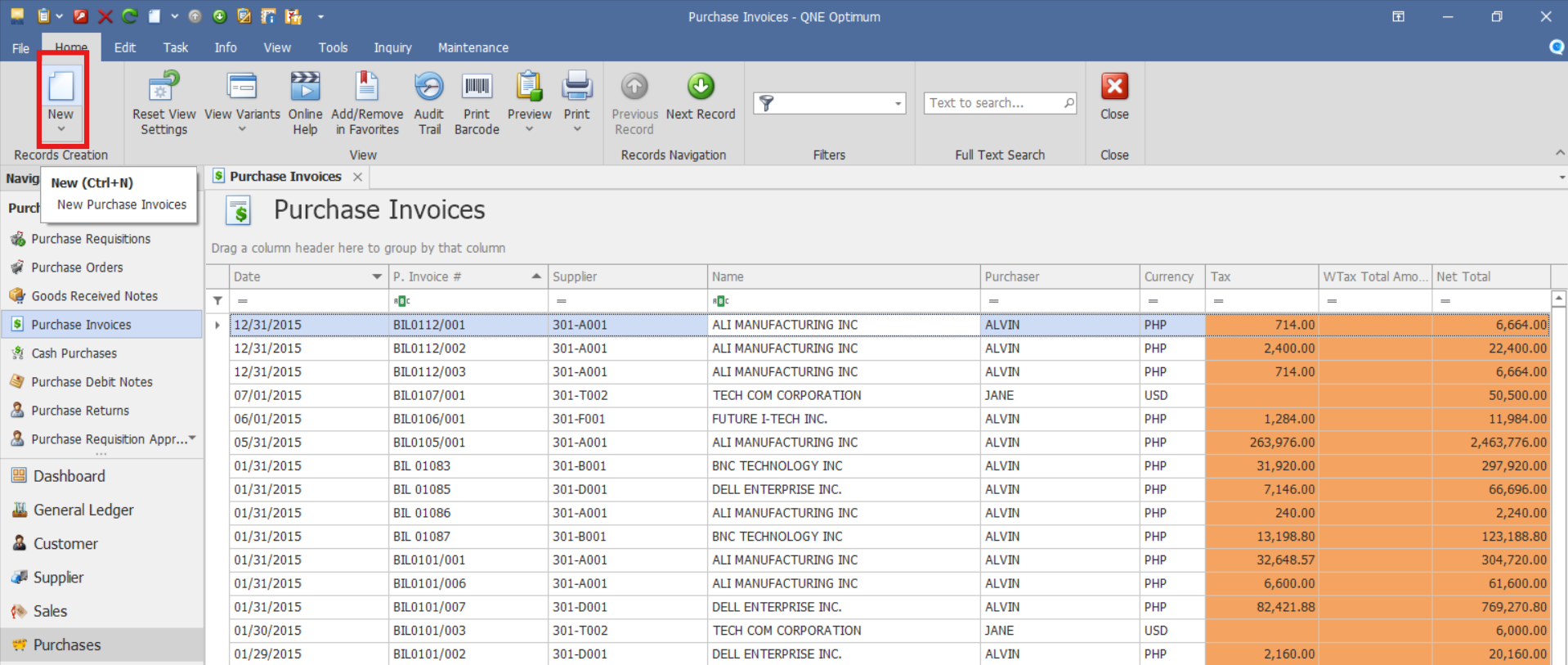
There are two options available for creating a Purchase Invoice:
Option 1: Create a Purchase Invoice by transferring the details from the Purchase Requisition/Purchase Order/Goods Received Note, depending on your procurement process.
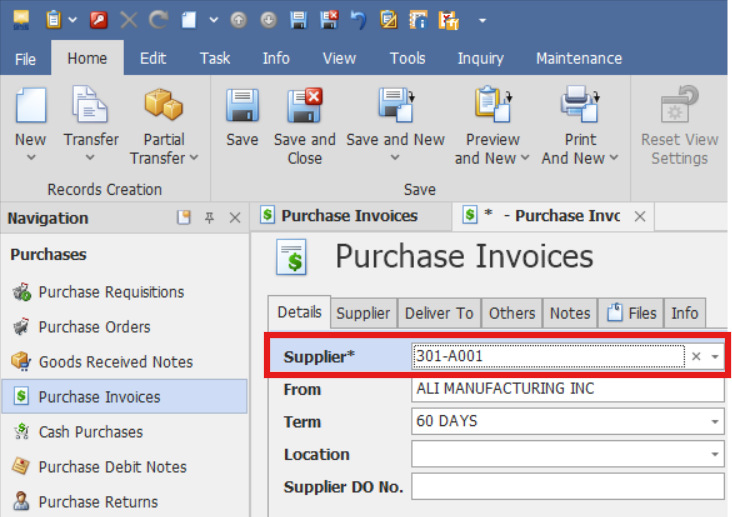
Select the Supplier code
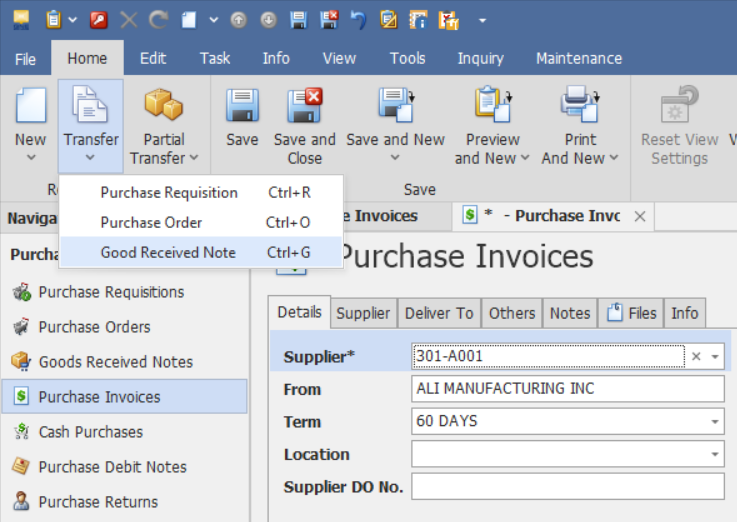
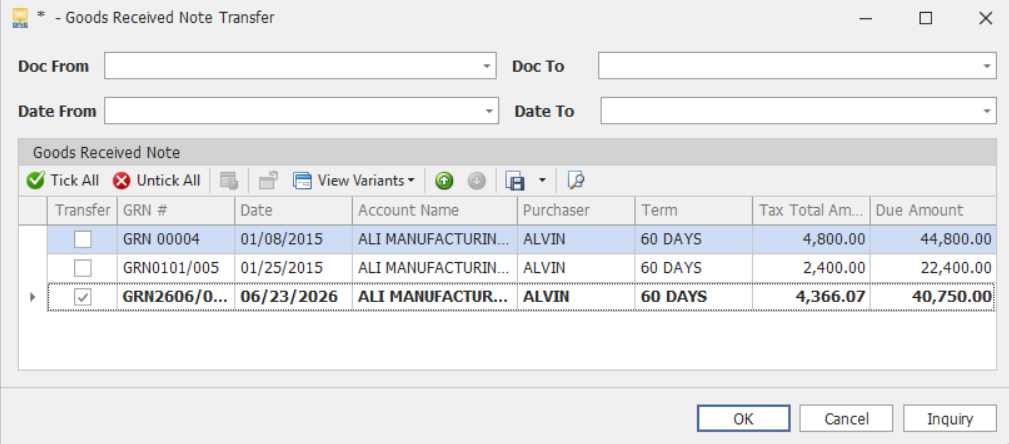
On the top part of the Purchase Invoices window, select the Transfer button. Then select Purchase Requisition/Purchase Order/Goods Received Note, depending on your procurement process.
Select the Purchase Requisition/Purchase Order/Goods Received Note needed to be transferred to the Purchase Invoice by clicking OK.
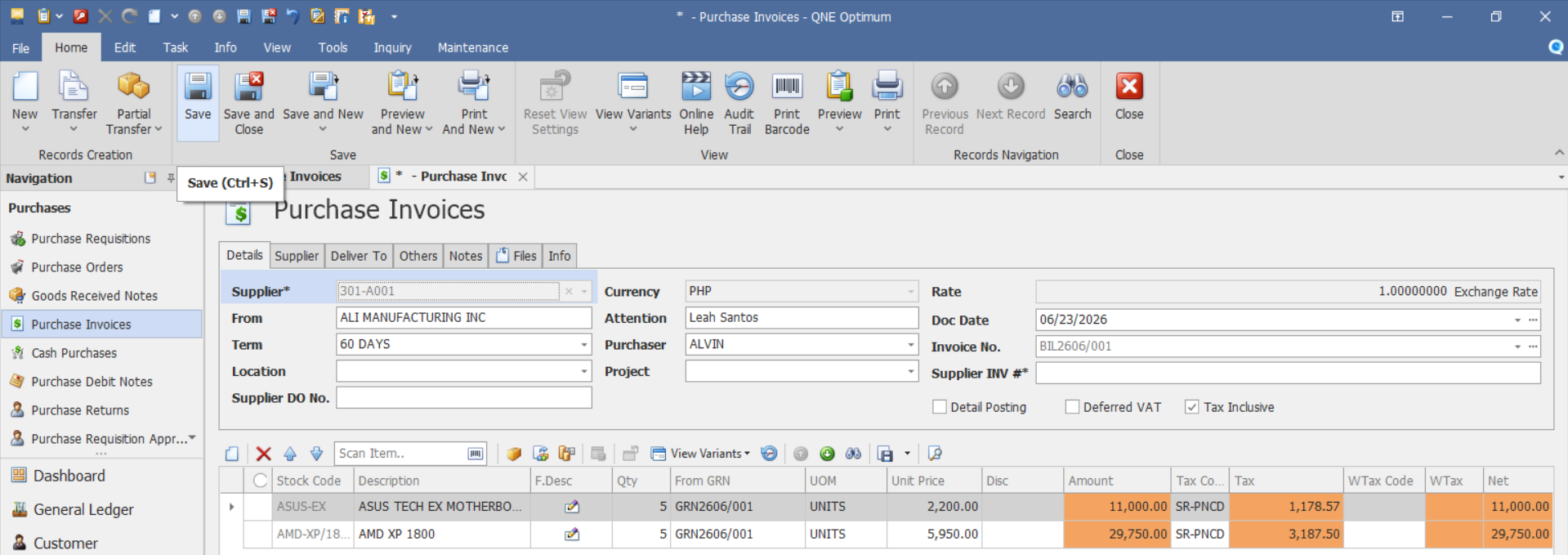
Once complete, the system copies all the details included in its source document and has it prepared for the Purchase Invoice. Click Save if details are good to go.
Option 2: Create Purchase Invoices manually.
Fill in the required Header information, such as:
Supplier Code – Unique identifier for the supplier.
Date - Date when the invoice is created.
Currency – Default is 1 for PHP. If using a foreign currency, manually enter the correct exchange rate.
Term – Payment terms agreed with the supplier (e.g., 30 days).
Invoice No. - Document number of the recorded invoice.
Purchaser – Person responsible for the purchase.
Project – Associated project (if applicable).
Supplier DO No. - Supplier delivery order number.
Supplier INV # - Reference number from the supplier’s invoice.
Location – Location where goods will be stored.
Tax Inclusive – Enable if prices include tax.
Deferred VAT - Enable if the VAT for the transaction will be recorded but paid in a later tax reporting period.

In the Details section, enter the item information
Stock Code – Stock code of the item.
Description – Automatically populated with the stock name once the Stock code is selected.
F.Desc – Additional details about the item if needed.
QTY – Quantity being invoiced.
UOM - Unit of Measure (e.g., pcs, boxes, liters).
From GRN - Displays the source GRN document.
Unit Price - Cost per unit.
Disc – Any Discount applied.
Tax - Tax rate, if applicable.
WTAX - Withholding tax, if applicable.
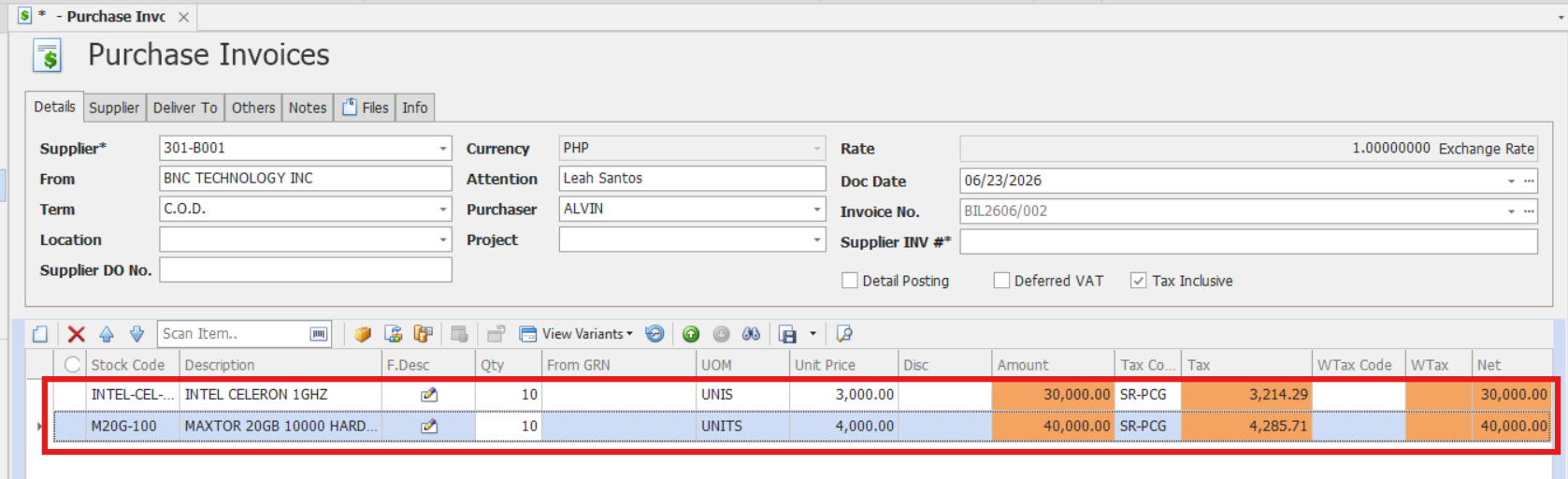
Verify the Total Amount and transaction details, then click Save on the Purchase Invoice transaction screen.
Procedure 2: Editing a Purchase Invoice
Go to Purchases > Purchase Invoices, then select the Doc # of the Purchase Invoice that you want to update.

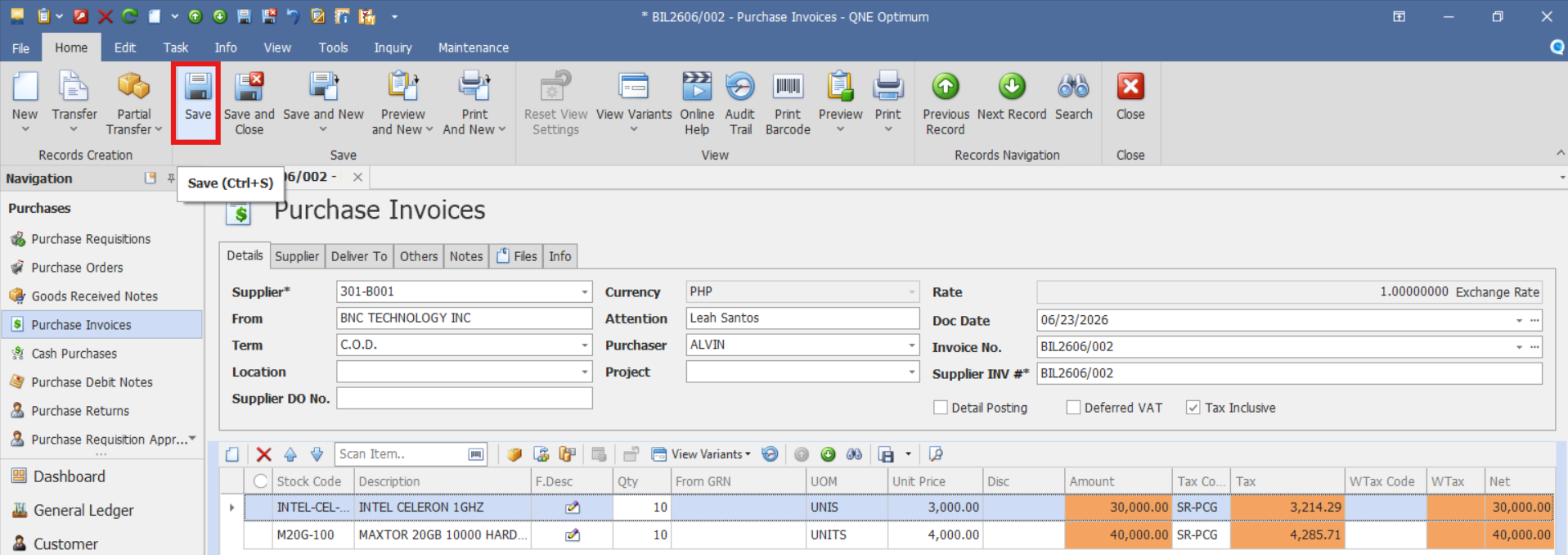
Once opened, apply necessary adjustments on the document. Click Save to implement changes.
Procedure 3: Deleting a Purchase Invoice
In the Purchase Invoices List View, identify the document you wish to delete. Hover your cursor over the document and right-click on it. Then click Delete to remove the transaction.

The document will be deleted in the Purchase Invoices list.
Application:
The Purchase Invoice feature can be used to:
Maintain accurate accounts payable records by documenting supplier invoices.
Monitor supplier payment obligations and upcoming due dates.
Support financial reporting and audit requirements with traceable supplier transactions.
Improve procurement control by matching invoices with Purchase Orders and Goods Received Notes.
Analyze supplier spending and purchasing trends.
Important Notes:
Editing and Deleting Transactions: Editing and deletion permissions may be restricted based on system configuration, organizational policy, or applicable regulatory requirements (CAS Approval). It's vital to adhere to your company's internal policy regarding these functionalities. It is generally advisable to disable or limit the ability to edit/delete to maintain compliance with regulations.
System Scope: QNE Optimum
Was this article helpful?
That’s Great!
Thank you for your feedback
Sorry! We couldn't be helpful
Thank you for your feedback
Feedback sent
We appreciate your effort and will try to fix the article