In QNE Optimum, Supplier Debit Notes are used to record additional payables to suppliers, not deductions. This is typically issued when a company agrees to increase the amount payable to a supplier due to price adjustments, additional charges, or previously omitted items in the original billing.
Scenario:
You previously received an invoice from a supplier, but after reconciliation, you discover:
There were additional delivery charges not included in the original invoice.
A pricing error occurred, and you need to increase the amount payable.
You missed recording a late fee or additional items delivered.
To properly reflect the increased obligation, you must create a Supplier Debit Note in QNE Optimum.
Procedure 1: Recording a Supplier Debit Note
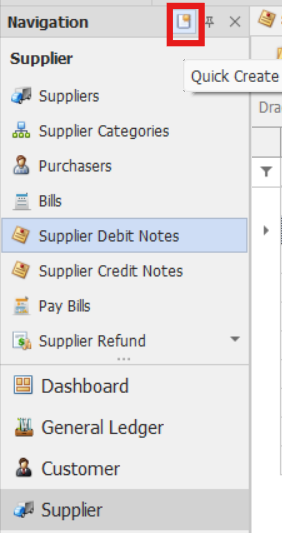
Go to Supplier > Supplier Debit Notes
Note: If the Quick Create Icon (the one inside the red box) is highlighted, clicking Supplier Debit Notes will immediately redirect you to the new Supplier Debit Notes transaction form. If the Quick Create Icon is not highlighted, you will be directed to the Supplier Debit Note Listing instead.
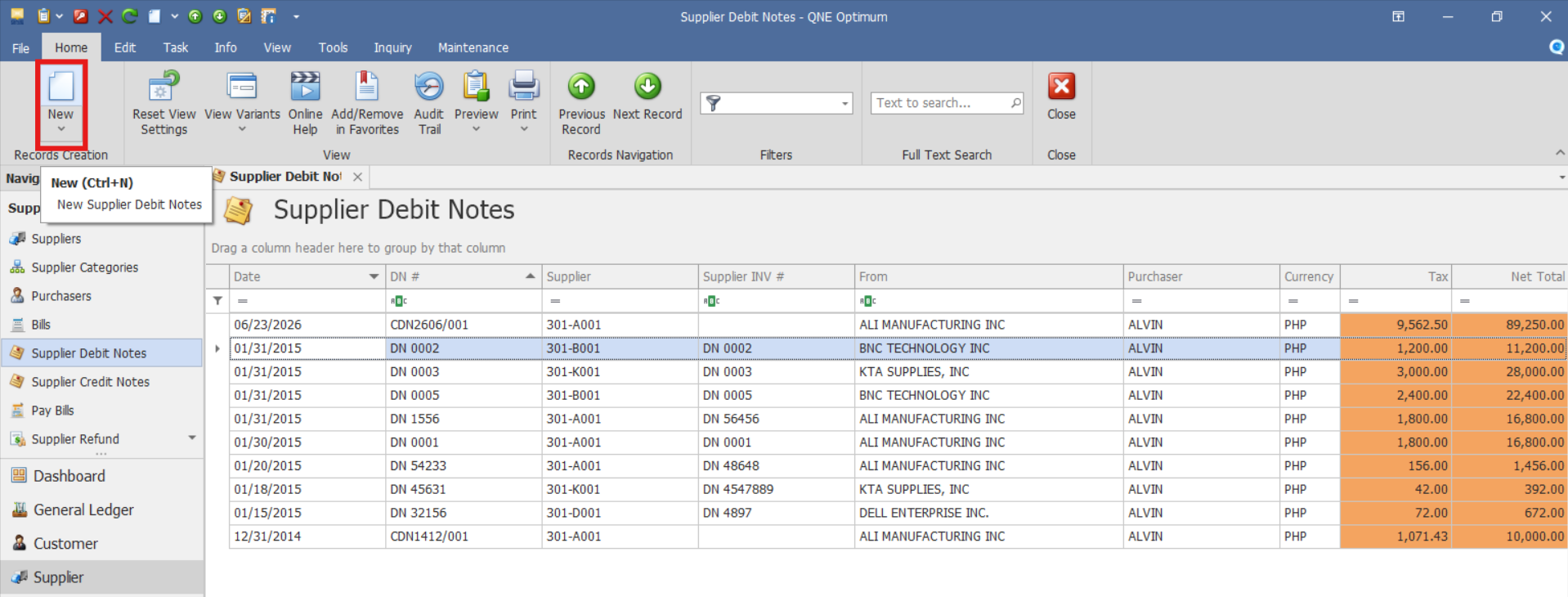
From there, select the New button to create a new Supplier Debit Note transaction.
Enter the necessary information:
In the header section, enter the required transaction information.
Supplier – Select the supplier whose payable balance will be adjusted.
Doc Date – Date the supplier debit note is recorded or issued.
Supplier INV # - Invoice number issued by the supplier.
DN # - Unique Debit Note number assigned by the system.
You may also enter additional information if applicable:
Description – Brief explanation of the debit note.
Purchaser – Employee responsible for the purchase transaction.
Ref Bill – Reference to the original supplier bill that is being adjusted by the debit note. This helps link the adjustment to the related transaction.
Reason - Specifies the reason for issuing the supplier debit note.

Under the Details tab, enter the purchased item details:
Acc Code – General Ledger account code where the purchase or expense will be recorded.
Acc Desc – Description of the selected General Ledger account.
Description – Additional explanation for the account entry or expense line.
Reference No. – Reference number associated with the individual account entry, if applicable.
Project - Project code assigned to the expense for project costing and reporting.
Tax Code - Tax classification assigned to the transaction line, if applicable.
WTax Code – Withholding tax code assigned to the transaction line, if applicable.
Amount - Amount of the supplier adjustment recorded for the selected account.

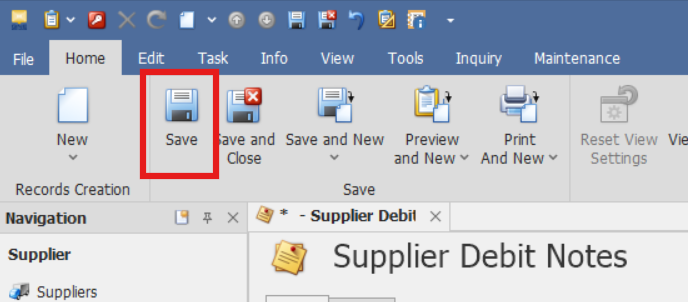
Verify the Total Amount and transaction details, then click Save.
Preview the Debit Note Voucher.
After saving, click the Preview button to view the Debit Note Voucher Form.
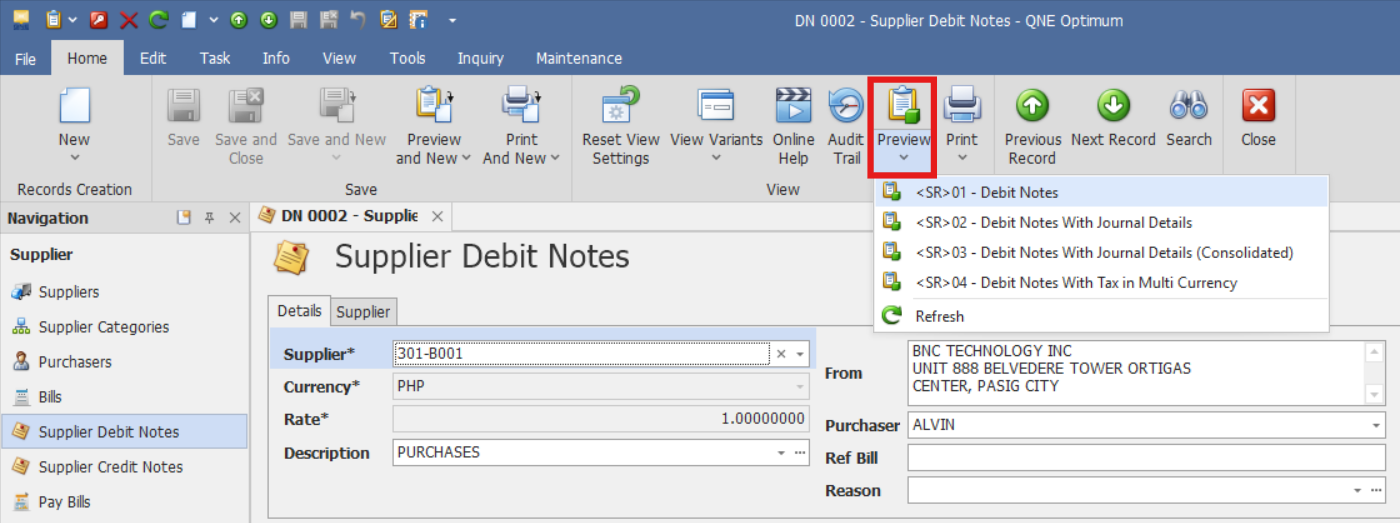
This can be printed or exported as needed for documentation and audit.
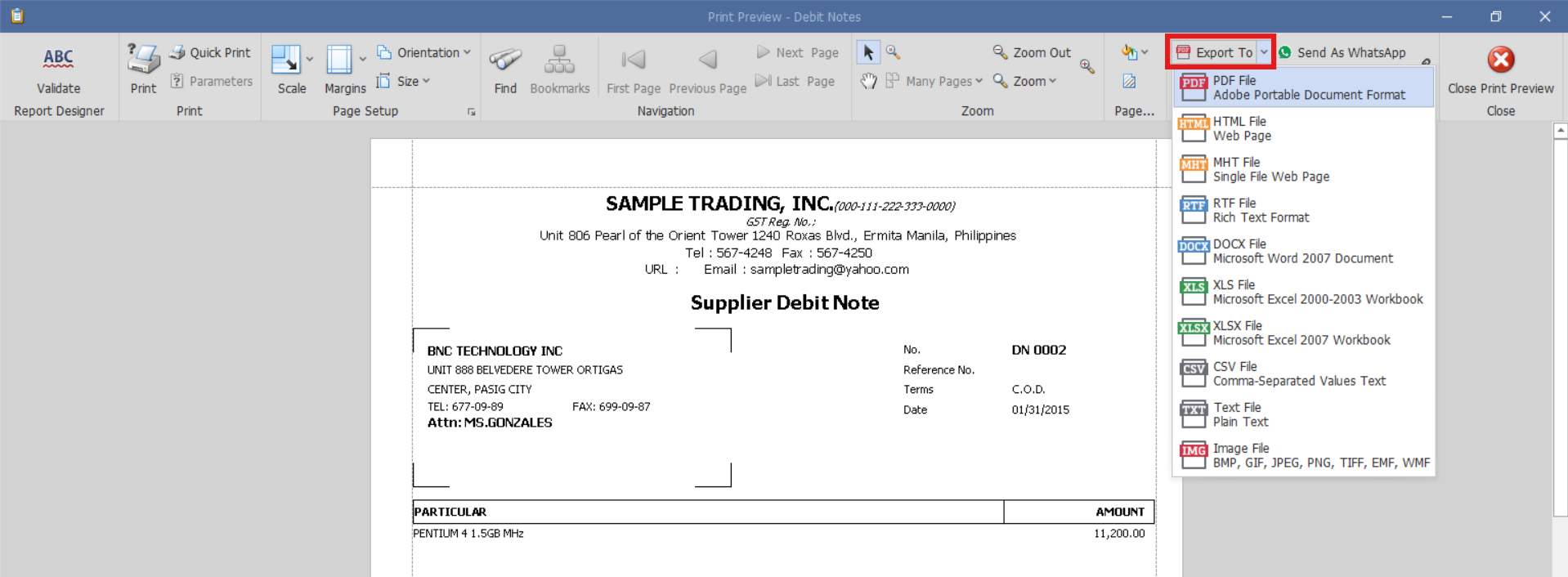
Procedure 2: Editing a Supplier Debit Note
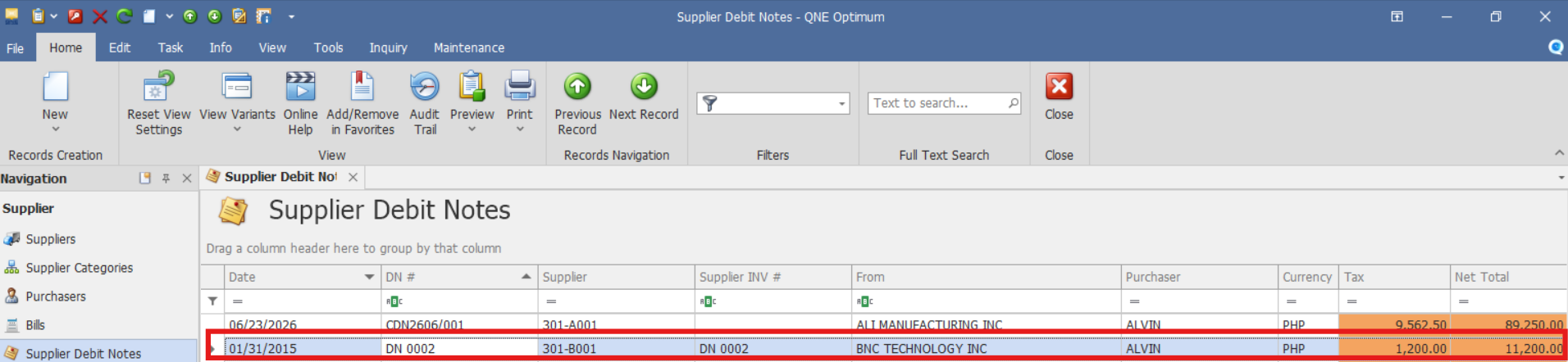
Go to Supplier > Supplier Debit Notes, then select the Doc # of the Supplier Debit Note that you want to update.
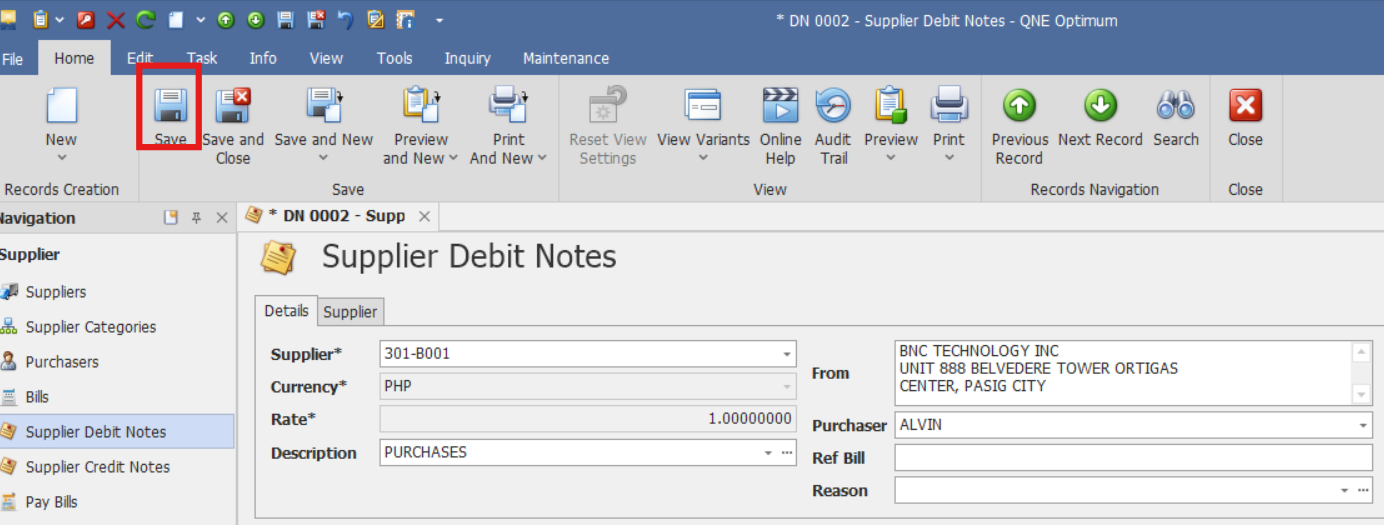
Once opened, apply necessary adjustments on the document. Click Save to implement changes.
Procedure 3: Deleting a Supplier Debit Note
In the Supplier Debit Note List View, identify the document you wish to delete. Hover your cursor over the document and right-click on it. Then click Delete to remove the transaction.
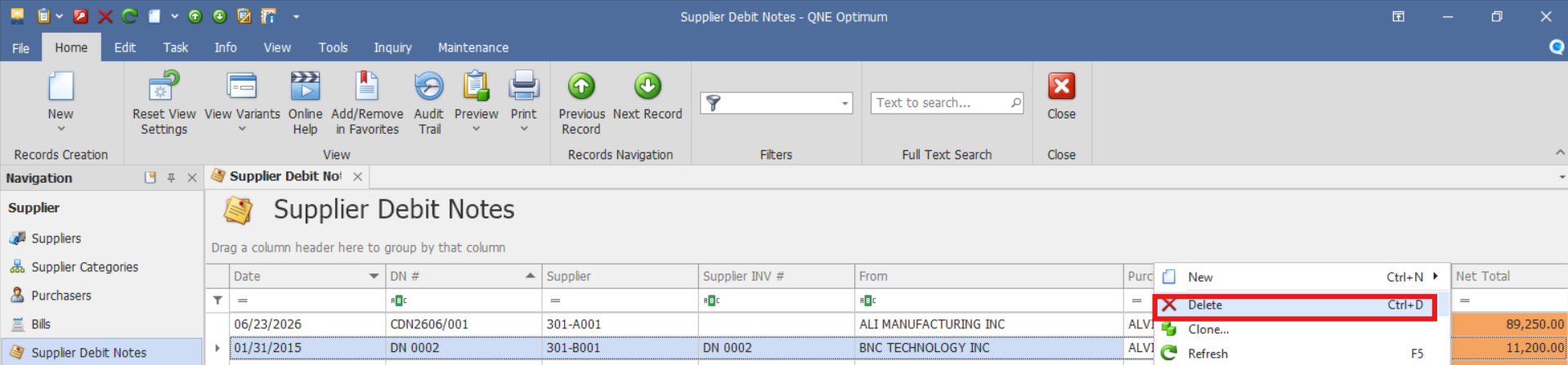
The document will be deleted in the Supplier Debit Note list.
Application:
Supplier Debit Notes can be used to:
Record additional amounts owed to suppliers.
Ensure complete and accurate accounts payable.
Maintain proper tracking of post-invoice adjustments.
Understanding that QNE Optimum treats supplier debit notes as additional liabilities helps ensure that your accounting entries align with your actual business obligations.
Important Notes:
Editing and Deleting Transactions: Editing and deletion permissions may be restricted based on system configuration, organizational policy, or applicable regulatory requirements (CAS Approval). It's vital to adhere to your company's internal policy regarding these functionalities. It is generally advisable to disable or limit the ability to edit/delete to maintain compliance with regulations.
System Scope: QNE Optimum
Was this article helpful?
That’s Great!
Thank you for your feedback
Sorry! We couldn't be helpful
Thank you for your feedback
Feedback sent
We appreciate your effort and will try to fix the article