Overview:
Managing supplier payments efficiently is a critical part of your accounting workflow. The Pay Bills module allows users to settle outstanding bills or APVs (Accounts Payable Vouchers) with ease. This guide provides a step-by-step process on how to create a Pay Bills transaction to help maintain accurate financial records and ensure seamless supplier payments.
Prerequisites:
The supplier has already been created.
Purchase Invoice or Bill Entry (APV) exists.
The user has permission to create Pay Bills.
Cash or Bank account is available for payment.
Scenario:
Your company has received goods and services from a supplier and already recorded the Purchase Invoice (APV). Now, it's time to settle the payment. You want to record the actual payment transaction in the system to reflect it accurately in your books and ensure that the APV is properly settled (knocked off).
Procedure 1: Recording a Pay Bill Transaction
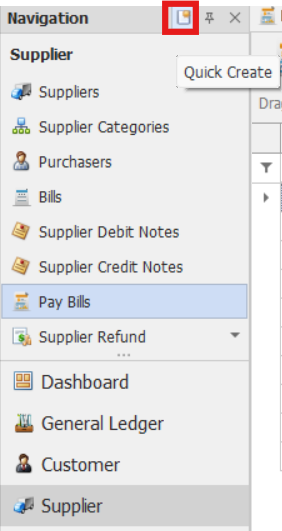
Go to Supplier > Pay Bills
Note: If the Quick Create Icon (the one inside the red box) is enabled, selecting Pay Bills opens the new Pay Bills transaction form. Otherwise, the Pay Bills List opens.
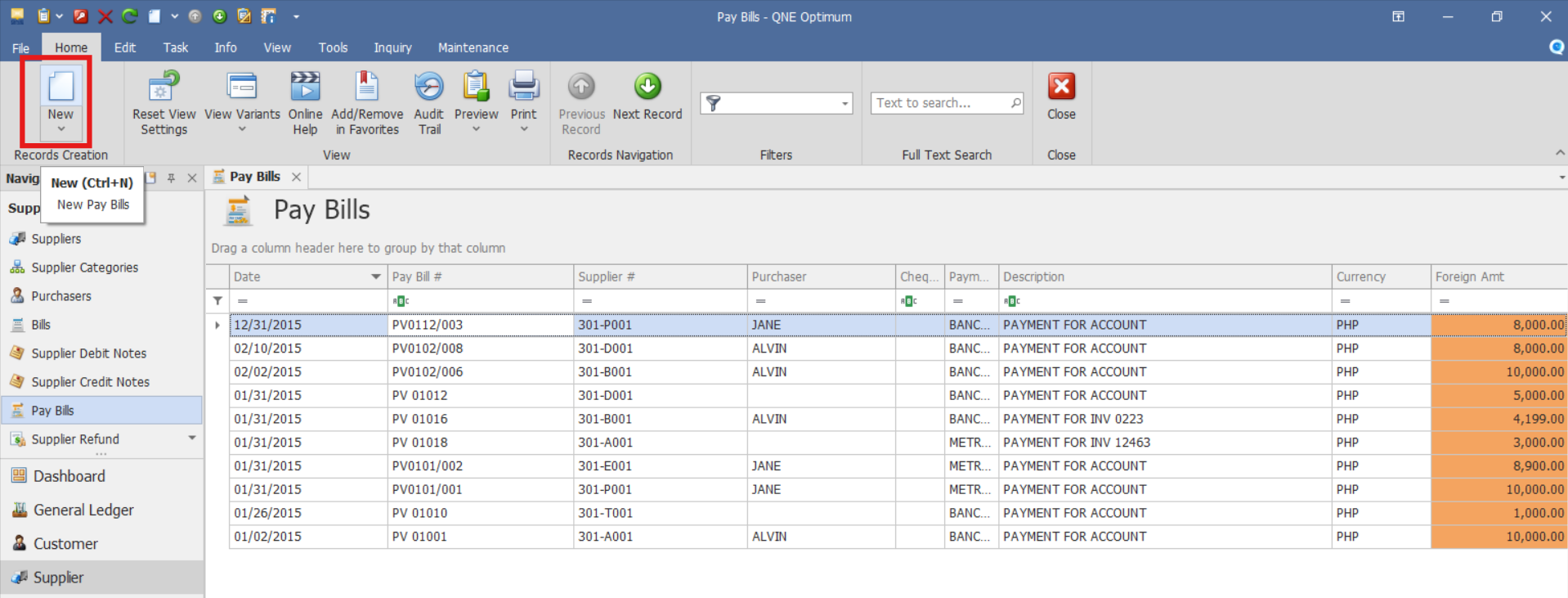
From there, select the New button to create a new Pay Bills transaction.
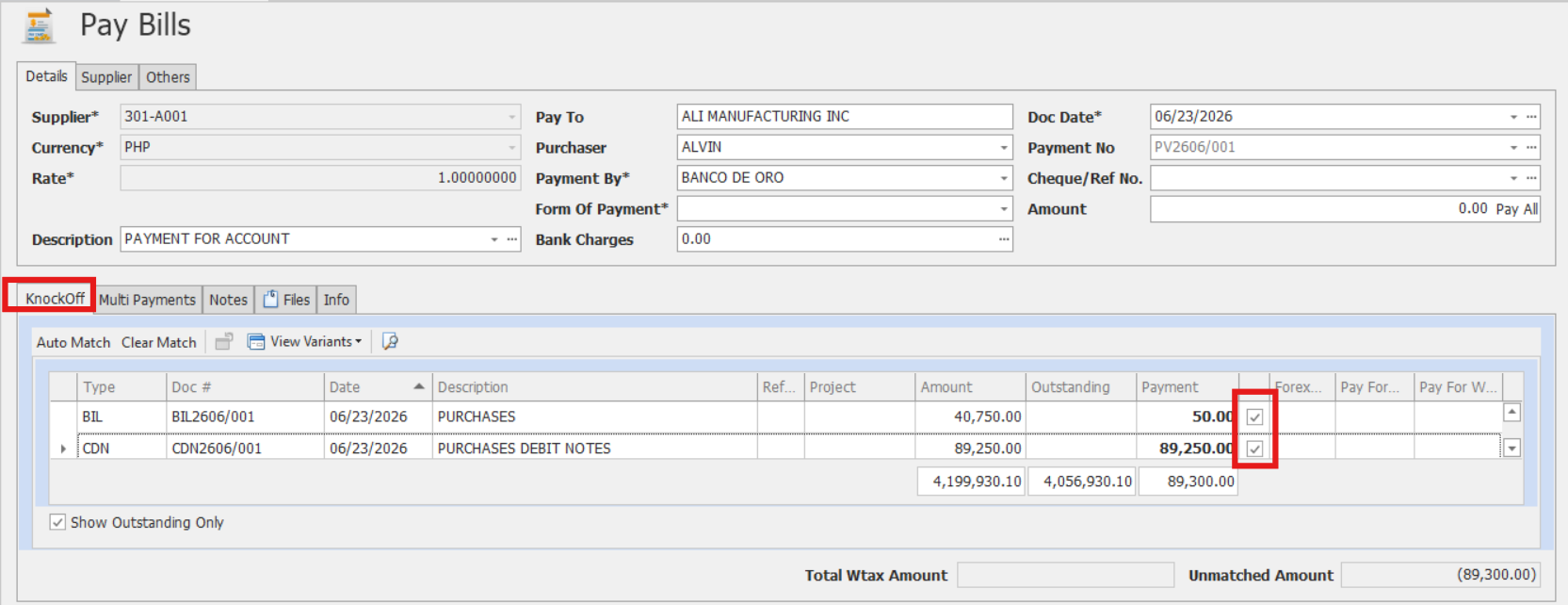
Complete the required fields in the transaction header.
In the header section, enter the required transaction information.
Supplier – Select the supplier whose outstanding bill or bills will be paid.
Doc Date – Date the payment transaction is recorded.
Cheque/Ref No. - Cheque number or external payment reference number
Payment No - Payment transaction reference number.
Amount - Total amount paid to the supplier. The Pay All option can automatically populate the full outstanding balance.
You may also enter additional information if applicable:
Description – Brief explanation of the payment transaction
Purchaser – Employee responsible for the purchase transaction.
Pay To – Displays the supplier's name and address after a supplier is selected.
Payment By - Select the cash or bank account from which the payment will be made.
Form of Payment - Specify the payment method used.
Bank Charges - Enter any bank fees incurred during the payment transaction, if applicable.

Under the Knock Off tab, The system displays a list of open APVs for the selected supplier. Select the Match checkbox beside each APV you want to pay or offset the bill being paid.
Note: If the Amount was not filled out initially in the transaction form. If the Amount field is left blank, the system prompts you to use the total unmatched amount as the payment amount.
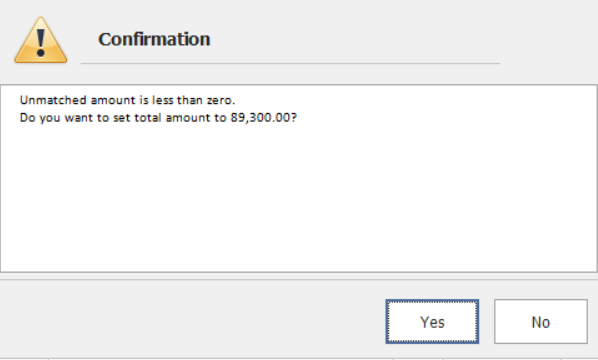
Click Yes to set the unmatched amount as the payment amount and save the transaction.

Preview the Payment Voucher.
After saving, click the Preview button to view the Payment Voucher Form.

This can be printed or exported as needed for documentation and audit.
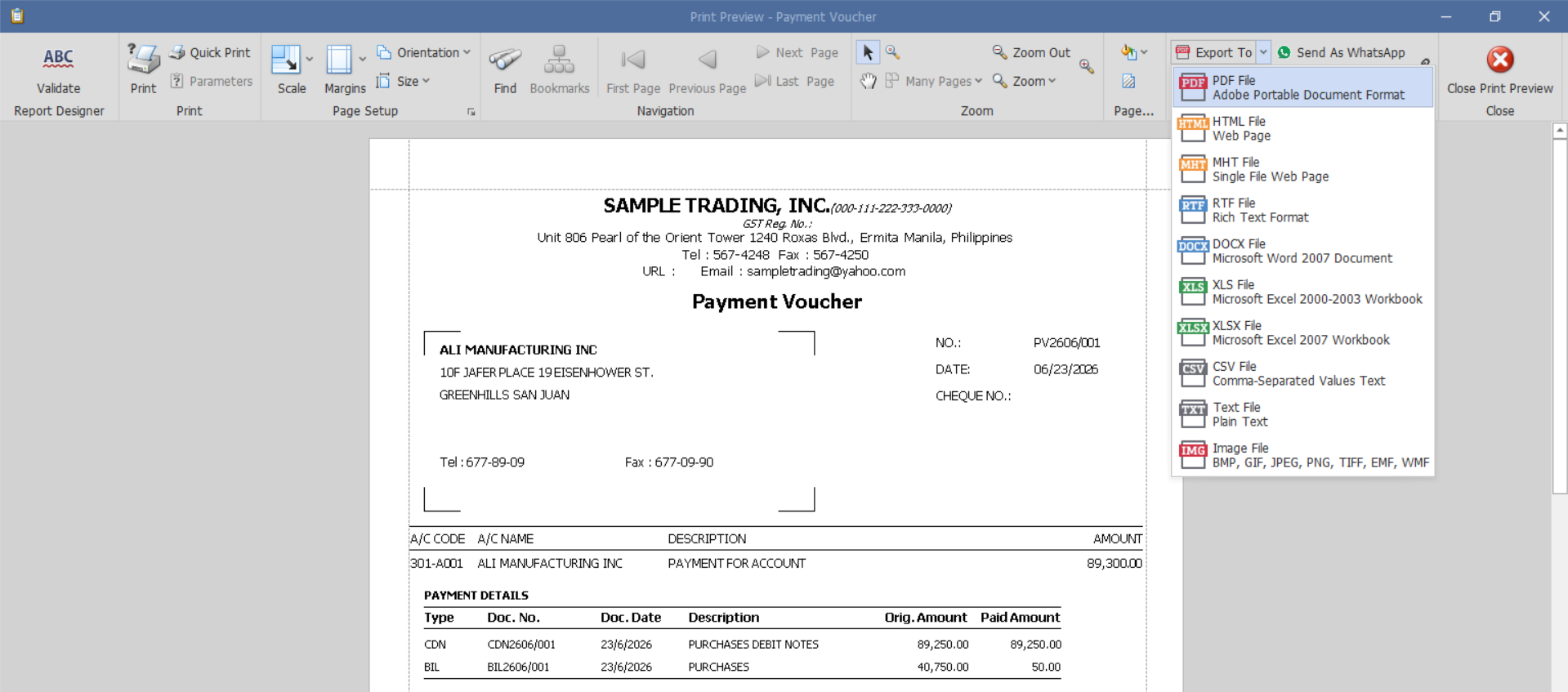
Verify all the recorded information and check if the selected APVs are marked as paid or have updated outstanding balances.
Procedure 2: Editing a Pay Bill
Go to Supplier > Pay Bills, then select the Doc # of the Pay Bill that you want to update.

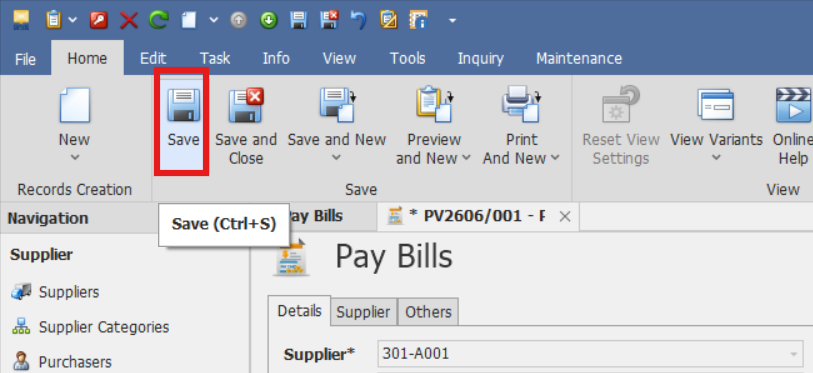
Make the required changes, then click Save.
Procedure 3: Deleting a Pay Bill
In the Pay Bills List View, identify the document you wish to delete. Hover your cursor over the document and right-click on it. Then click Delete to remove the transaction.

The document will be deleted in the Pay Bill list.
Application:
Pay Bills can be used to:
Record supplier payments against outstanding APVs.
Settle multiple supplier invoices in a single payment.
Maintain accurate Accounts Payable balances.
Generate Payment Vouchers for payment documentation.
Record payment details such as cheque numbers and payment methods.
Important Notes:
Editing and Deleting Transactions: Editing and deletion permissions may be restricted based on system configuration, organizational policy, or applicable regulatory requirements (CAS Approval). It's vital to adhere to your company's internal policy regarding these functionalities. Editing and deletion permissions should follow your organization's internal policies and any applicable regulatory requirements.
System Scope: QNE Optimum
Was this article helpful?
That’s Great!
Thank you for your feedback
Sorry! We couldn't be helpful
Thank you for your feedback
Feedback sent
We appreciate your effort and will try to fix the article