A Purchase Requisition (PR) is an internal document used by employees to formally request the purchase of goods or services before a Purchase Order is issued to a supplier. In QNE Optimum, creating a Purchase Requisition helps organizations maintain proper approval workflows, monitor purchasing needs, and ensure that procurement activities are properly documented before committing to suppliers.
This process helps improve visibility into purchasing requests and supports internal approval workflows.
This feature is typically used by department staff, purchasing officers, or managers who need to request items before procurement proceeds.
Scenario:
A department in the company needs to purchase office supplies such as printer ink and paper. Instead of immediately issuing a Purchase Order, the staff member creates a Purchase Requisition in QNE Optimum to submit the request for approval. Once approved, the purchasing team can proceed with issuing a Purchase Order to the selected supplier.
Procedure 1:
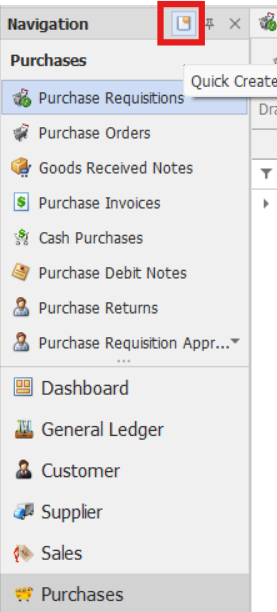
In the navigation pane, go to the Purchases > Purchase Requisitions
Note: If the Quick Create Icon (the one inside the red box) is highlighted, clicking Purchase Requisitions will immediately redirect you to the new Purchase Requisition transaction form. If the Quick Create Icon is not highlighted, you will be directed to the Purchase Requisitions Listing instead.
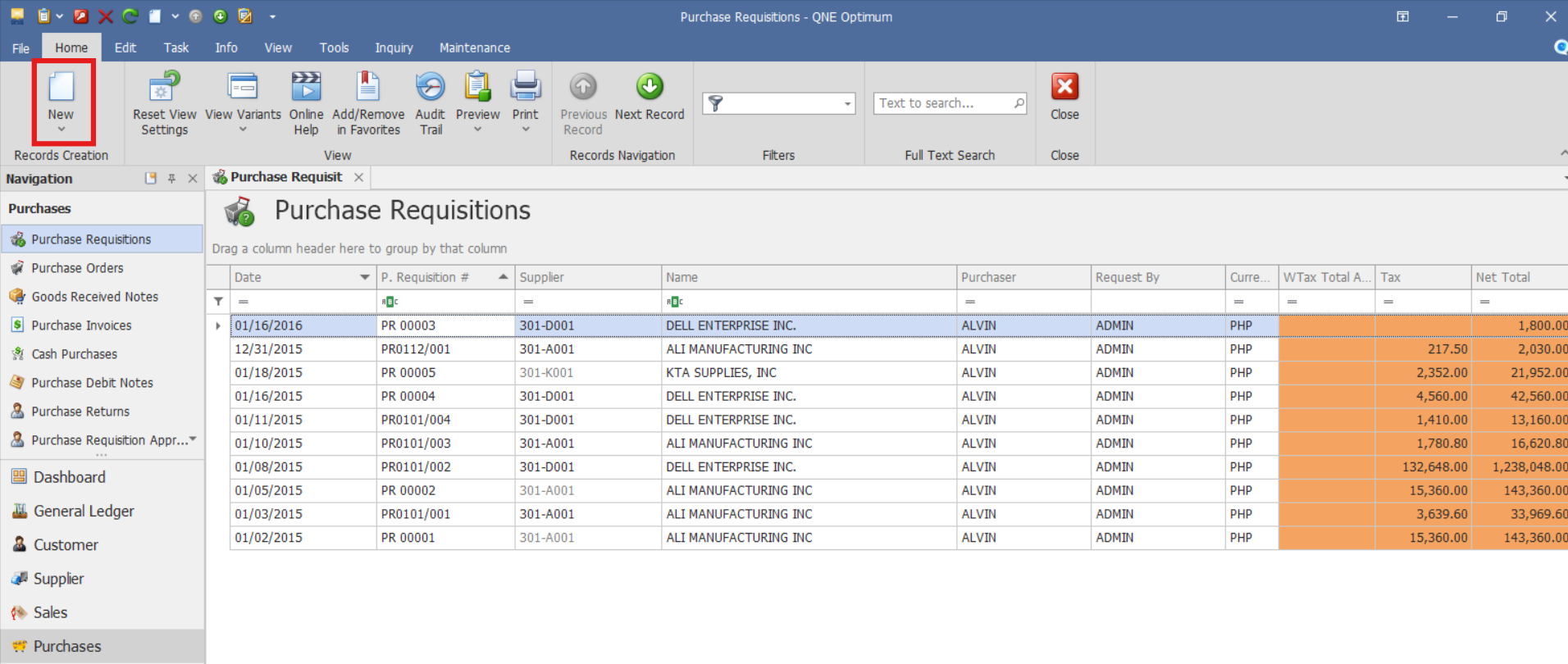
From there, select the New button to create a new Purchase Requisition transaction.
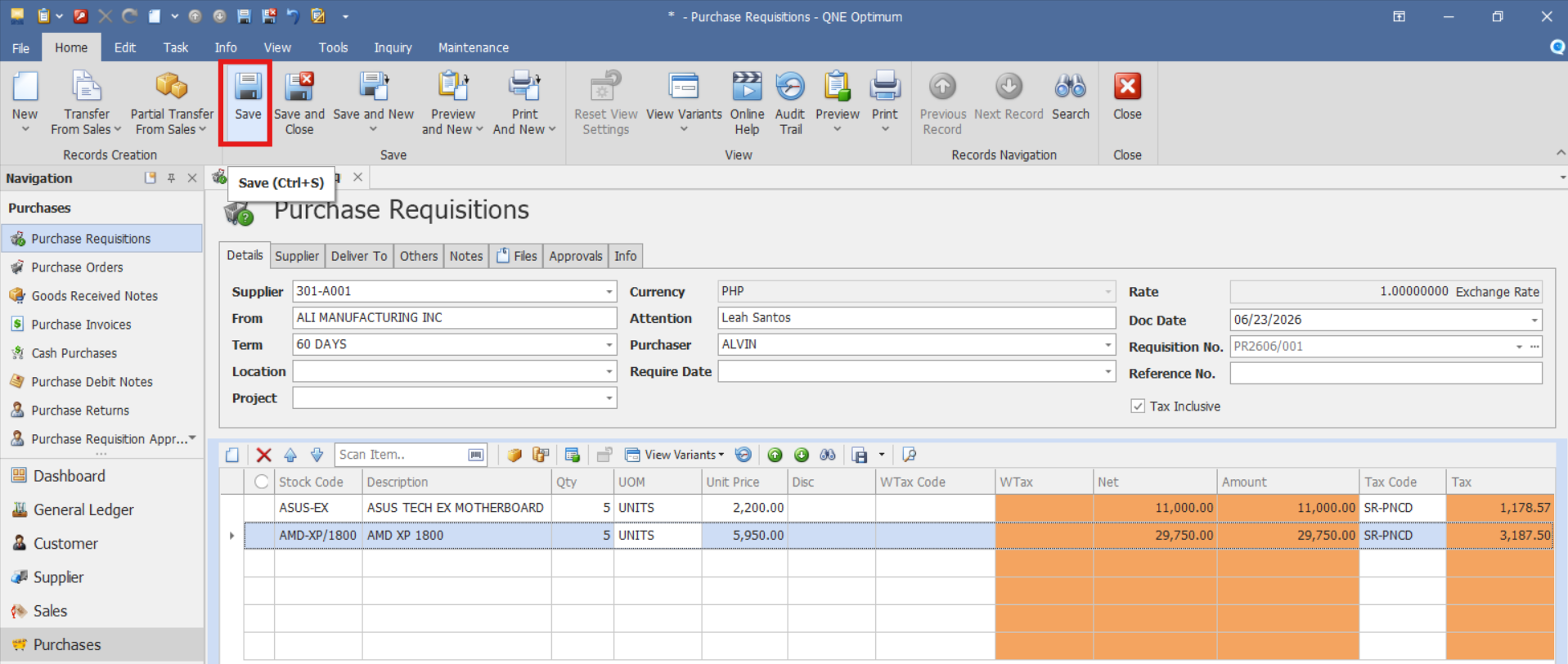
Enter the Requisition Details and the Requested Item/s:
Header Information
Select an existing supplier record when applicable. Alternatively, leave supplier information blank if supplier selection occurs later in the procurement process.
Document Date – Date the requisition is created.
Required Date – Date the items are needed.
Reference Number – Optional internal reference.
Indicate payment Term if known or required by your procurement process.
Details Information:
Select the Item Code or Item Name.
Enter the Quantity required.
Add a Description if additional details are needed.
Specify any remarks or special instructions for the request, if any.
Indicate Unit Price.
Tax Code and WTax Code can be tagged but their corresponding entry will be posted only upon transferring the document to Purchase Invoice
Verify that the item details, quantities, and required dates are correct before saving.
Click Save to record the requisition. The document can now be submitted for approval or used as a reference when creating a Purchase Order.
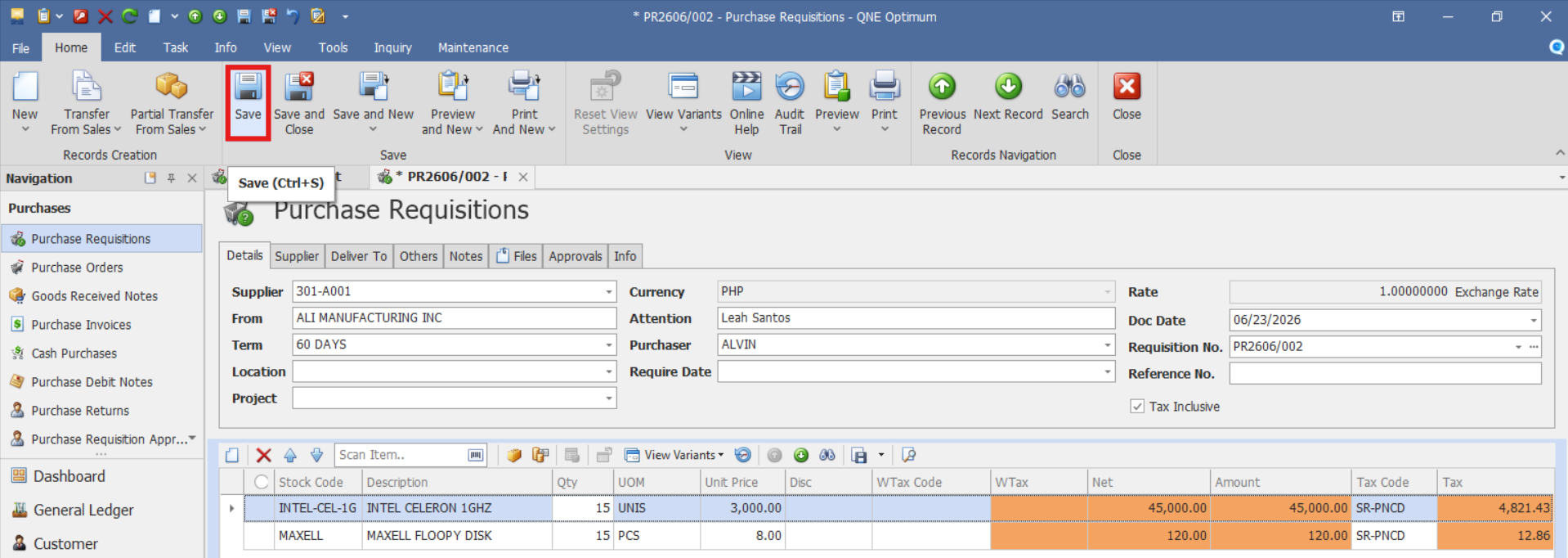
Procedure 2: Editing a Purchase Requisition
Go to Purchases > Purchase Requisitions, then select the Doc # of the Purchase Order that you want to update.

Once opened, apply necessary adjustments on the document. Click Save to implement changes.
Procedure 3: Deleting a Purchase Requisition
In the Purchase Requisition List View, identify the document you wish to delete. Hover your cursor over the document and right-click on it. Then click Delete to remove the transaction.

The document will be deleted in the Purchase Requisition list.
Application:
Example 1: Office Supply Request
The Administrative Department needs additional office supplies. A staff member creates a Purchase Requisition requesting:
5 boxes of A4 bond paper
2 units of printer ink
10 boxes of standard ballpoint pens.
The requisition is reviewed and approved by the purchasing manager before a Purchase Order is issued to the supplier.
Example 2: Equipment Replacement
The IT Department requires a replacement monitor for an employee workstation. The technician creates a Purchase Requisition specifying:
1 unit LED Monitor
Required within the week
After approval, the procurement team proceeds with vendor selection and generates the corresponding Purchase Order.
Example 3: Departmental Budget Control
A department requests materials for a project. By creating a Purchase Requisition first, management can review the request, confirm budget availability, and approve the purchase before any commitment is made with suppliers.
Example 4: Project Material Request
A project manager requires materials for a construction or operational project. By creating a Purchase Requisition, the request can be reviewed against the project budget before purchasing proceeds.
Important Note:
Editing and Deleting Transactions: Editing and deletion permissions may be restricted based on system configuration, organizational policy, or applicable regulatory requirements (CAS Approval). It's vital to adhere to your company's internal policy regarding these functionalities. It is generally advisable to disable or limit the ability to edit/delete to maintain compliance with regulations.
System Scope: QNE Optimum
Was this article helpful?
That’s Great!
Thank you for your feedback
Sorry! We couldn't be helpful
Thank you for your feedback
Feedback sent
We appreciate your effort and will try to fix the article