A Sales Debit Note is used to record an additional charge to a customer after a sales transaction has already been issued. It is typically created by finance or sales administrators when an invoice needs to be adjusted without canceling the original transaction. This may occur when an amount was undercharged, when additional services were provided, or when pricing adjustments are required after invoicing.
Creating a Sales Debit Note ensures that the correct amount is billed to the customer while maintaining accurate accounting records. The transaction increases the customer's outstanding balance, records the adjustment, and updates the relevant accounting entries.
Prerequisites
Customer record exists.
The original Sales Invoice exists if the debit note references a previous invoice.
Inventory items or service items have been created, if applicable.
Pricing and tax codes are configured, if applicable.
The user has permission to create Sales Debit Notes.
Scenario:
A company issued a Sales Invoice to a customer for the delivery of goods. After the invoice was sent, the finance team discovered that the delivery charges were not included in the original invoice.
Instead of canceling and reissuing the invoice, the company creates a Sales Debit Note to bill the customer for the missing delivery cost. This ensures the company recovers the additional charge while keeping the original invoice and audit trail intact.
Procedure 1: Creating a Sales Debit Note
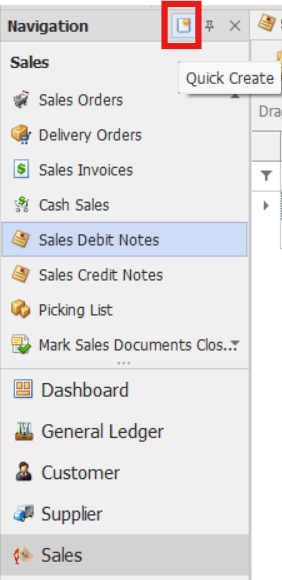
In the navigation pane click Sales > Sales Debit Notes
Note: If the Quick Create icon is enabled (the highlighted button in the red box), selecting Sales Debit Notes opens the new Sales Debit Note transaction form. Otherwise, the Sales Debit Note List opens.
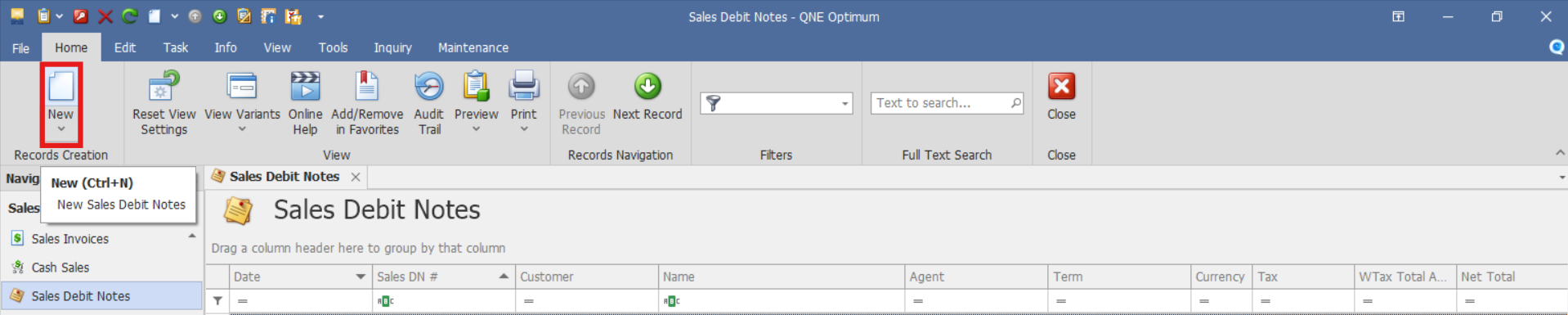
From there, select the New button to create a new Sales Debit Note transaction.
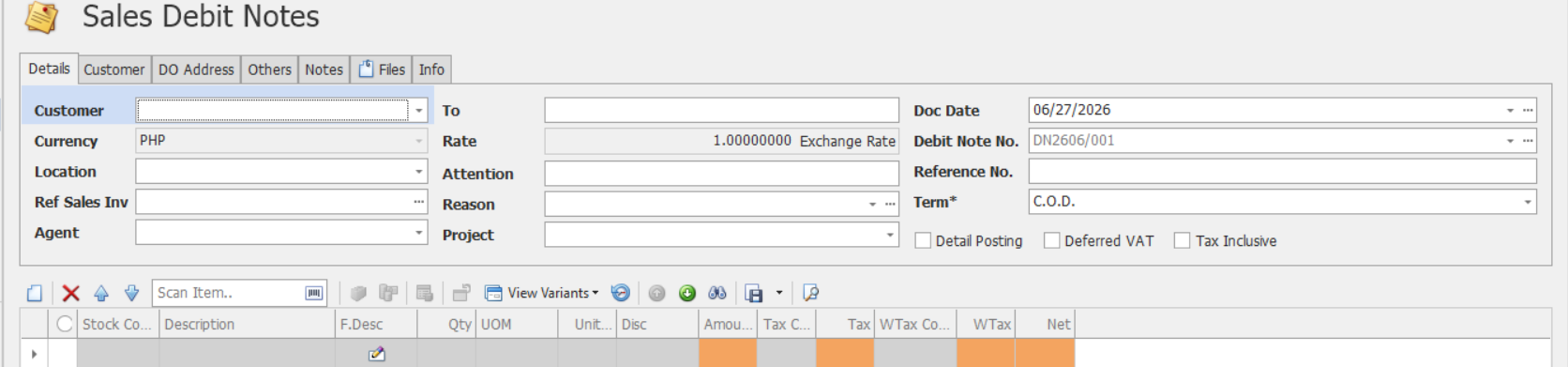
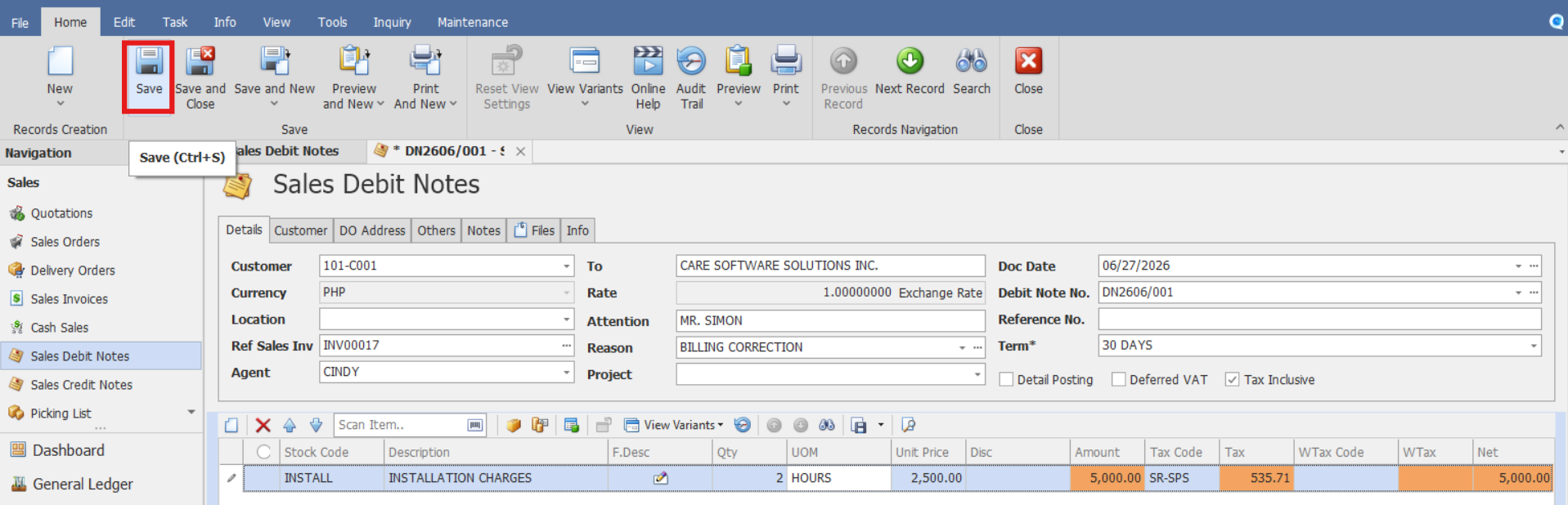
Complete the required fields in the sales debit note header.
Customer – Select the customer to be billed.
Delivery Term - Specifies the agreed delivery conditions, such as delivery location, shipping arrangements, or delivery instructions.
Term - Payment terms offered to the customer, such as C.O.D., 30 Days, or 60 Days.
Currency – Displays the transaction currency and exchange rate. Update the exchange rate if required.
Location – Warehouse, branch, or business location associated with the transaction.
Ref Sales Inv. - Reference to the original Sales Invoice being adjusted by the debit note.
Attention – Name of the customer contact associated with the debit note.
Agent - Salesperson or account manager responsible for the transaction.
Reason - Specifies the reason for issuing the debit note, such as price adjustment, additional service charges, or billing corrections.
Project - Project code associated with the sales debit note, if the sale is project-related.
Reference No. - Internal reference number used for tracking purposes, if applicable.
Doc Date– Date the sales debit note is created or issued.
Debit Note No. – Document number used to identify the sales debit note.
Tax Inclusive – Enable if prices include tax.
In the Details section, enter the item information
Stock Code – Stock code of the item.
Description – Automatically populated with the stock name once the Stock code is selected.
F.Desc – Additional details about the item if needed.
QTY – Quantity of the item being charged to the customer.
UOM - Unit of Measure (e.g., pcs, boxes, liters).
Unit Price - Selling price per unit.
Disc – Any Discount applied.
Stock Location - Warehouse, branch, or business location associated with the transaction.
Tax Code - Tax code assigned to the sales debit note item, if applicable.
WTAX Code - Withholding tax code assigned to the sales debit note item, if applicable.
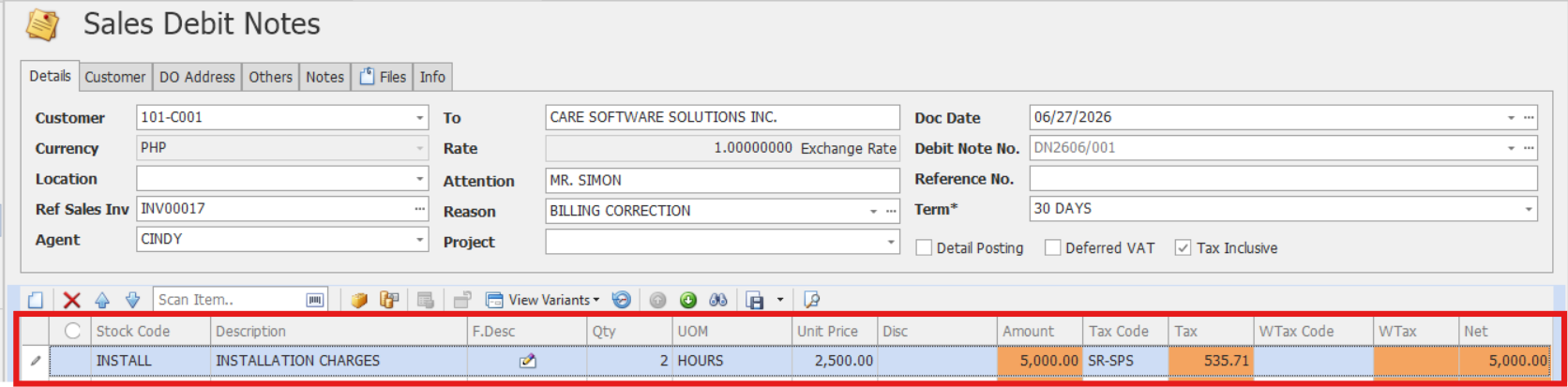
Confirm that the totals are calculated correctly and reflect all adjustments. Then proceed by clicking Save.
Optional Steps:
The Others and Notes tabs can be used to enter additional remarks or references related to the sales debit note.

The Files tab can be used to attach supporting documents from your workstation.

The Info tab displays:
document creation timestamp,
user who created the document,
print history information.

Procedure 2: Validation of Recorded Sales Debit Note
After saving the transaction, verify if:
The sales debit note is saved successfully.
The sales debit note number is generated or displayed correctly.
The totals reflect the entered pricing, discounts, and taxes.
Verify that the Sales Debit Note appears in the Sales Debit Notes List.
Procedure 3: Editing a Sales Debit Note
Go to Sales > Sales Debit Notes, then select the Doc # of the Sales Debit Note that you want to update.

Once opened, make the required changes, then click Save.
Procedure 4: Deleting a Sales Debit Note
In the Sales Debit Notes List View, identify the document you wish to delete. Hover your cursor over the document and right-click on it. Then click Delete to remove the transaction.

Verify that the Sales Debit Note no longer appears in the Sales Debit Notes List.
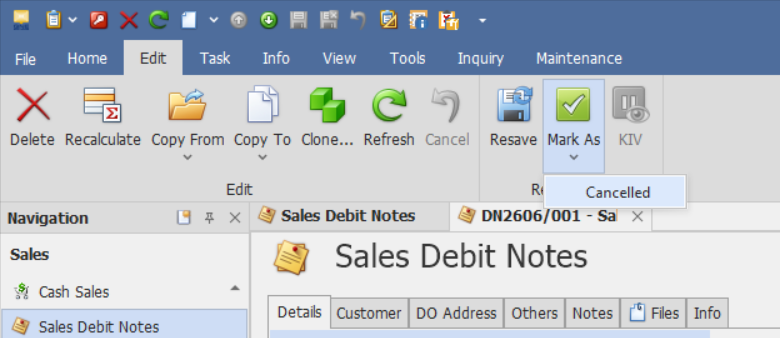
Preferred Method: If the Sales Debit Note is no longer required, click Cancel instead. This preserves the transaction history while marking it as inactive.
Application:
Sales Debit Notes can be used to:
Correcting undercharged invoices when the original sales transaction did not include the full amount billed to the customer.
Billing additional services, fees, or adjustments that were identified after the original invoice was issued.
Correcting pricing discrepancies caused by incorrect item pricing, discount calculations, or omitted charges.
Applying post-sale billing adjustments required by contract terms, service agreements, or updated pricing conditions.
Maintaining accurate financial records by documenting post-sale billing adjustments without canceling or modifying previously issued invoices.
Important Notes:
Editing and Deleting Transactions: Editing and deletion permissions may be restricted based on system configuration, organizational policy, or applicable regulatory requirements (such as CAS approval, where applicable). Ensure modifications and deletions follow your organization's internal policies and applicable regulatory requirements.
System Scope: QNE Optimum
Was this article helpful?
That’s Great!
Thank you for your feedback
Sorry! We couldn't be helpful
Thank you for your feedback
Feedback sent
We appreciate your effort and will try to fix the article