The Cash Purchase transaction is used to record purchases of goods or inventory that are paid immediately using cash or a bank account. Unlike a Purchase Invoice, which creates an outstanding payable, a Cash Purchase records both the purchase and the payment in a single transaction.
This transaction is typically used when a company buys items from a maintained supplier and settles the payment at the time of purchase.
In QNE Optimum, the Cash Purchases form captures the supplier, purchased inventory items, and the payment account used. Once saved, the system automatically:
Updates inventory quantities
Records the purchase value
Reduces the selected cash or bank account
Key benefit:
Recording cash purchases properly ensures accurate inventory valuation, expense tracking, and cash flow monitoring.
Scenario:
Your company purchases 10 units of printer toner from ABC Office Supplies worth ₱2,500 and pays for the items immediately using Cash on Hand.
Since the payment is made at the time of purchase and there is no outstanding payable, the transaction should be recorded using the Cash Purchase form. This ensures the inventory quantity is updated and the payment is recorded in the selected cash account.
Procedure 1: Recording a Cash Purchase
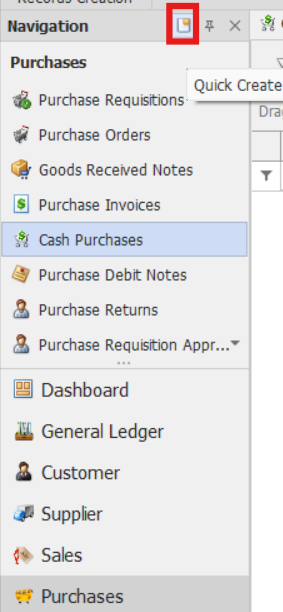
In the Navigation Pane, go to Purchases > Cash Purchases.
Note: If the Quick Create Icon (the one inside the red box) is highlighted, clicking Cash Purchases will immediately redirect you to the new Cash Purchases transaction form. If the Quick Create Icon is not highlighted, you will be directed to the Cash Purchase Listing instead.
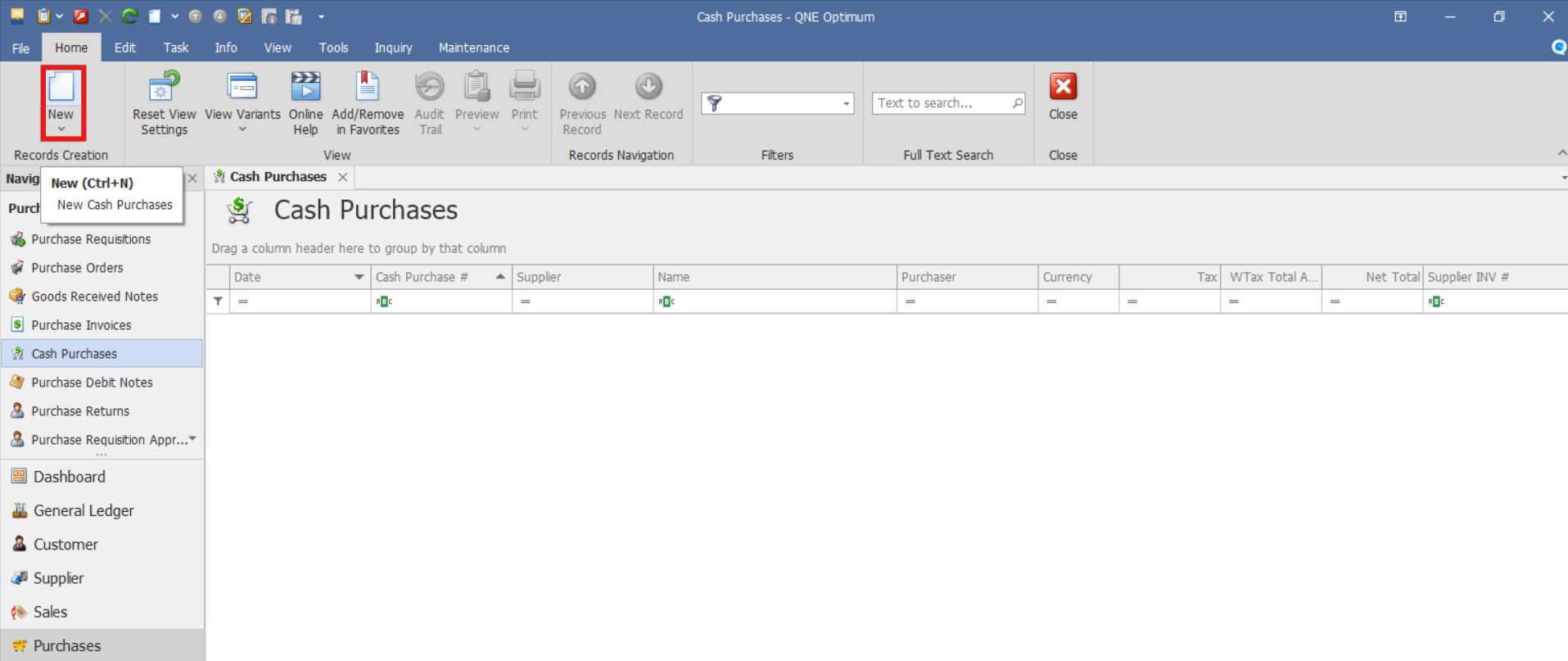
From there, select the New button to create a new Cash Purchase transaction.
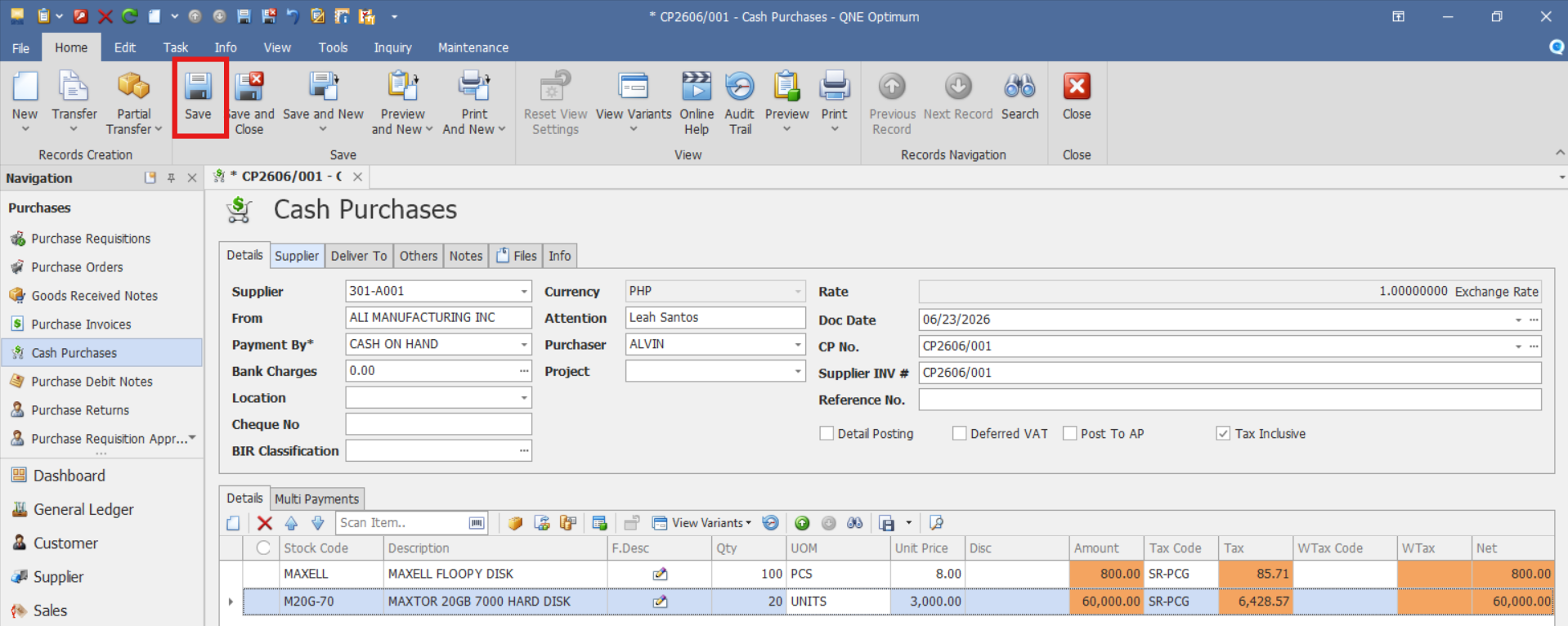
Enter the necessary information:
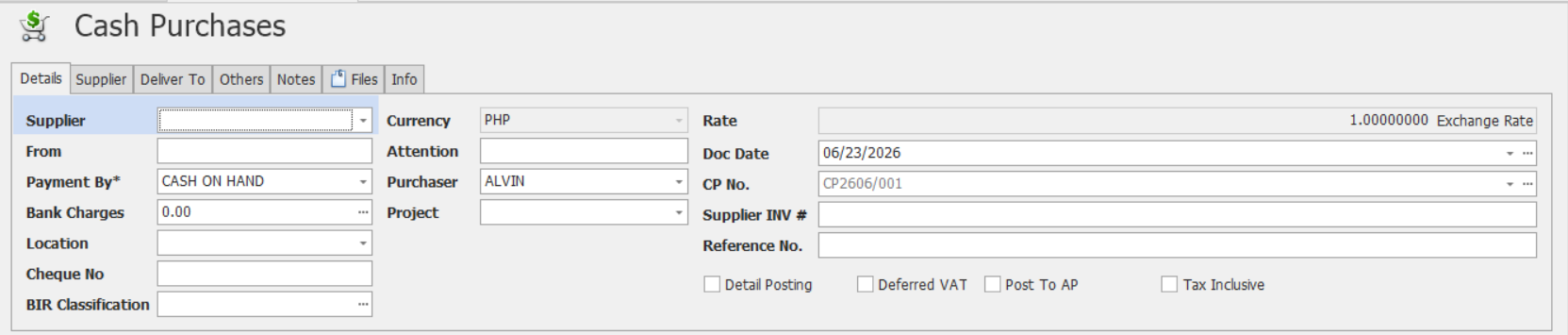
In the header section, enter the required transaction information.
Supplier – Select the supplier from whom the items were purchased.
Doc Date – Date the cash purchase transaction is recorded.
CP No. - Unique Cash Purchase document number.
Payment By - Select the account or payment method used to settle the purchase immediately, such as Cash on Hand or Bank Account.
You may also enter additional information if applicable:
Bank Charges – Additional bank fees incurred when payment is made through banking facilities.
Cheque No – Cheque number used if payment is made by cheque.
BIR Classification – Use this field only if the transaction requires BIR reporting information.
Location – Select the warehouse or inventory location for the purchased items.
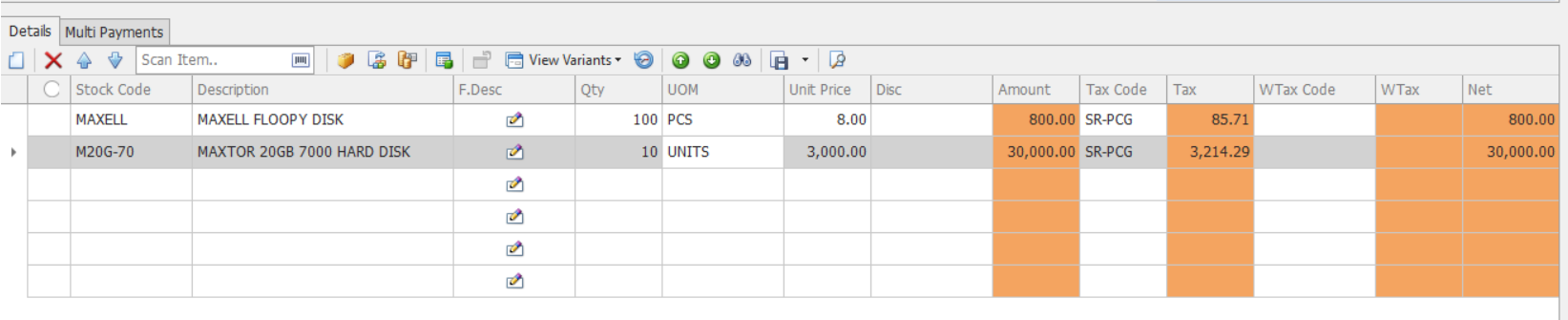
Under the Details tab, enter the purchased item details:
Stock Code – Stock code of the item.
Description – Automatically populated with the stock name once the Stock code is selected.
F.Desc – Additional details about the item if needed.
QTY – Quantity being purchased.
UOM - Unit of Measure (e.g., pcs, boxes, liters).
Unit Price - Cost per unit.
Disc – Any Discount applied.
Tax - Tax rate, if applicable.
WTAX - Withholding tax, if applicable.
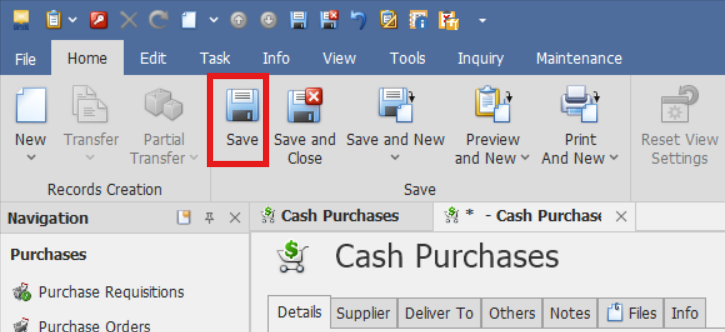
Verify the Total Amount and transaction details, then click Save.
Procedure 2: Editing a Cash Purchase
Go to Purchases > Cash Purchases, then select the Doc # of the Cash Purchase that you want to update.

Once opened, apply necessary adjustments on the document. Click Save to implement changes.
Procedure 3: Deleting a Cash Purchase
In the Cash Purchases List View, identify the document you wish to delete. Hover your cursor over the document and right-click on it. Then click Delete to remove the transaction.

The document will be deleted in the Cash Purchases list.
Application:
Cash Purchases can be used to:
Record immediate inventory purchases — Capture purchases that are paid immediately without creating accounts payable.
Maintain accurate inventory records — Ensure stock quantities are updated as soon as items are purchased.
Track cash outflows — Record purchases that directly affect cash or bank balances.
Improve purchasing transparency — Maintain clear documentation of supplier purchases settled immediately.
Support audit and compliance requirements — Keep traceable records of supplier transactions and payments.
Enhance financial reporting accuracy — Ensure inventory valuation and cash balances remain accurate.
Important Notes:
Editing and Deleting Transactions: Editing and deletion permissions may be restricted based on system configuration, organizational policy, or applicable regulatory requirements (CAS Approval). It's vital to adhere to your company's internal policy regarding these functionalities. It is generally advisable to disable or limit the ability to edit/delete to maintain compliance with regulations.
System Scope: QNE Optimum
Was this article helpful?
That’s Great!
Thank you for your feedback
Sorry! We couldn't be helpful
Thank you for your feedback
Feedback sent
We appreciate your effort and will try to fix the article